One Home Screen for the Office Door and the Bedroom Light
Brivo had two apps for the same building. Brivo Mobile Pass (BMP) lets employees and residents open doors with their phone, without friction. Brivo Smart Home (BSH) gives residents access to the entire building, from the garage to the apartment door, and lets them manage the smart amenities in their apartment. Brivo, which builds cloud-based access control, planned to bring BSH’s functions into BMP to make one unified experience. The hard part is who that one app has to serve: an employee on their way through the office door, and a resident with lights, a thermostat and sensors to control at home.
Impact
Merged smart home controls into the door-access app
I designed how Brivo Smart Home’s features live inside Brivo Mobile Pass, for office employees and apartment residents alike.
Aligned product, marketing and engineering around one design
I worked with the design director, a senior designer, the product manager and engineers, and turned the product and marketing teams’ reviews into design requirements with the PM.
Passed the accessibility test with the new UI
The new UI fixed the accessibility issues found in the old app, such as color contrast and readability, and passed the accessibility test.
Built for opening doors, now asked to run a home
BMP was built around opening doors. Smart home brings in devices that each work differently, and users who may have one door or hundreds.
How might we expand BMP to smart home services that work for multiple personas?
Product design goals
- Fix the app’s accessibility issues and visual inconsistencies.
- Create a modern, fully interactive interface that builds trust with clients.
- Unify the new services in one app to reach their business potential.
Neither app was built for the other’s users
App critique
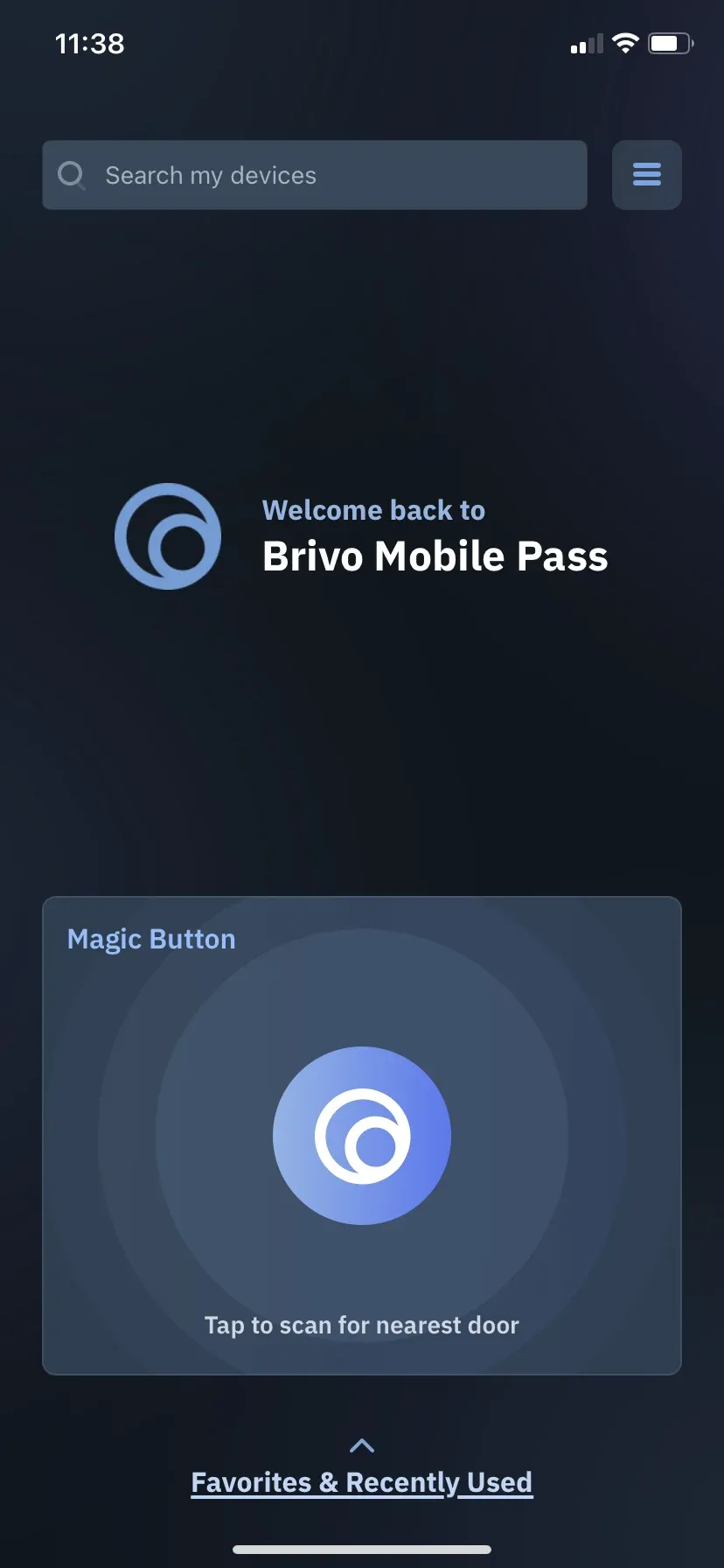
- 1Unnecessary messagingUsers are confused when they land on the home page, because they expect to see their doors.
- 2The magic button adds too much visual weight
- 3Doors aren’t discoverable
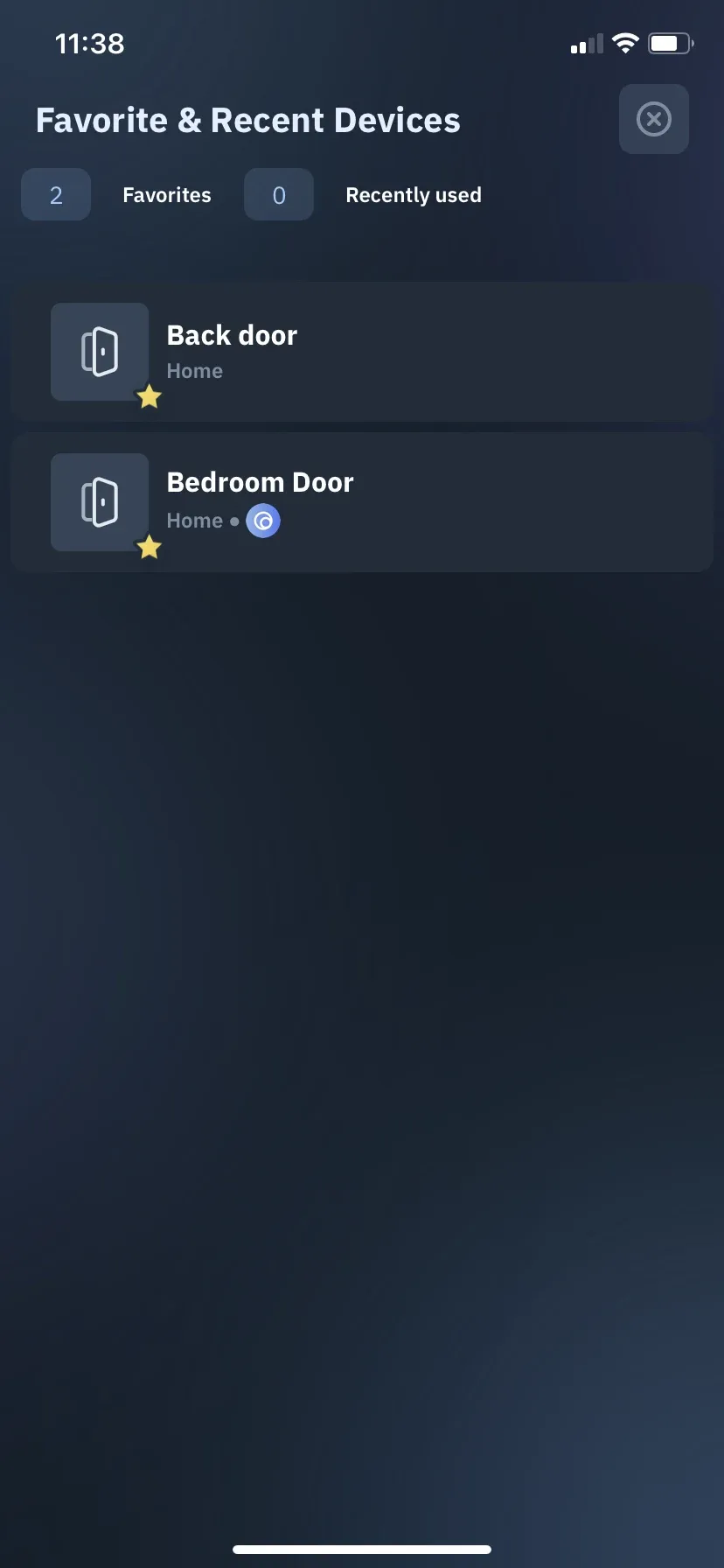
- 4No obvious way to favorite doors
- 5No way to filter doorsUsers with hundreds of doors across different sites can’t narrow them down.
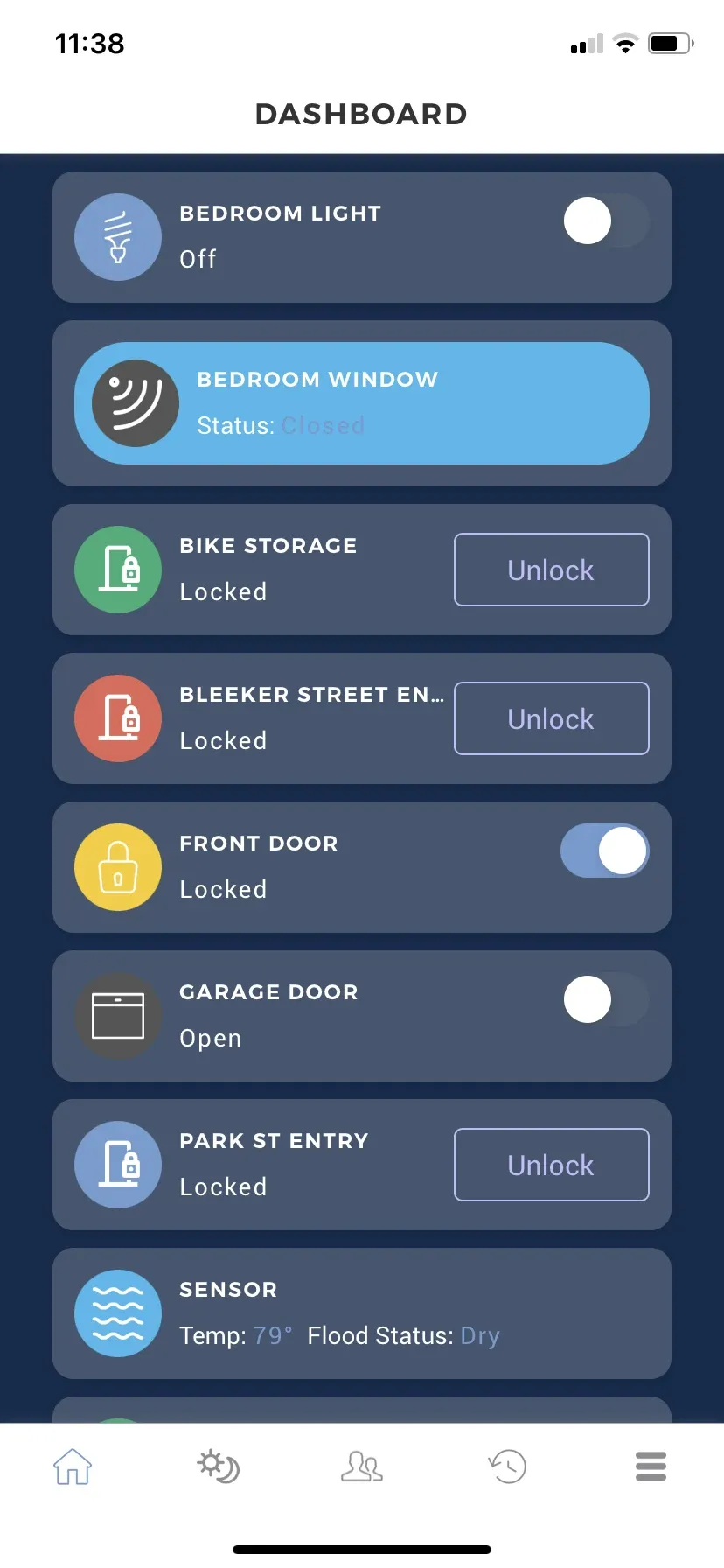
- 6Inconsistent UI, mixed colors and non-standard components
- 7Devices are hard to tell apart
- 8Different types of buttons
Takeaways
- A static welcome-back message and hard-to-find sites and doors make BMP difficult to use.
- Nothing takes care of super users with hundreds of doors, or other edge cases.
- The BSH app lacks visual hierarchy and consistent UI, which makes it feel chaotic.
Functional design requirements
- Understand why my doors are disabled (Bluetooth or internet off)
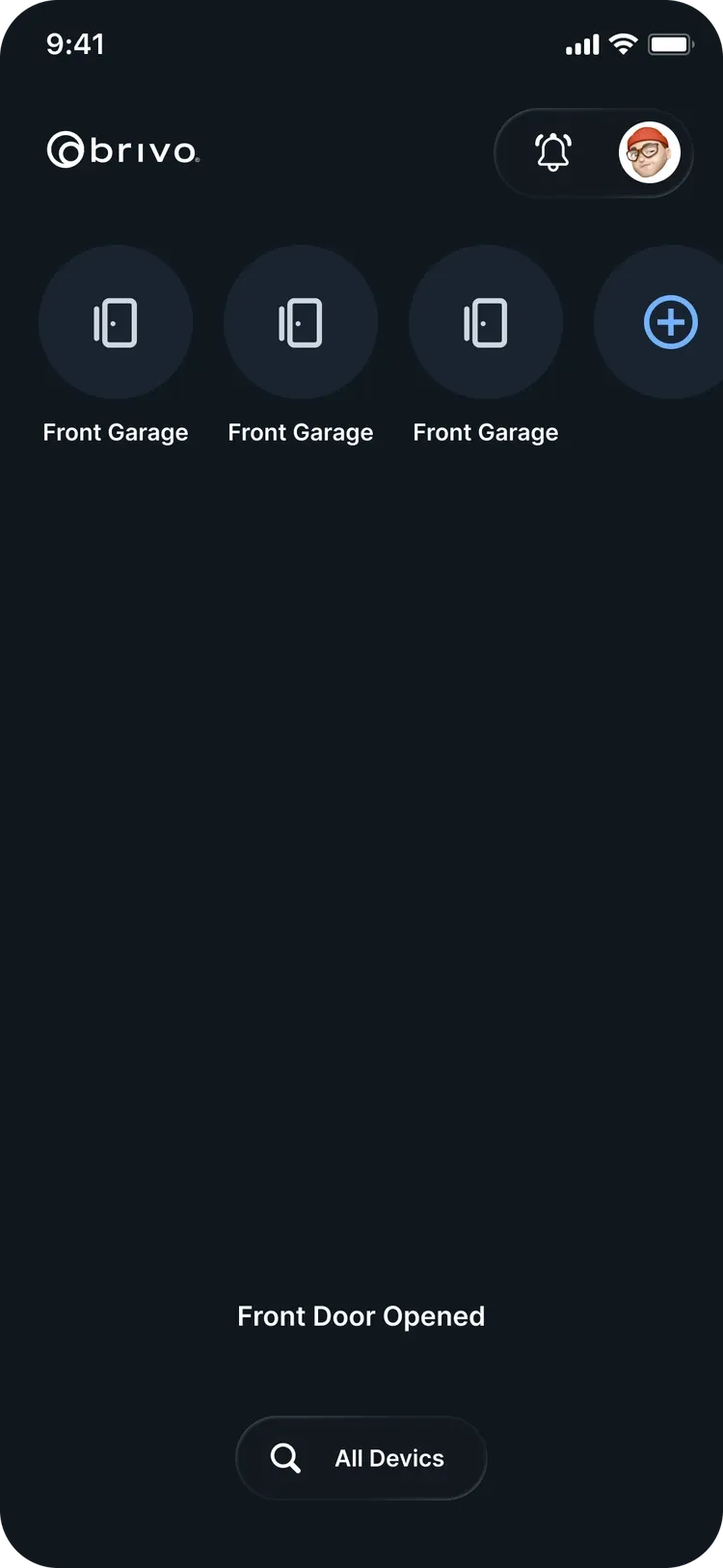
- Know when a door opens with the magic button
- Know when a door opens with its door block
- Understand why a door fails to open with the magic button
- Understand why a door fails to open with its door block
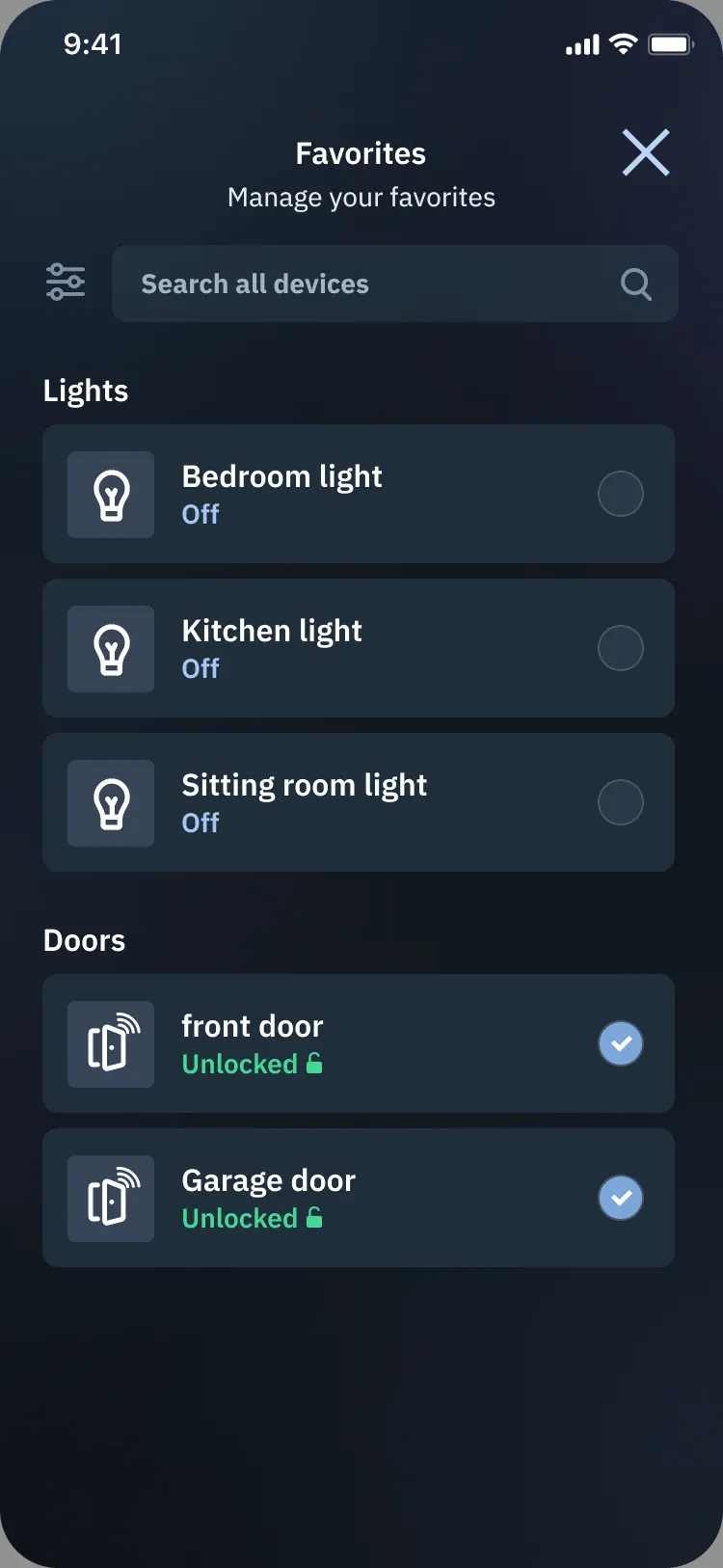
- Add a door to favorites
- Light dimmerTurn the light on or offControl the dimness
- Door sensorShow the status: closed or openShow the battery
- Light switchTurn the light on or off
- Temperature and flood sensorShow the temperatureShow the flood statusShow the battery percentage
- Garage doorOpen or close the door
- Any deviceAdd it to favorites
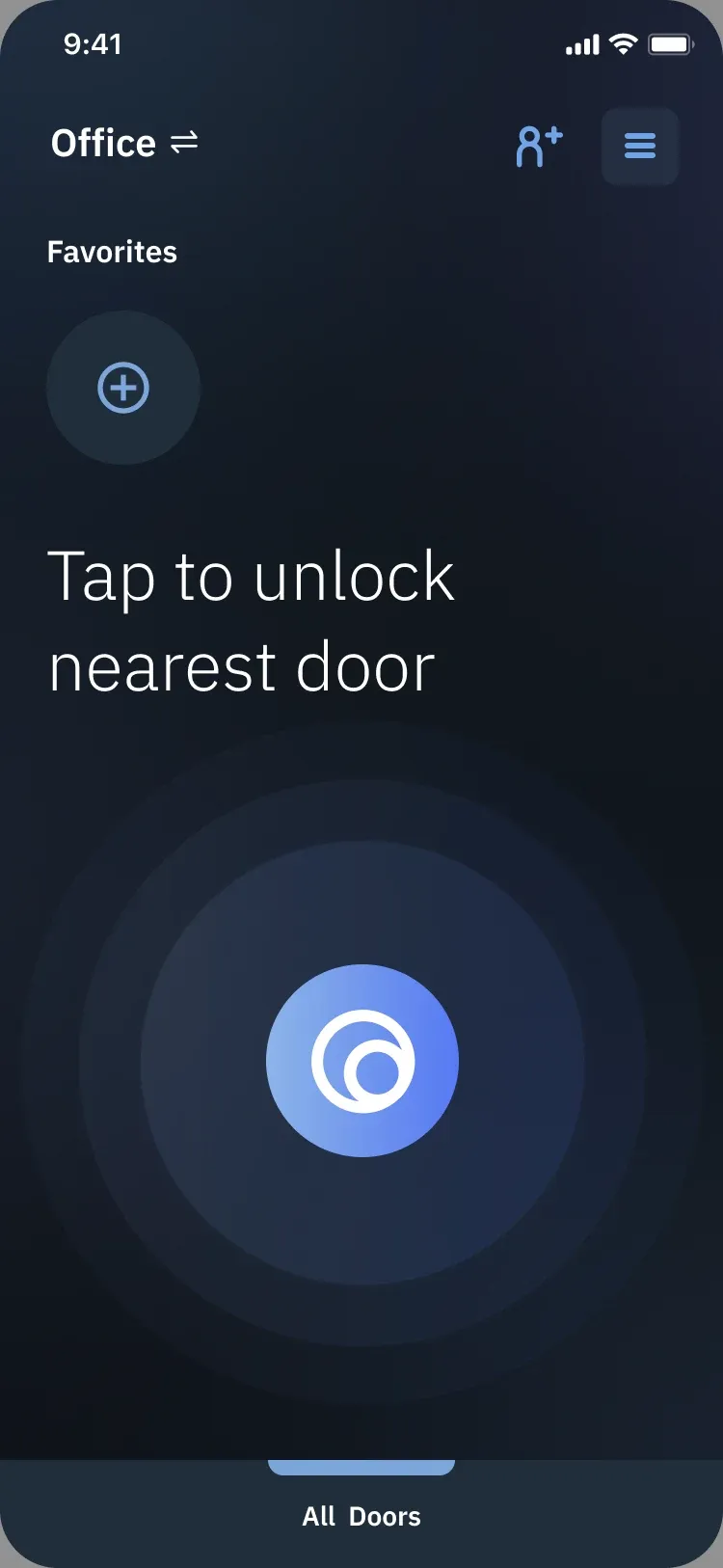
- Open the nearest door
- Understand why my magic button is disabled (Bluetooth off)
Analysis of use cases
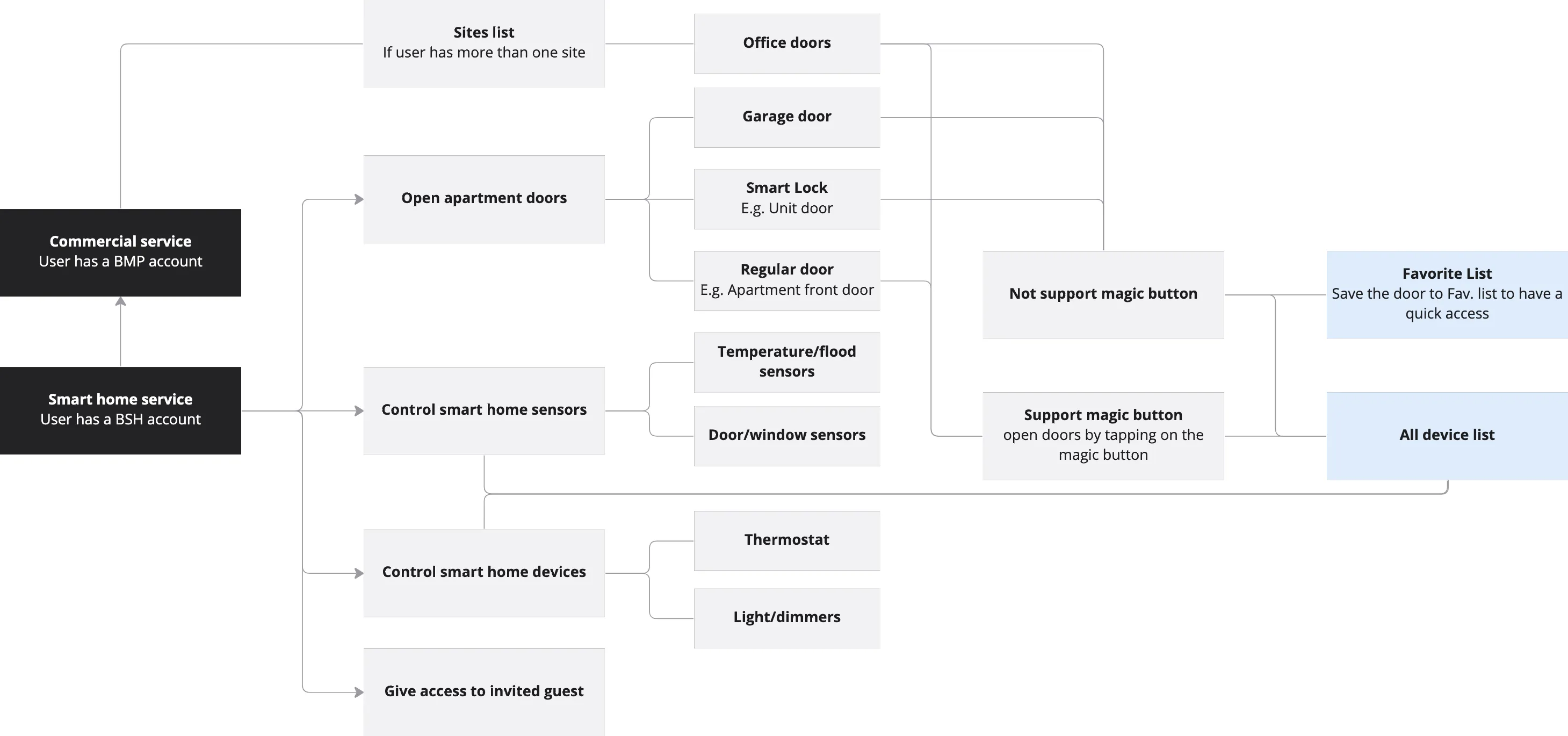
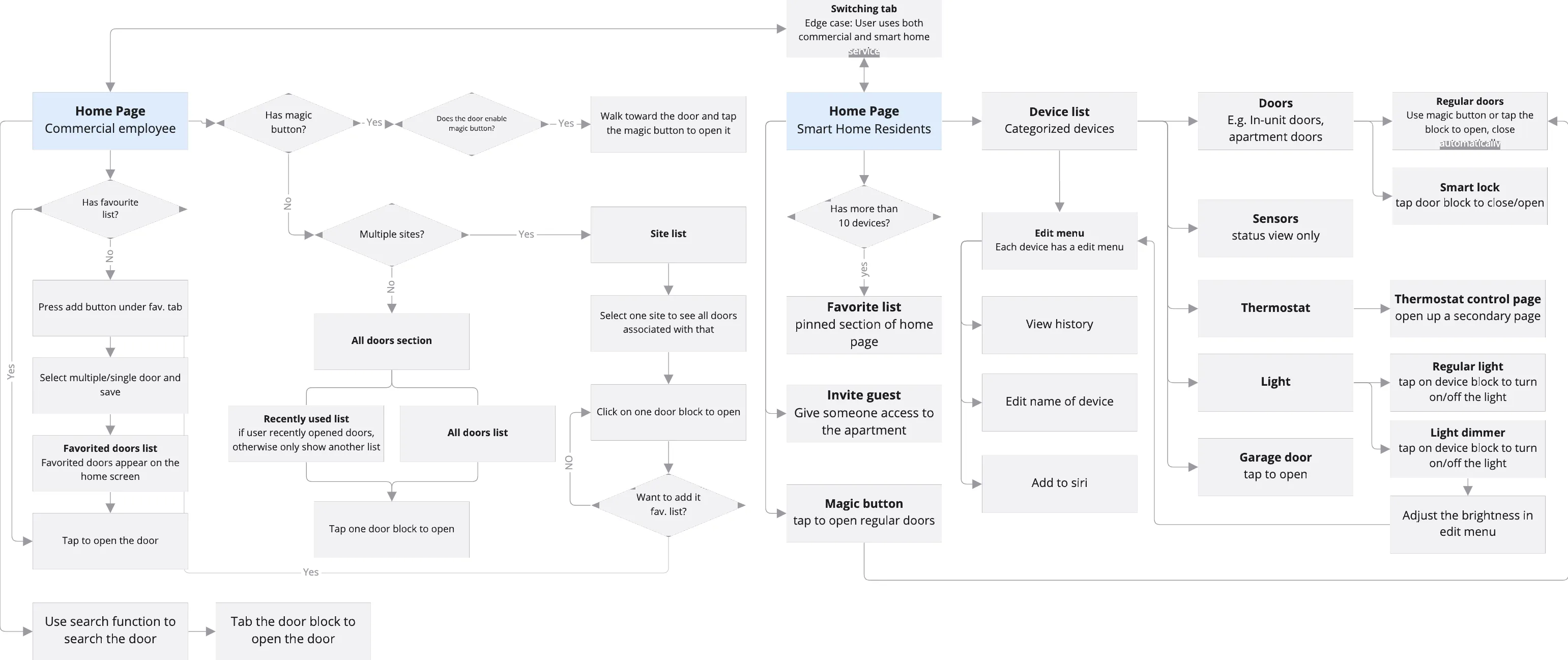
Office doors and home devices don’t belong in one list
Initial design mind map
Sketching & wireframing
After confirming the functional requirements with the product manager, I worked with a senior designer to create the wireframes. I was solely responsible for the wireframes for smart home users.
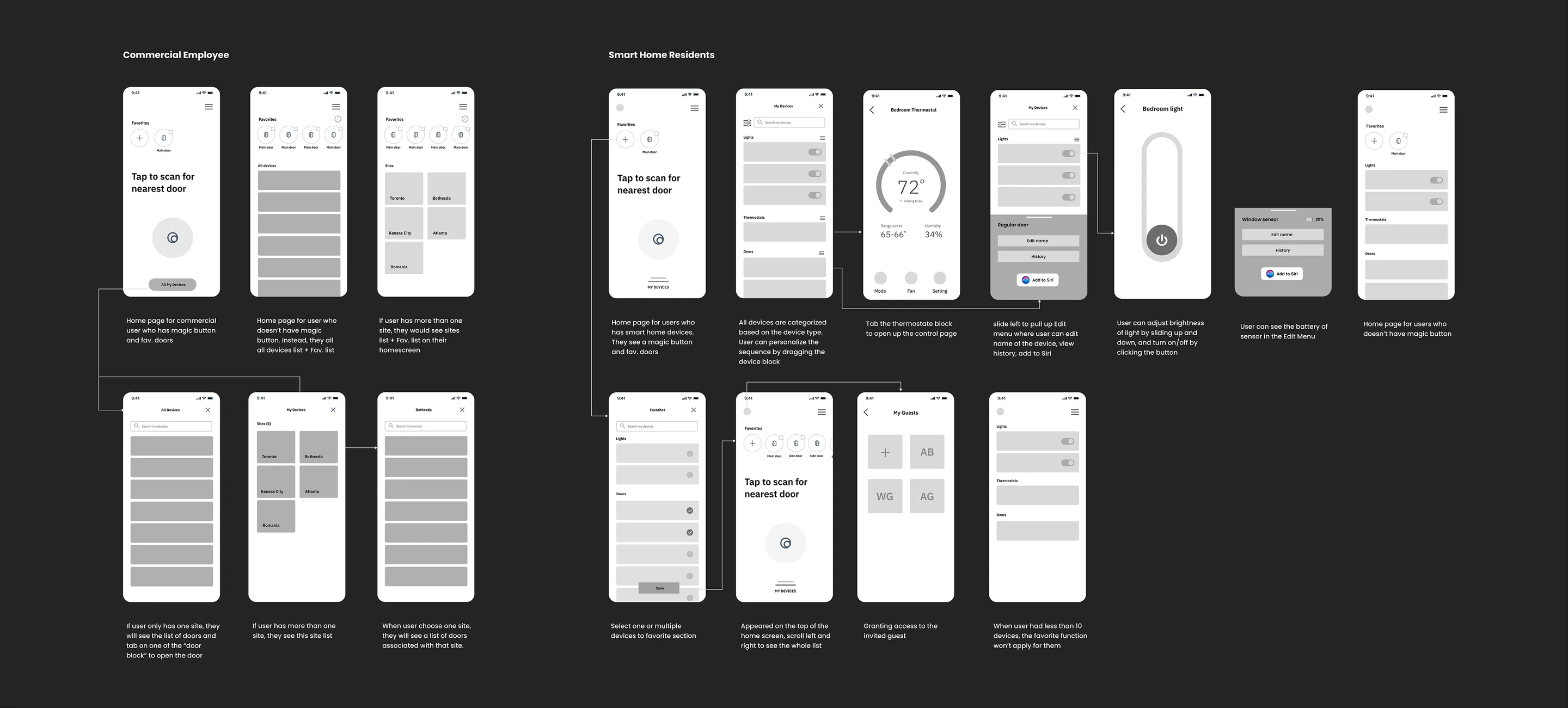
Product team review & wireframe iteration
We presented the wireframes to the whole product team and gathered some critical insights. I then refined the information architecture, added more detail, and did two rounds of wireframe iterations before creating the high-fidelity prototypes.
- A layout of rectangular blocks doesn’t suit smart home devices. Grouped by category, it can turn into an endless scroll to reach the device you want.
- Office doors and smart home devices shouldn’t be mixed. Separating the office and home scenarios matches the linear nature of each journey.
- Smart home isn’t dominated by doors, so the magic button can carry less visual weight, leaving more space for other devices.
Refined information architecture

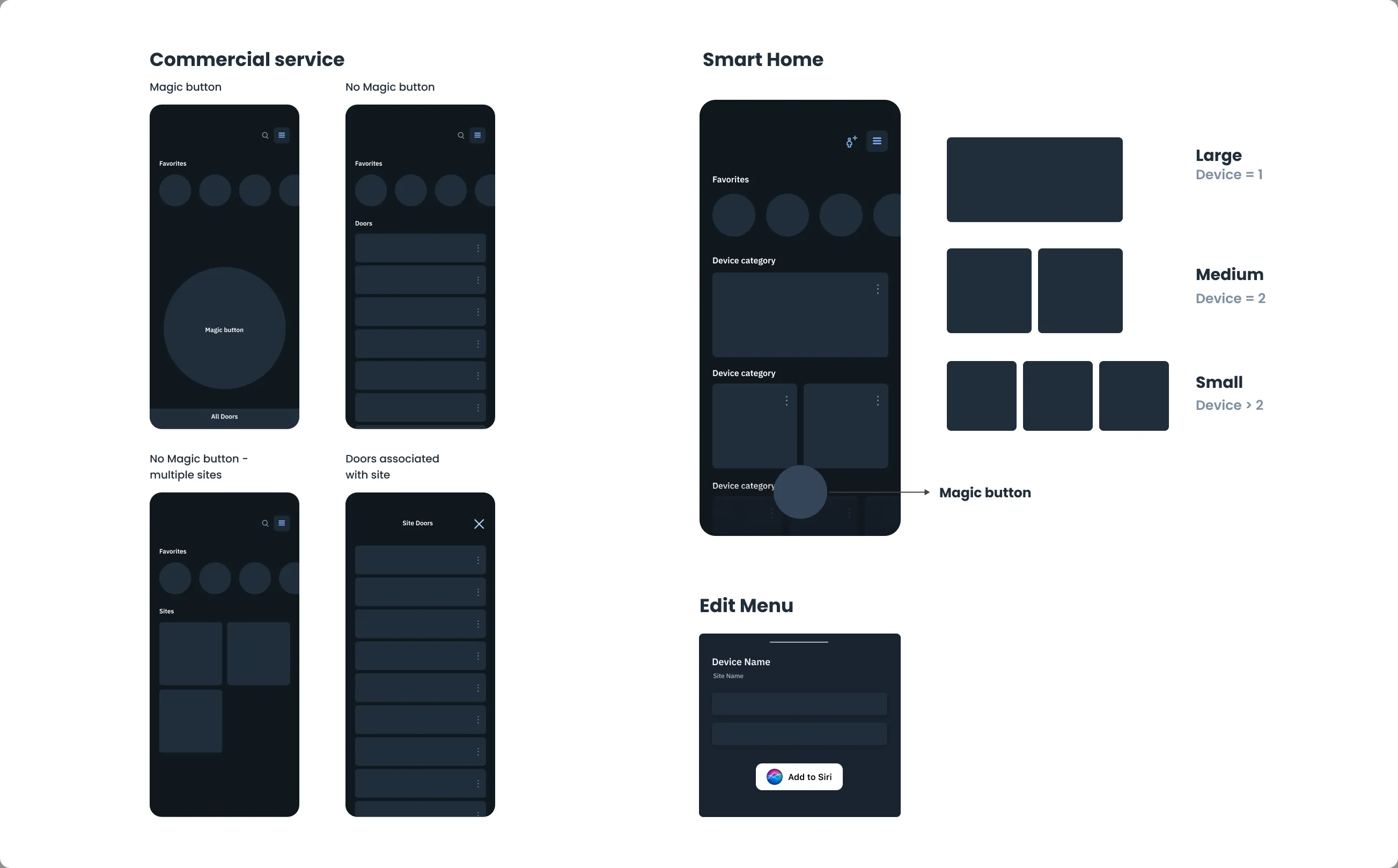
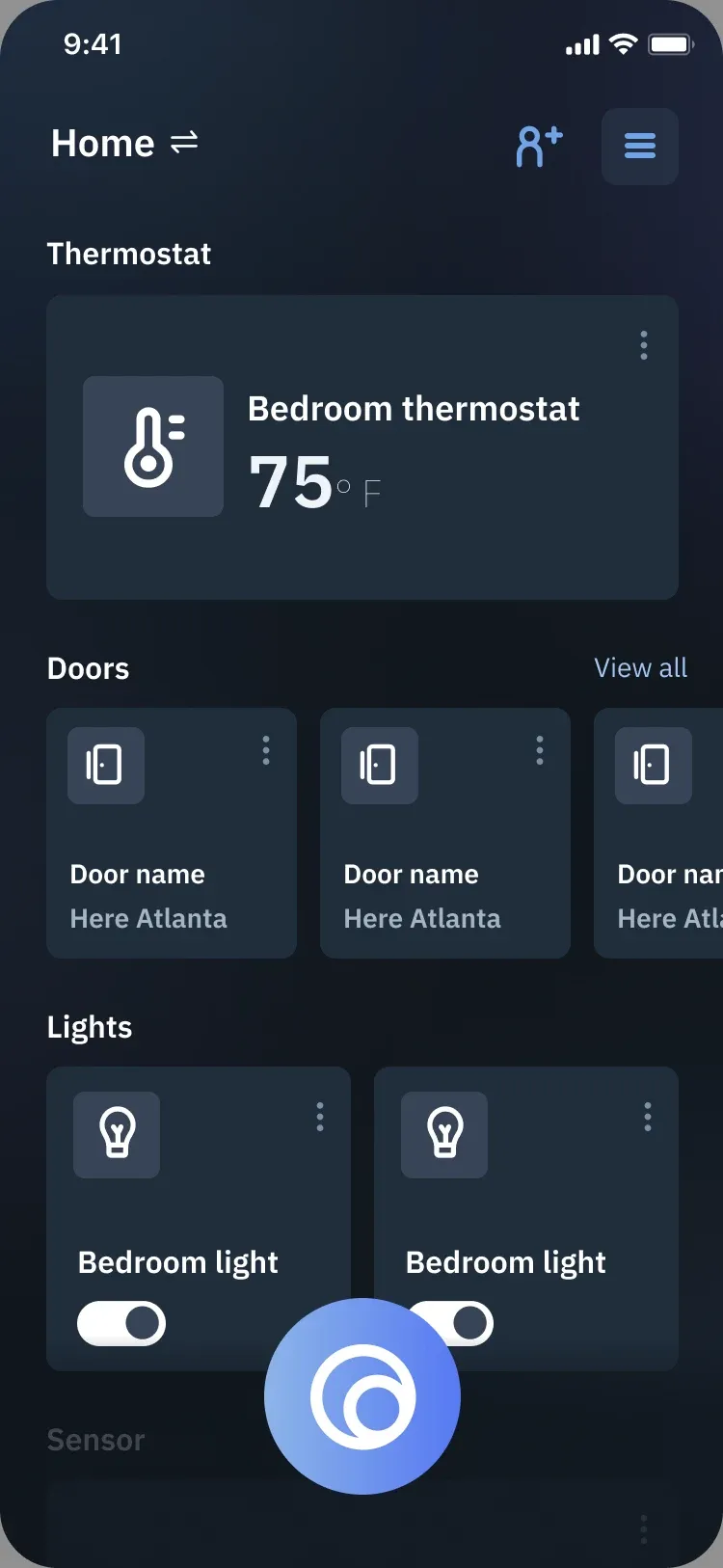
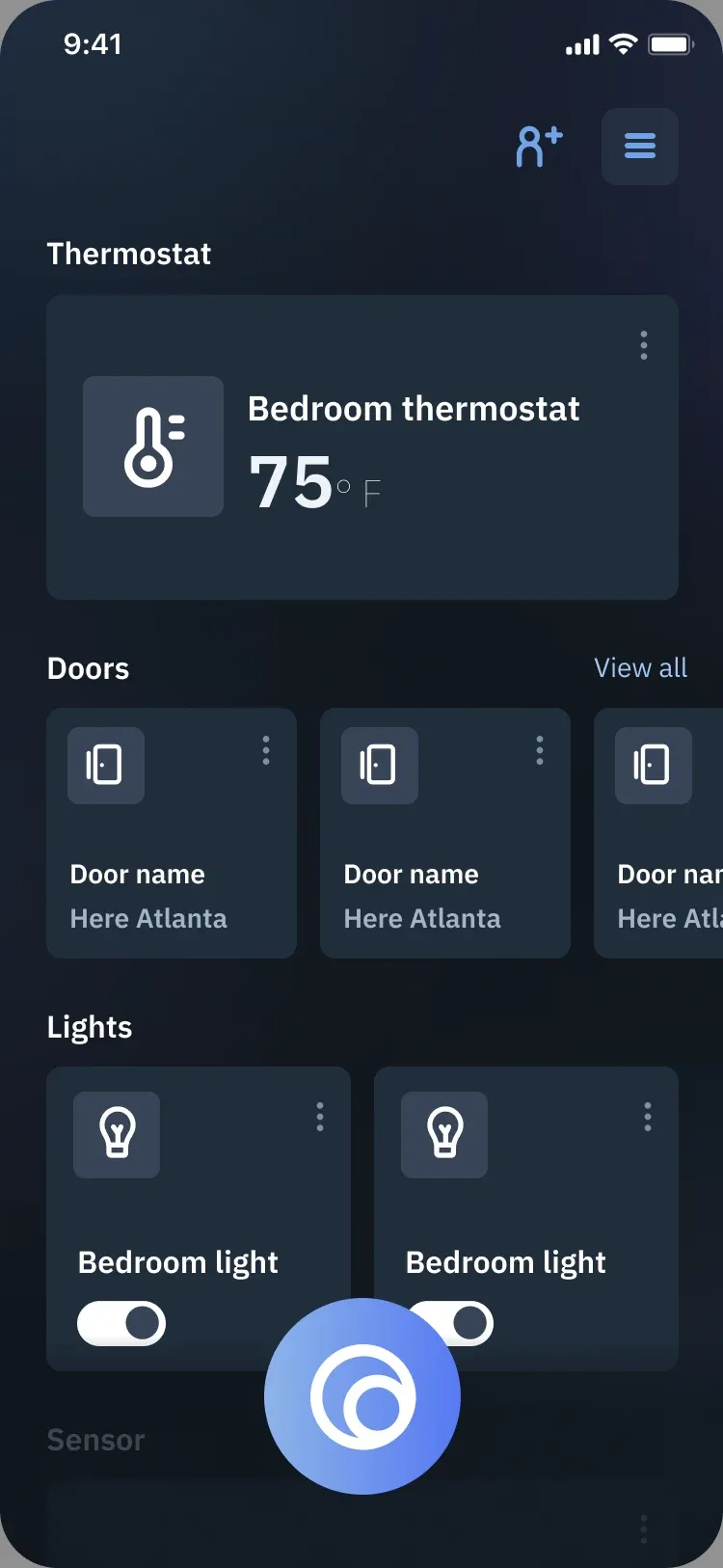
A home screen that grows with the number of devices
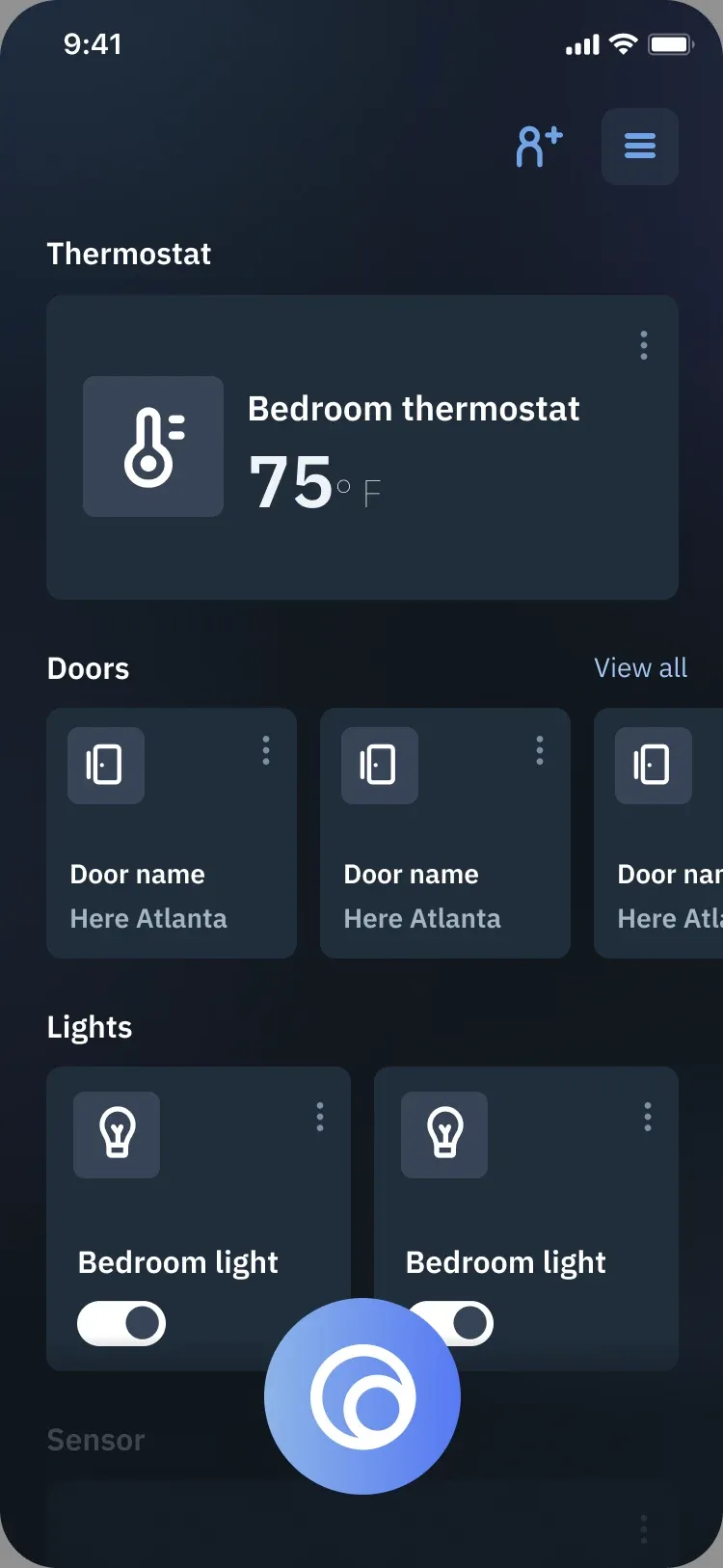
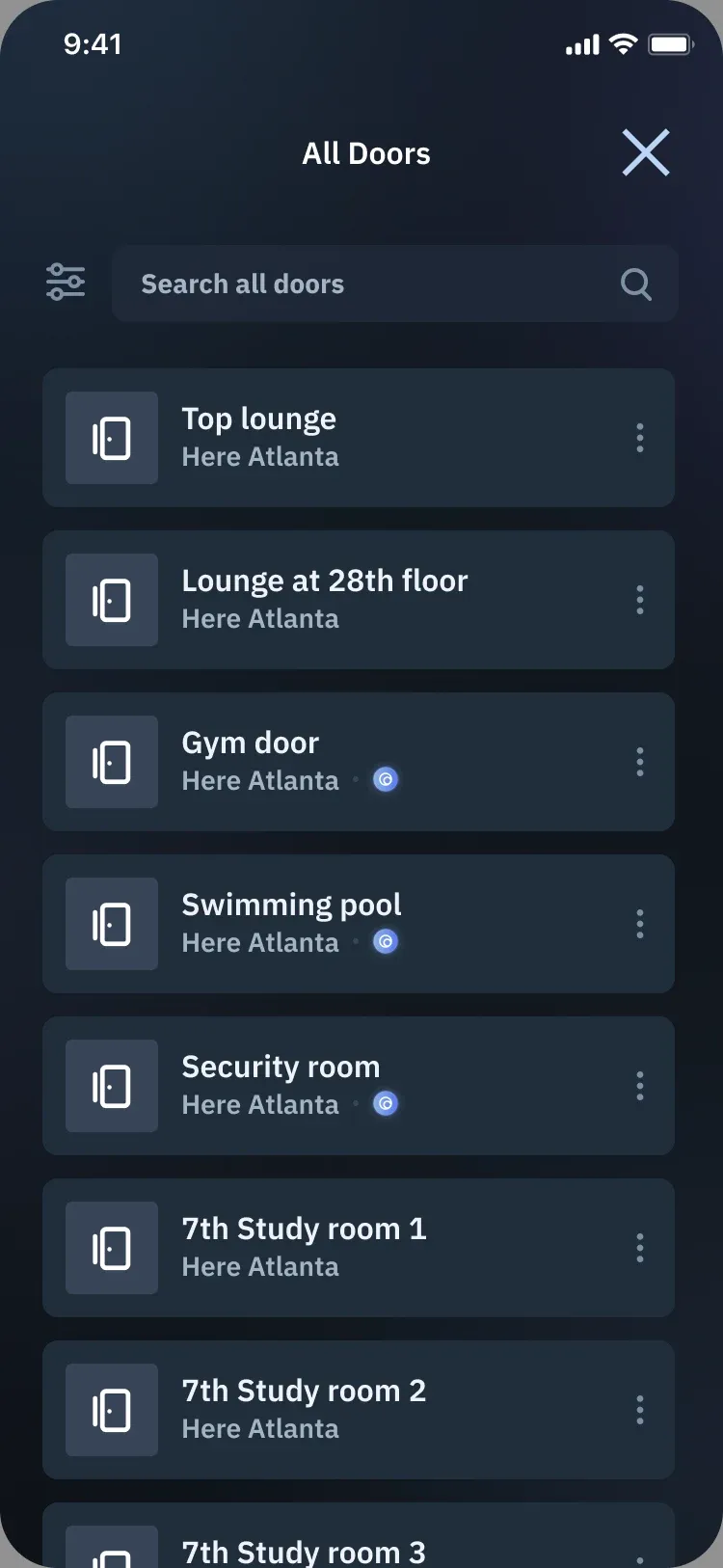
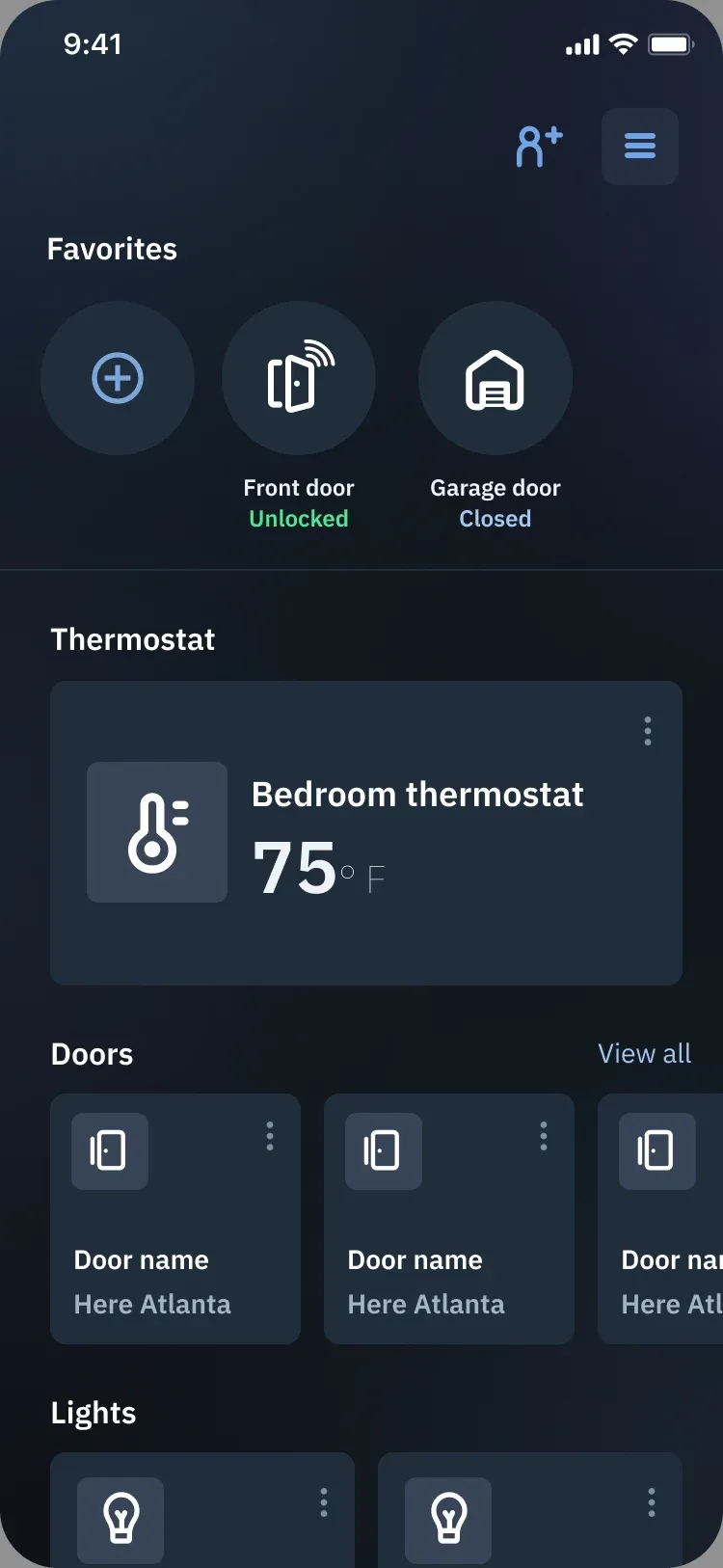
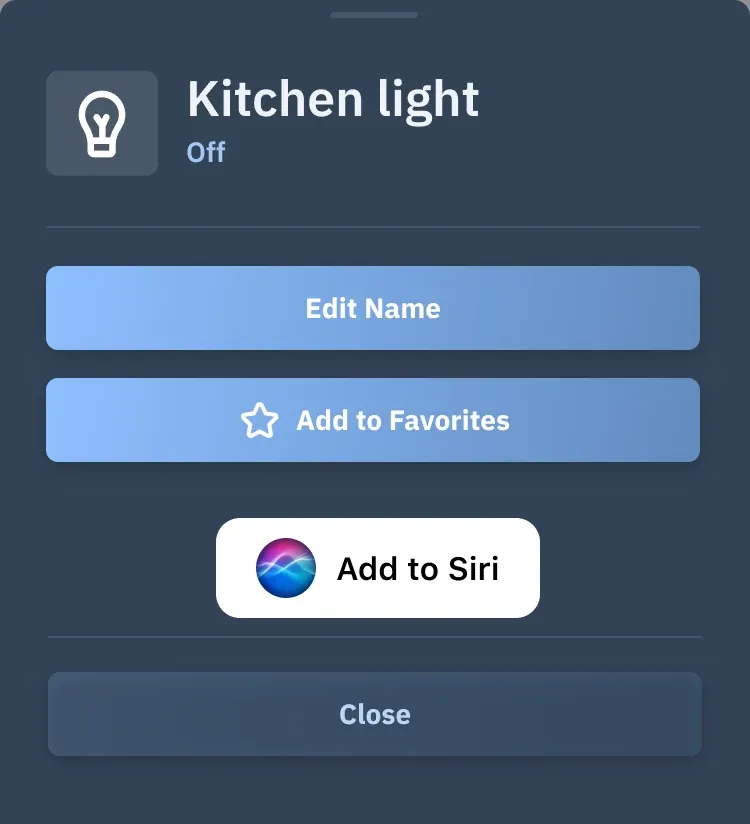
I followed the visual design system to create the high-fidelity interactive prototype in Figma, and iterated on it after each round of feedback: an expert evaluation, in-person user testing, and an unmoderated usability test.
Modular design
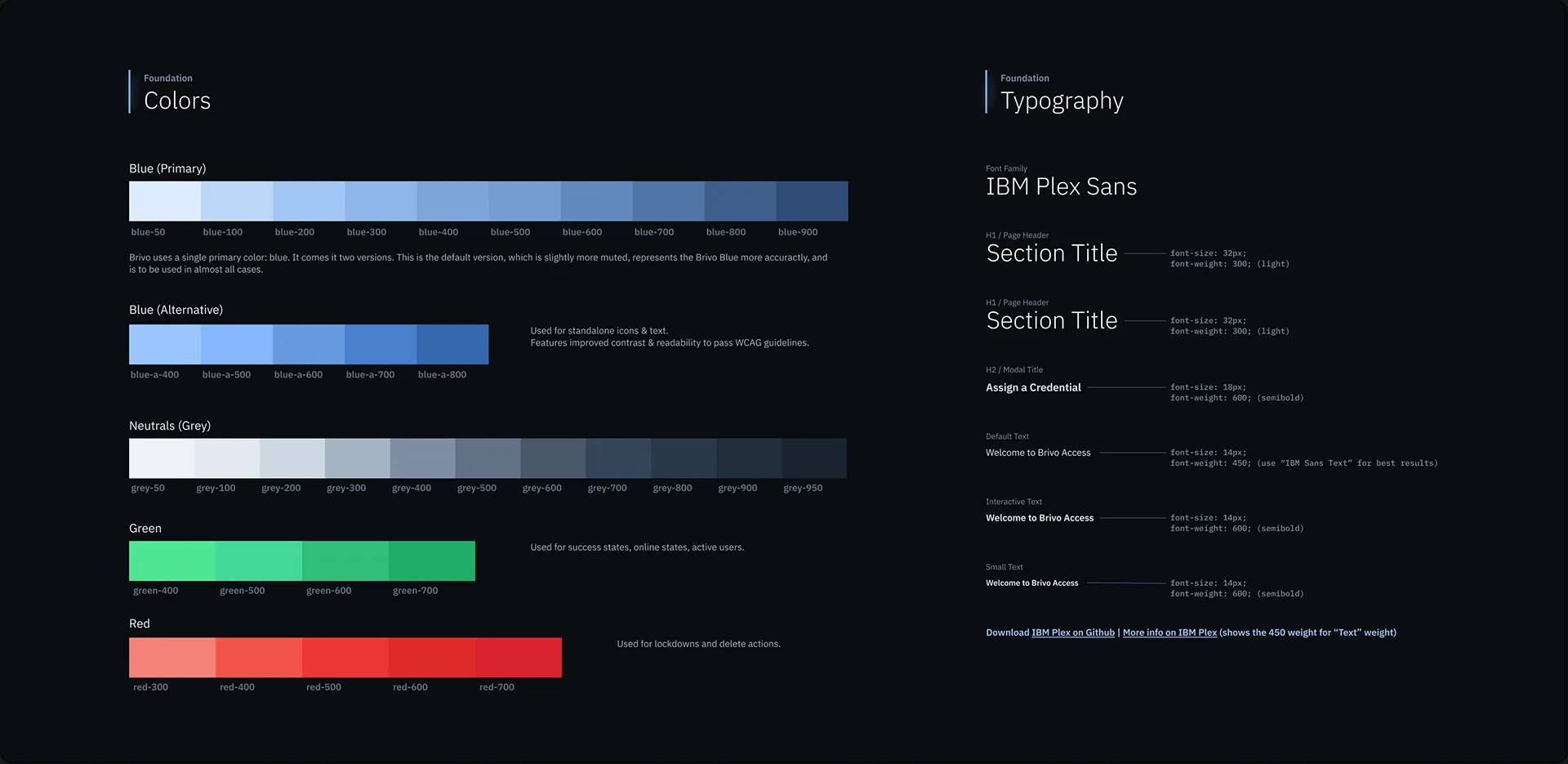
Typography & color scheme
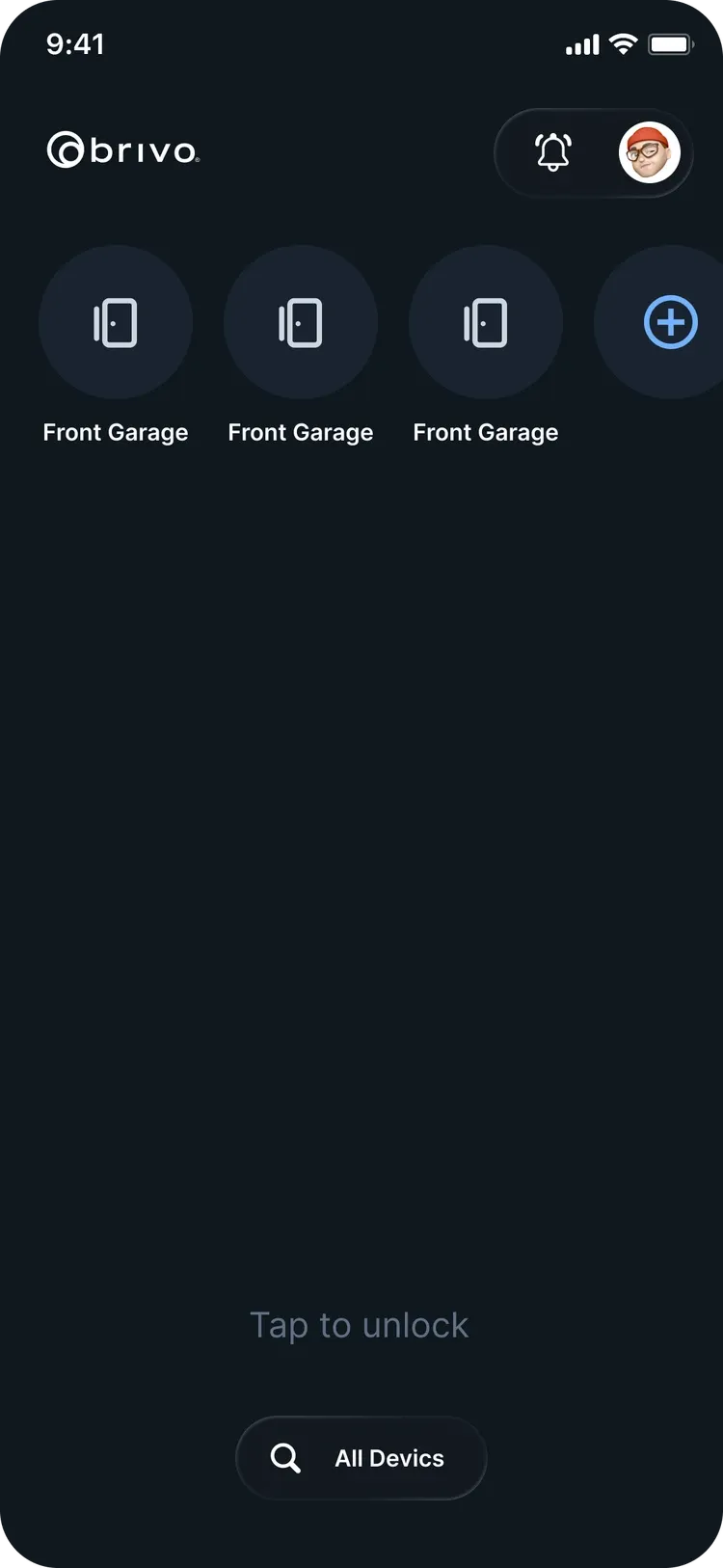
High-fidelity prototype
Three rounds of feedback on how people find their doors
Expert evaluation
After creating the prototype, I presented it to the product and marketing teams, and reviewed their comments with the PM to decide which ones became design requirements. I then iterated on the interfaces and built the interactive prototype in Figma for the user test.
 4
4- Need more branding
- Does the guest access icon make sense?
- Remove the icon background
- If users only have magic-button doors, should favorites exist? Should smart home users with few devices have favorites?
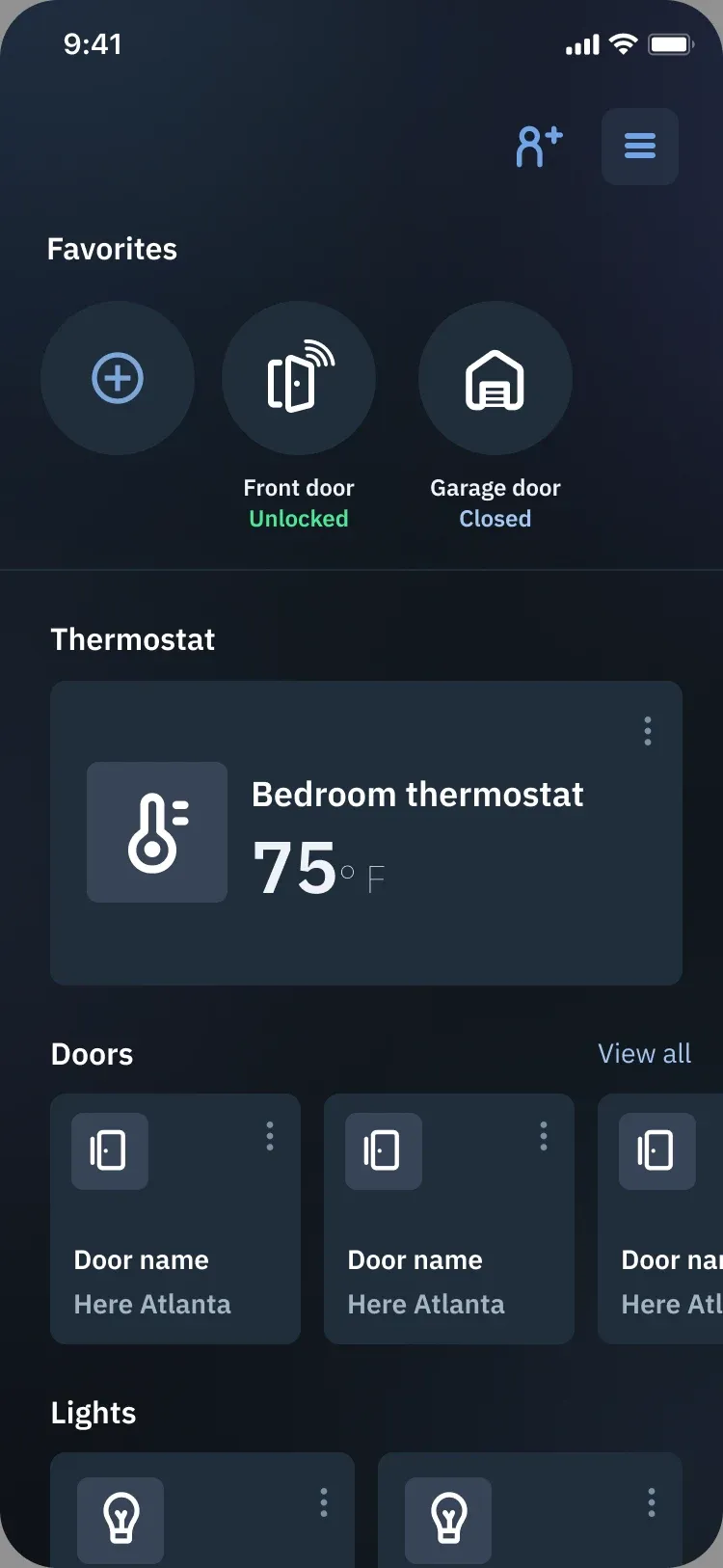 1
1- Smart home: only show favorites if the user has over 12 devices
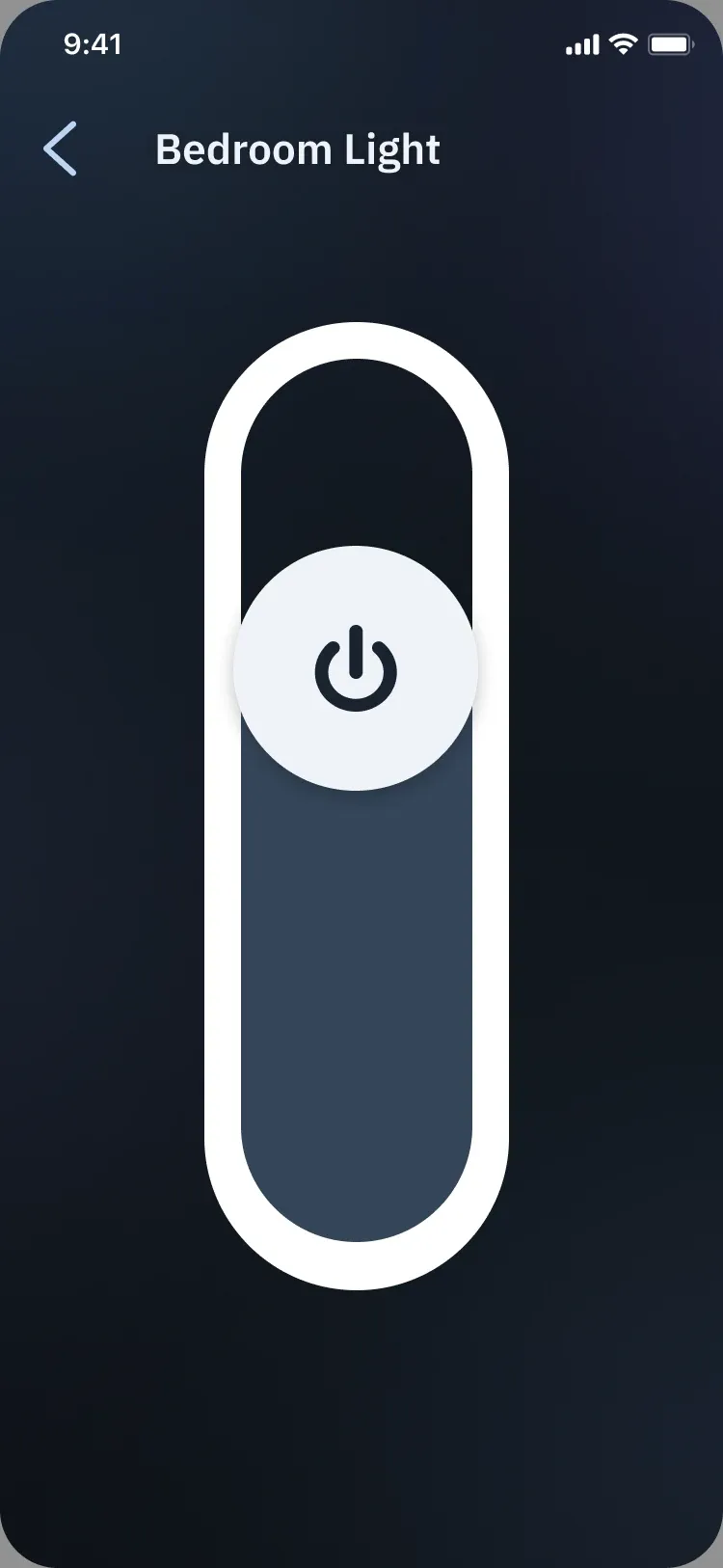 1
1- For the dimmer, instead of sliding up, could the small card expand to a medium or large card?
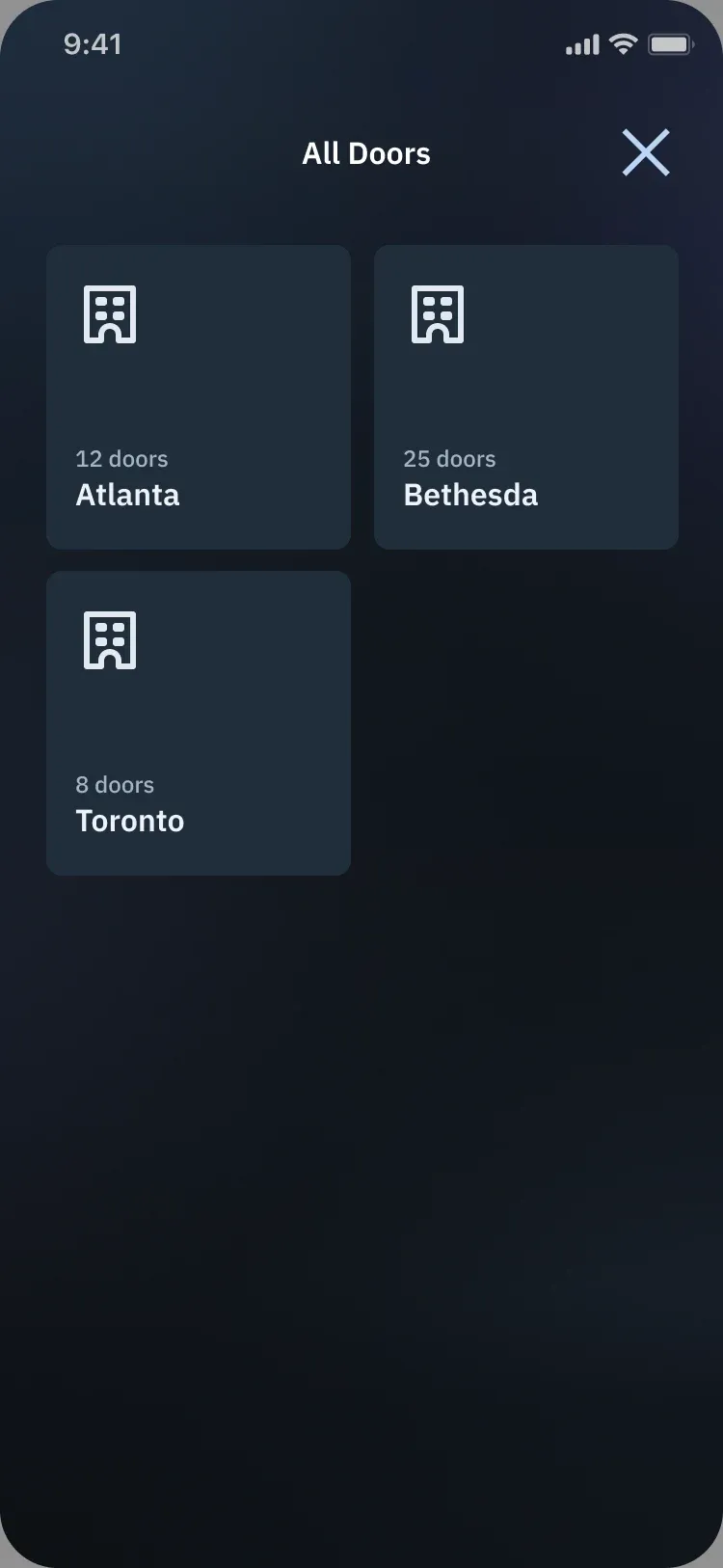 4
4- When you see sites instead of doors, the copy should say “All doors”
- Change the icons for sites
- How do favorites work across sites?
- Apple Wallet
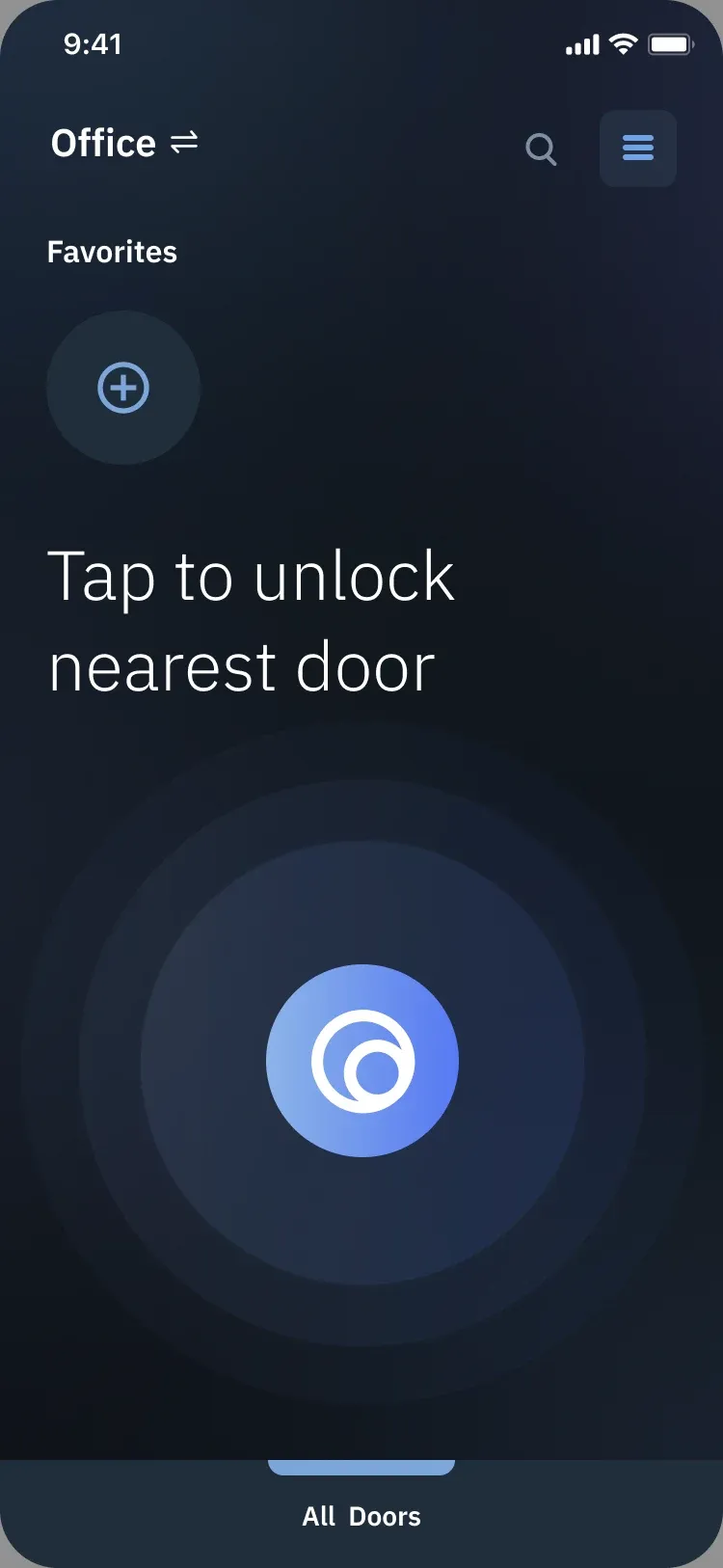 5
5- Should search sit near the door list when there’s no magic button?
- Don’t show favorites when all doors are magic-button doors
- More context around favorites: why would you create one?
- All doors doesn’t look like a tappable button
- All doors doesn’t look swipeable
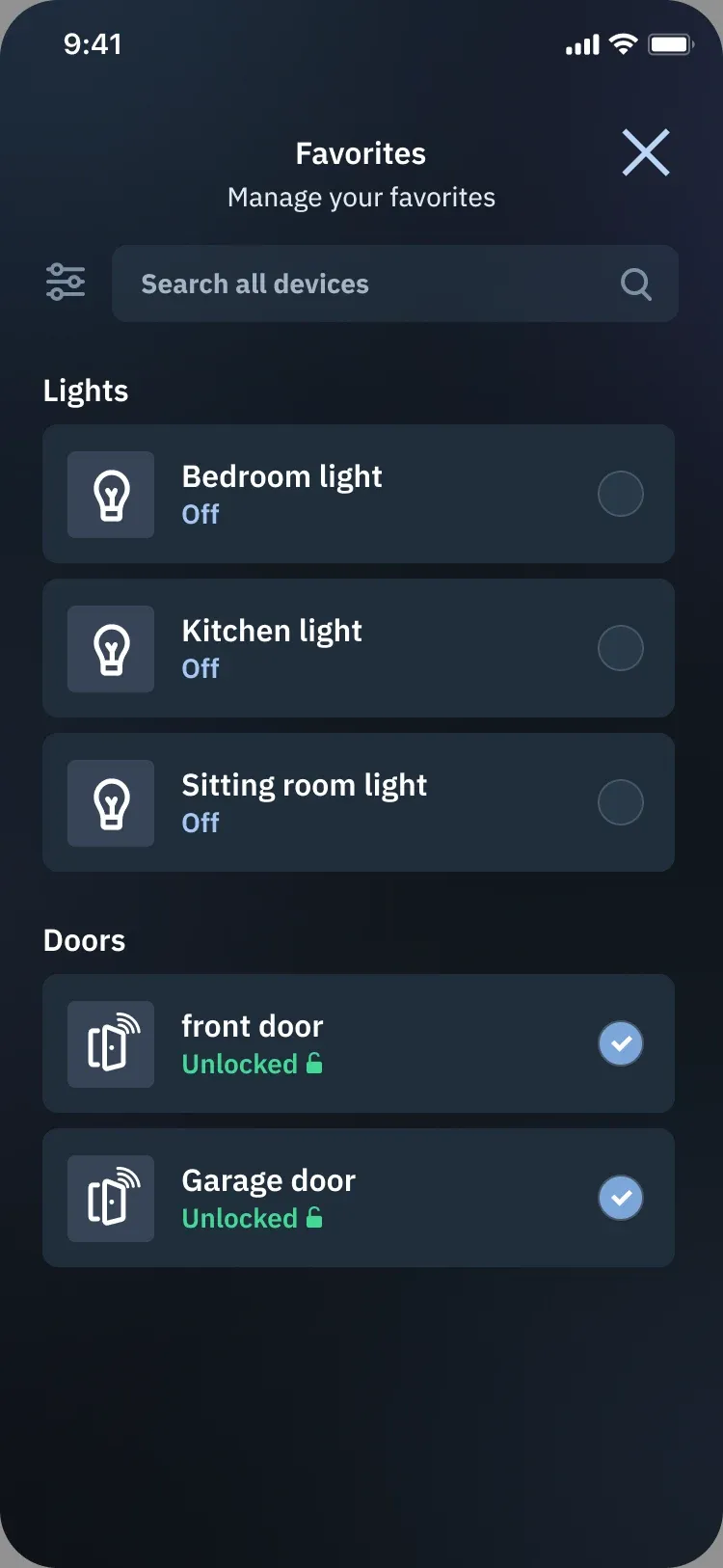 5
5- What does sorting look like?
- Can we sort favorites by most used?
- Can we group favorites?
- On iOS there are no checkboxes, so maybe change this behavior
- When dismissing favorites, show an alert asking whether to discard them
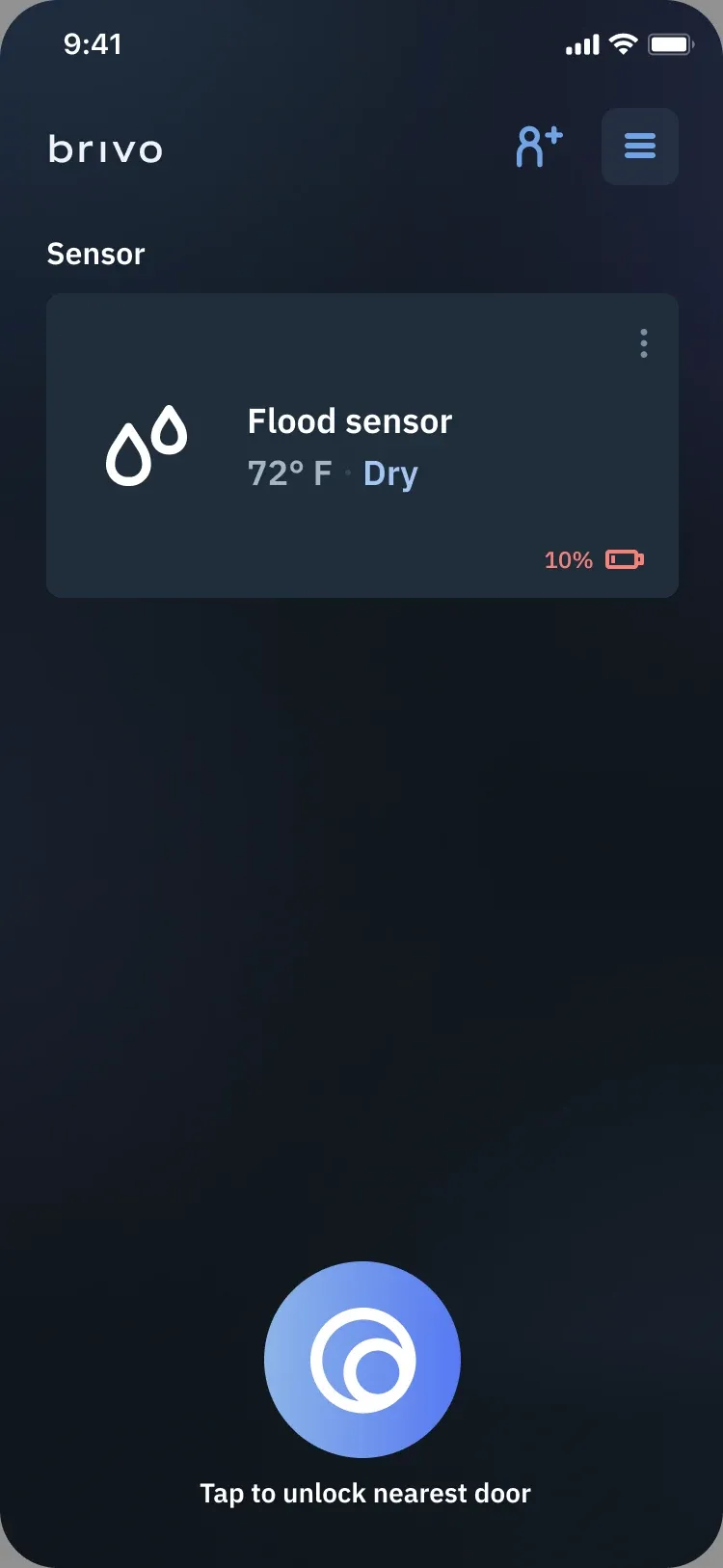 4
4- Font for big cards might be too small
- Show the battery only when it’s low
- The flood sensor might show several red errors. Is that OK?
- Magic button logo
Key insights from the team
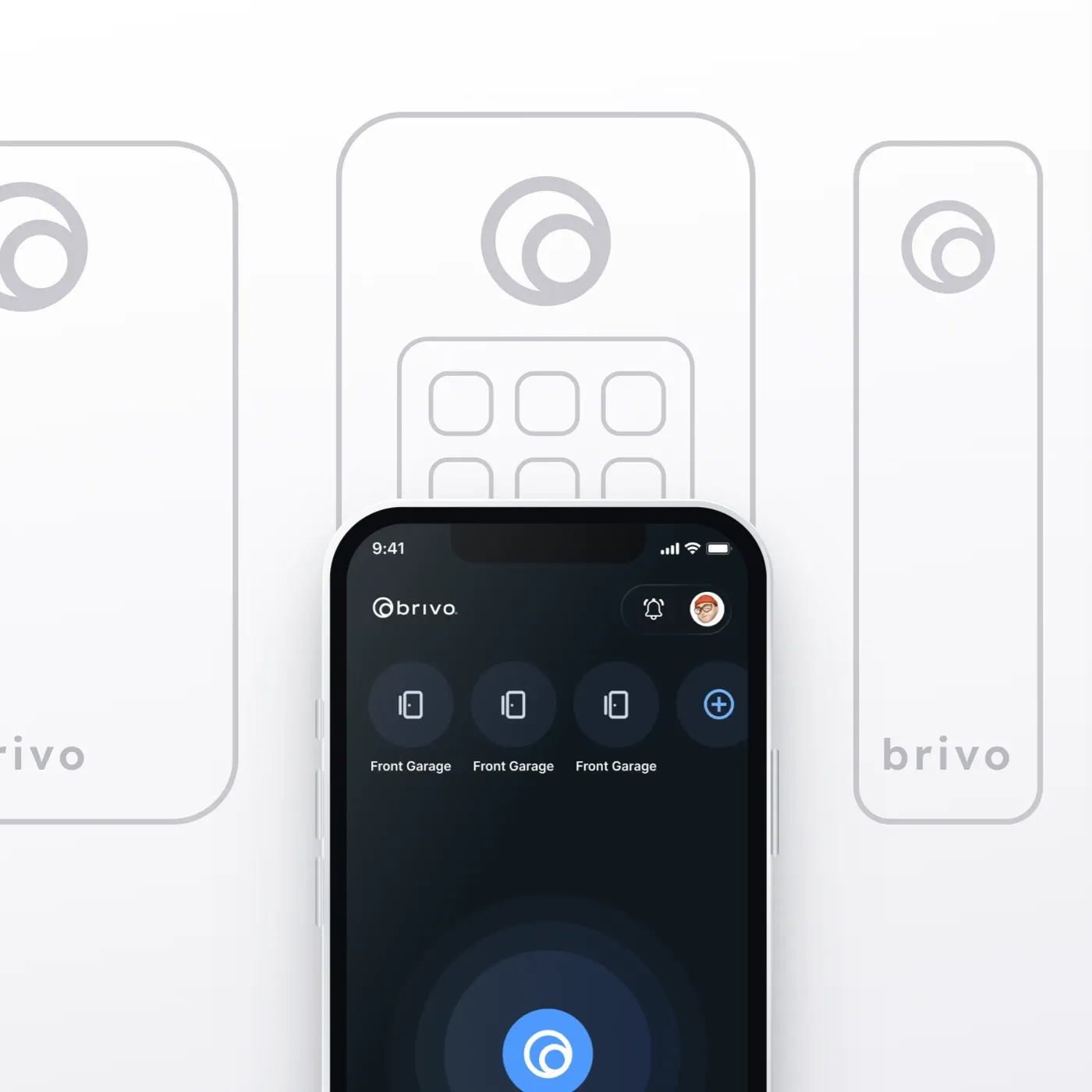
- More branding on the home pageThe marketing team suggested adding the company name to the home page and the “Brivo eye” icon to the magic button. 75% of users preferred the Brivo eye version in a preference survey.
- A consistent “tap to control”To match how doors open, lights no longer use a toggle switch. Controlling the dimmer moves to the edit menu.
- A cleaner UIThe device cards had too many visual details, so the icon backgrounds were removed.
In-person moderated user testing
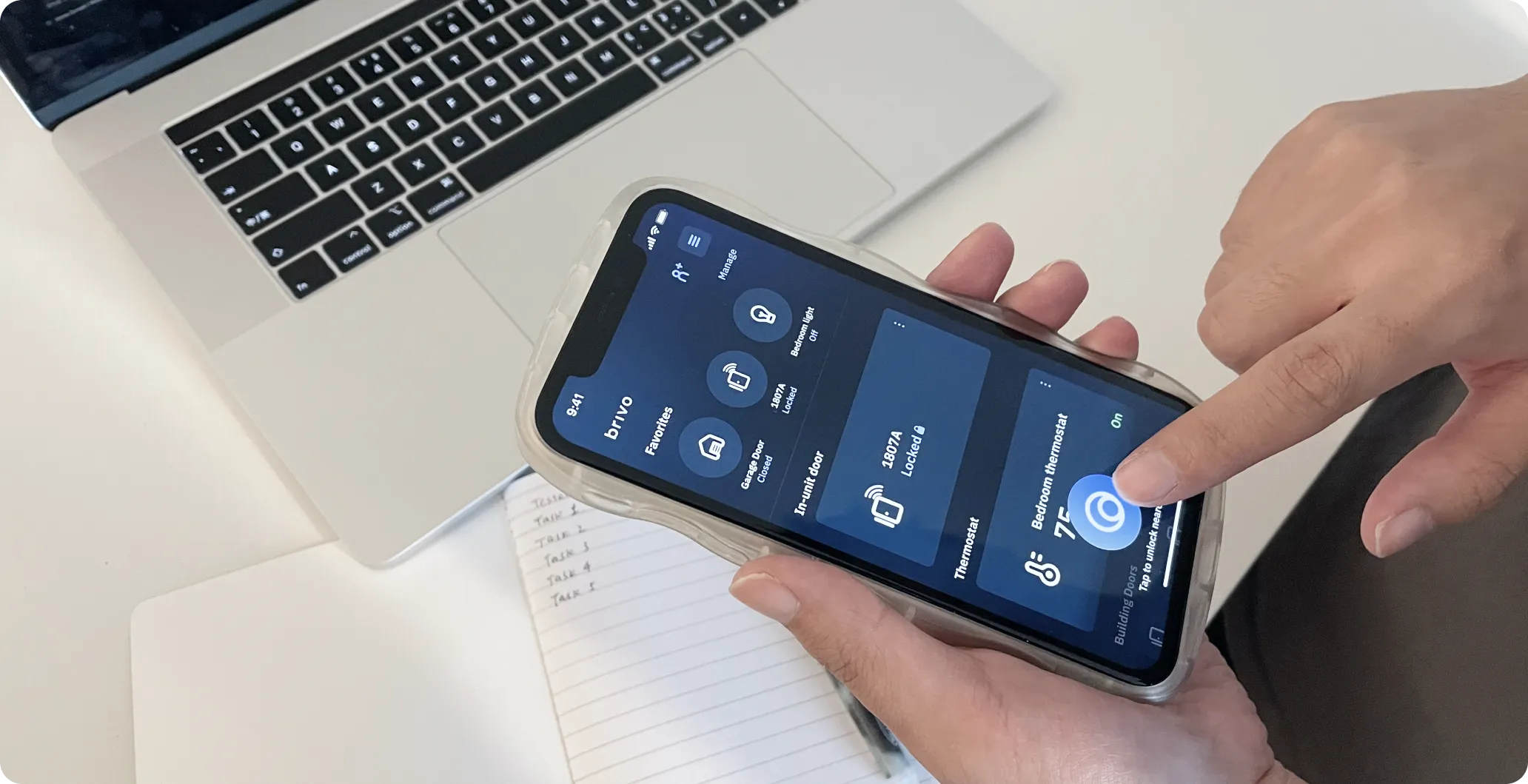
The goal was to find the strengths and weaknesses of the redesigned BMP home screen and evaluate its usability. Another senior designer and I tested the interactive prototype with 12 non-customers: people who could use Brivo Mobile Pass for work or home, and who were familiar with other access or smart home apps. Each session lasted about 60 minutes.
Key insights from the participants
- Better device categoriesUsers found it hard to find their apartment door, the door they use most.Design implication:Make the apartment door its own category.
- Easier-to-see buttonsAsked to pull up the full door list, users had a hard time finding “View all” and tried to scroll the category sideways.Design implication:Change “View all” to a “+ X doors” button at the end of the list.
- A home screen they can arrangeCategories are sorted alphabetically, and users want to set their own order.Design implication:Let users reorder the categories.
Unmoderated usability test in Maze
To find any usability problems and measure participants’ satisfaction, we collected qualitative and quantitative data through Maze, a platform for usability tests. I recruited users from the existing Brivo Mobile Pass customer base. The test had two commercial tests and one smart home test, with three to four user journeys in each.
A note on the analysis: because of technical issues with Maze, part of the quantitative data was biased, so we left it out.
- 1Complete a taskTesters work through a task scenario.
- 2Auto trackingMaze records the path, clicks and time.
- 3Rating scaleHow difficult or easy was this task to complete? 1 = extremely difficult, 7 = extremely easy.
- 4Overall feedbackIs there any general feedback?
- 5Data synthesisHeatmapAvg. durationMisclick rateDirect / indirect successGive up / bounce %Self-reported dataLikert scale
Analysis of attitudinal and behavioral metrics
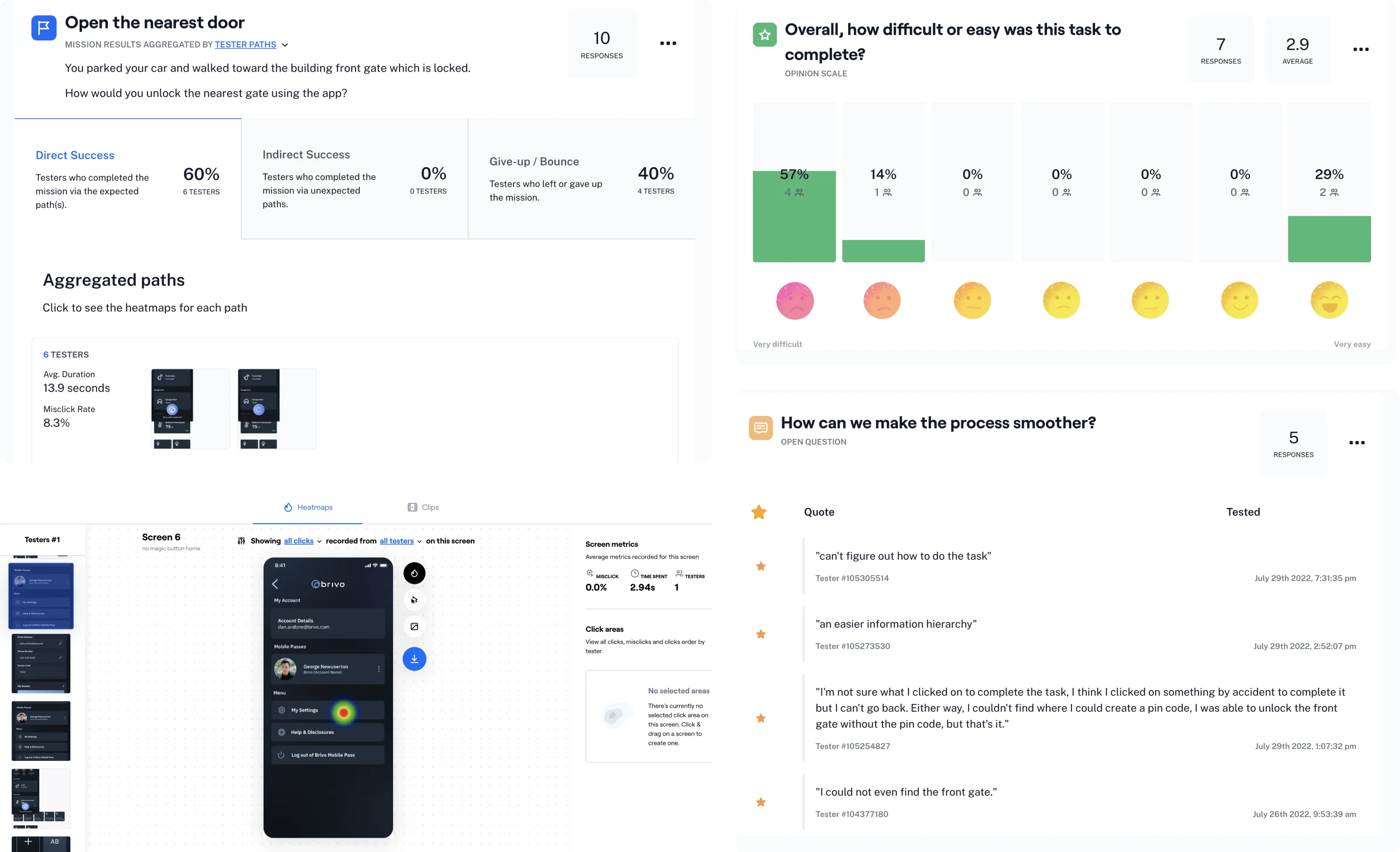
Key insights from users
- 40% of users didn’t recognize the magic button at first, though part of this came from technical issues in Maze.
- Most users went to the main menu to invite a guest on their first instinct; a few tried the overflow button on the device card.
- After the last iteration, 87.5% of users found the specific door in the All doors list.
A home screen that fits how residents think
A more desirable experience for smart home users, one that fits their mental model better, with more delightful interactions.
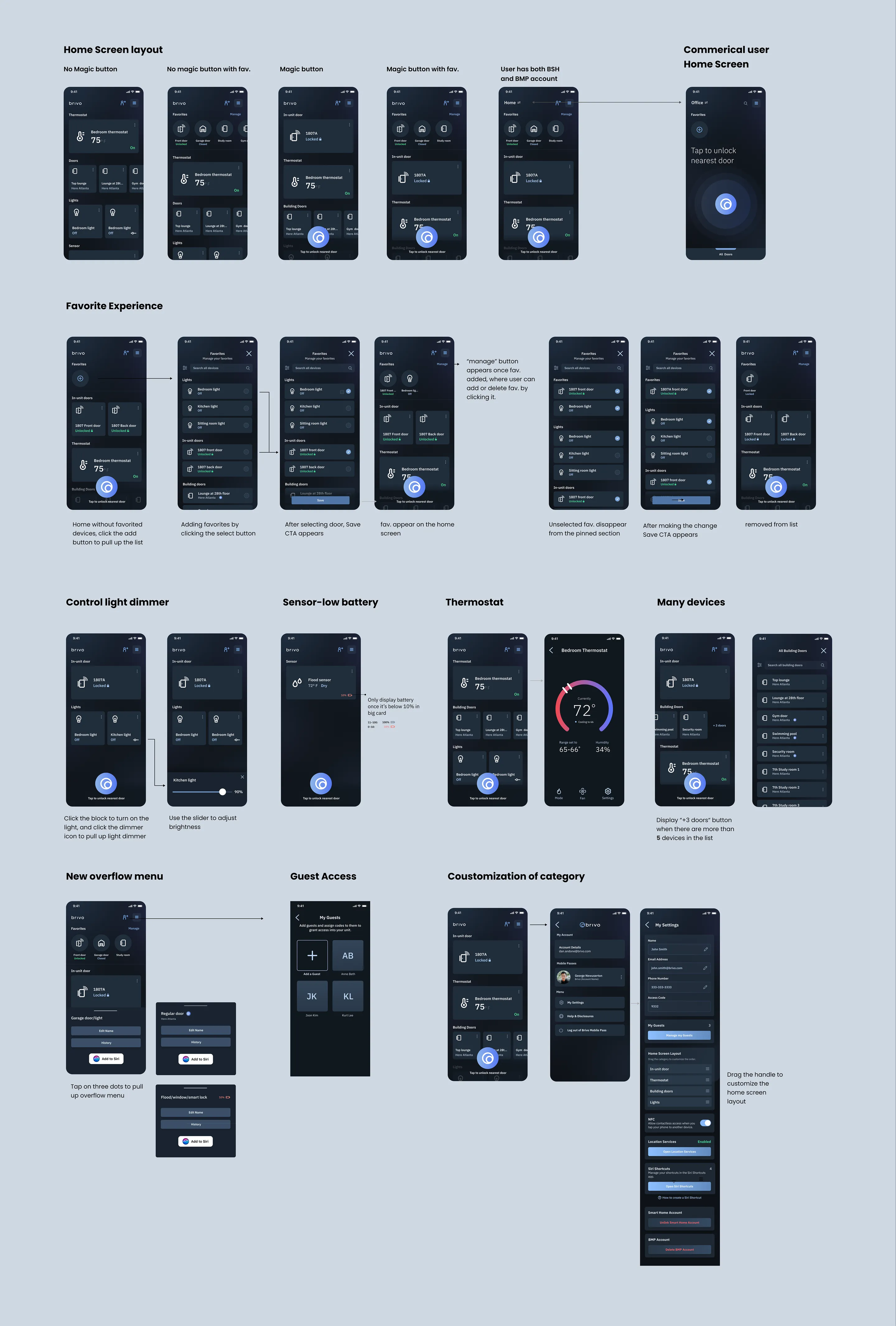
Micro-interaction design