Getting Installers Off the Support Line and Back on the Job
Brivo’s hardware ecosystem spans 16 types of access-control devices, and installers are the people who set them up on site. The Brivo Install App was meant to be their tool for the job, yet installers relied heavily on Support to get through it, and the app offered little value to them or to resellers. Installation, which should have helped sell Brivo hardware, was becoming a barrier to it. The challenge was that a fix couldn’t stop at one device: whatever worked for one lock had to scale to all sixteen.
Impact
Led the end-to-end design
I owned the design of Brivo’s mobile installation experience, from field research with installers and Support to the shipped app.
Built a foundation that scales to all 16 devices
A shared structure for how installers navigate, get guidance, and recover from errors, proven first on one lock.
Shipped an experience installers lean on less, and use more
After launch, commissioning got faster, offline-lock support calls fell, and installers kept coming back to the app.
Faster lock commissioning in a controlled release
Fewer offline-lock support calls after launch
Monthly app usage, from about 100 to 250 sessions
When the story begins…
A single installation took four calls to Support. The app covered only two functions and sat at a 1.0-star rating, so installers had little reason to rely on it and resellers little reason to promote it. Installation should have helped sell Brivo hardware; instead, it was holding sales back. Our goal was to turn it from a barrier into an advantage, making Brivo hardware easier to install, support, and sell.
Calls to Support for every installation
Functions in the app, rated 1.0 stars
Incentive for installers and resellers to promote it
Tracing the problem from the field to the support line
We knew installers depended too much on Support, but not yet where they were getting stuck, or why.
12 installer interviews
I interviewed installers to map their end-to-end workflow and identify the pain points they hit at each stage of installation.
100+ support tickets analyzed
I analyzed support tickets to understand what was driving installers to ask for help, grouping recurring issues into troubleshooting errors and feature requests.
8 support calls shadowed
I shadowed support calls to see what happened after an installer ran into a problem: how the issue was diagnosed, escalated, and eventually resolved.
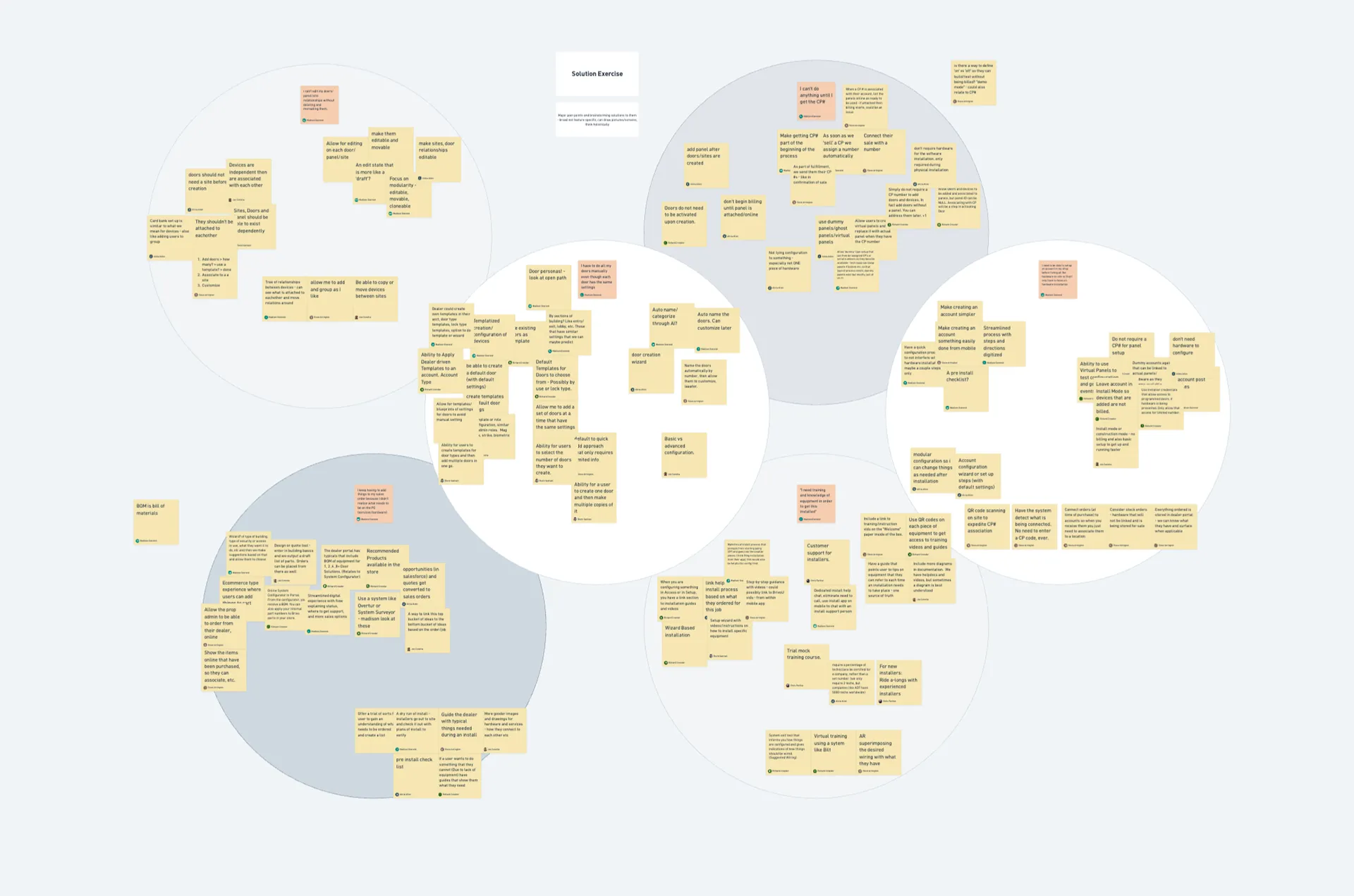
Research revealed a fragmented and support-dependent experience
Mapping the end-to-end journey, from pre-programming to hardware installation and post-install, showed that the problem went beyond individual usability issues.
- Review & prepareAccess the customer account
- Confirm devices and quantities
- Place orders
- Get familiar with floorplans
- Configure control panels and doorsPartner PortalRepetitive configuration for each device“This is time consuming since I have to re-enter info.”
- Configure elevatorsACTLaptop dependency“I wish I can configure everything in a mobile instead of bring a laptop along with all the equipments.”
- Configure camerasEagle Eye
- Commission offline locksAllegion appTroubleshooting“Why it’s still offline even I did everything right?”
- Set no tourBrivo app
- Hardware install
- Wiring instructions
- Mounting guides
- Test doors
- Verify door unlock
- Check activity log
- Troubleshoot issues
- Maintain hardware
- Update firmware
- Swap locks
- Update firmware
- Delete lock
- Swap lock
01 — The workflow was fragmented and repetitive
Installers moved between several Brivo and third-party platforms over the course of an installation. With several devices to install, they had to repeat the same lengthy setup for each one, which created extra work and made the process hard to follow.
02 — Installers lacked visibility when things went wrong
Installers often couldn’t tell what a system error meant, whether they had missed a step, or what to try next. And when they needed help on site, training and support resources were hard to find.
03 — Installers needed more control, not just troubleshooting
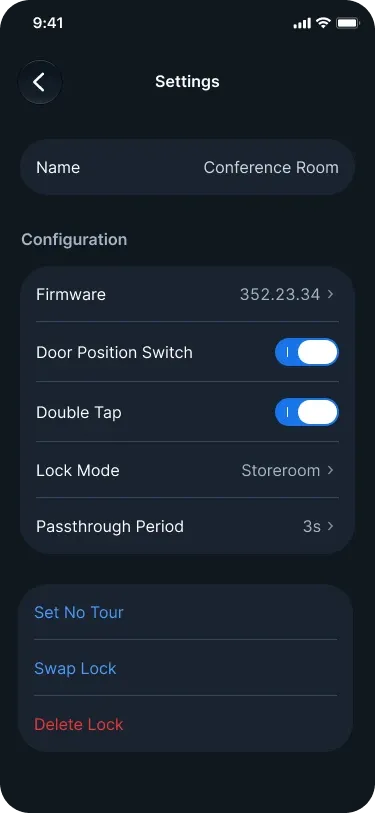
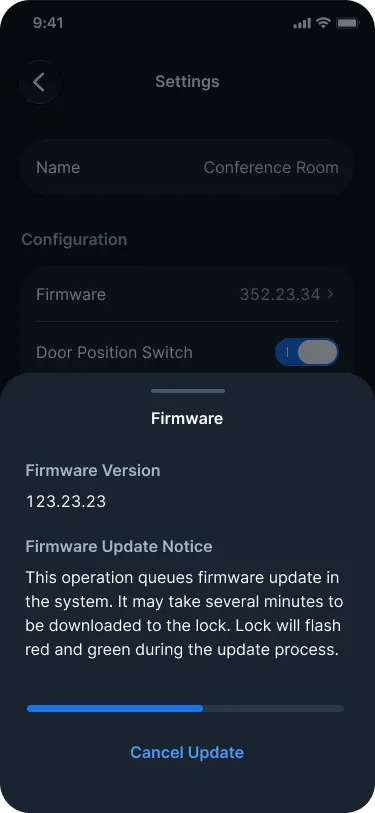
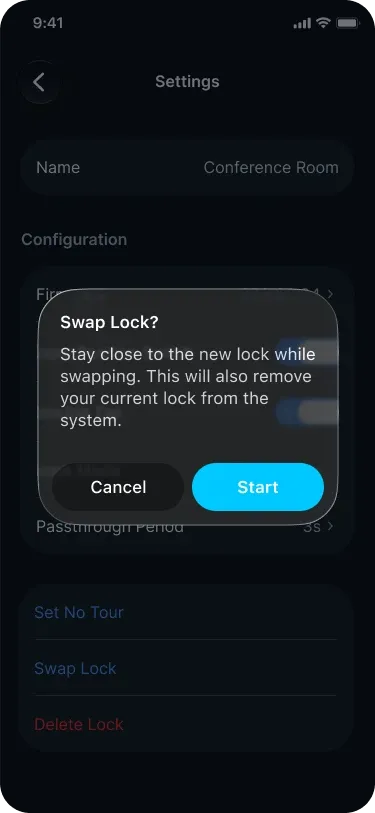
70% of the support tickets I analyzed were requests for things installers couldn’t do themselves, such as firmware updates, lock swaps, and device deletion. Only 30% were about troubleshooting.
04 — Mobile was the natural tool for on-site work
On site, installers were carrying and configuring several pieces of hardware at once. They preferred their phones, which were easy to carry and could stay close to the device for tasks like Bluetooth and Wi-Fi setup.
Installers needed one connected workflow that guided them through the job, made system status visible, and helped them recover quickly when things went wrong.
A unified workflow needed to support two ways of working
I partnered with PMs to turn the research insights into a shared workflow across web and mobile, looking at installer personas, tasks, and installation scenarios.
Our initial goal was to bring configuration, commissioning, and testing into the Install App. But research showed that while installers preferred mobile tools on site, they relied on the web to configure devices in advance for larger installations. So we supported device configuration on both platforms, kept site creation on the web, and moved commissioning and testing to mobile. Installers could prepare at their desks and carry on in the field.
- Sales information
- Account set up (sites, users, roles)
- Access management
- Account dashboard and reports
- 3rd-party integration
- Guidance and resources
- Device configuration
- Monitor device status
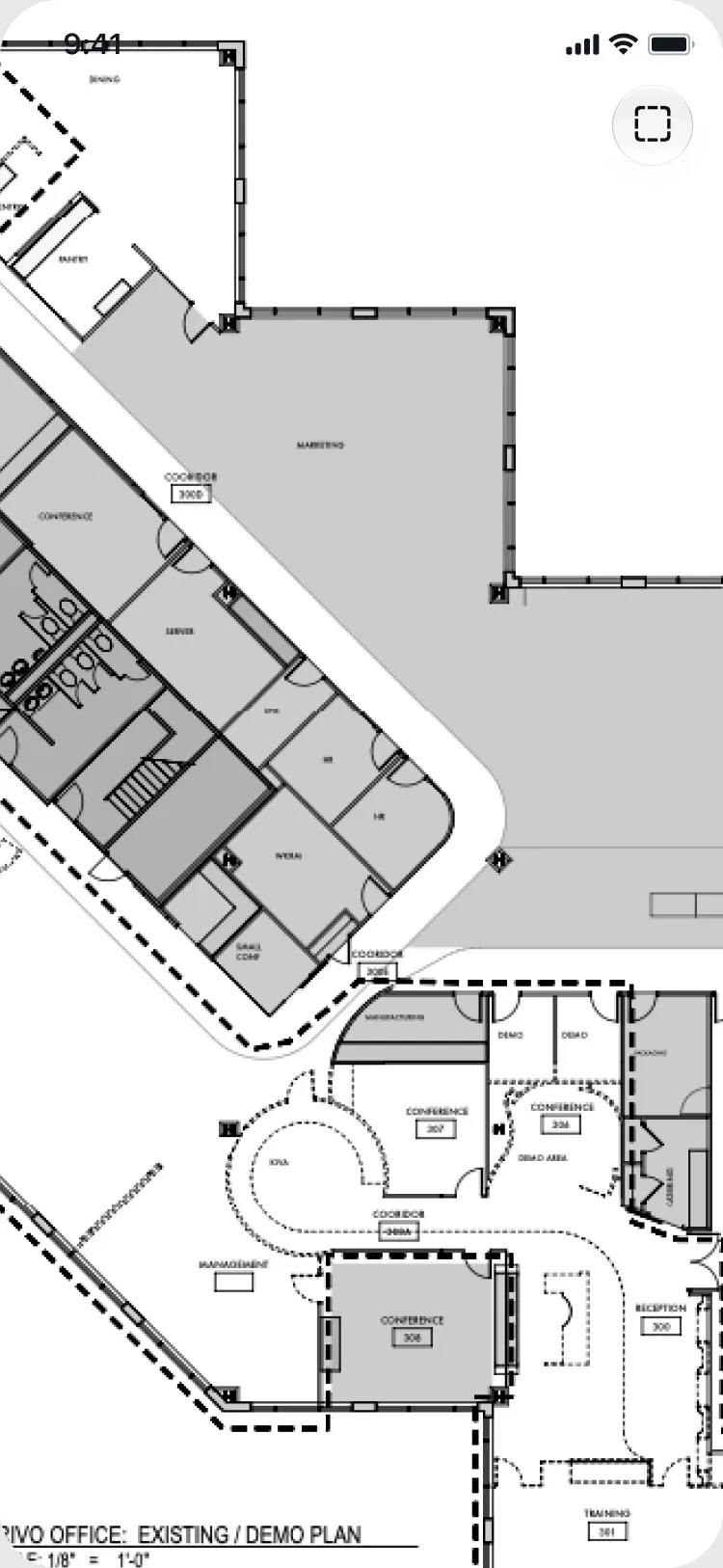
- Floorplans
- Testing
- Commissioning
- Transmit activity log
Designing a foundation that could scale across devices
I defined a reusable foundation for how installers would navigate, complete, and recover from installation work, whatever the device type.
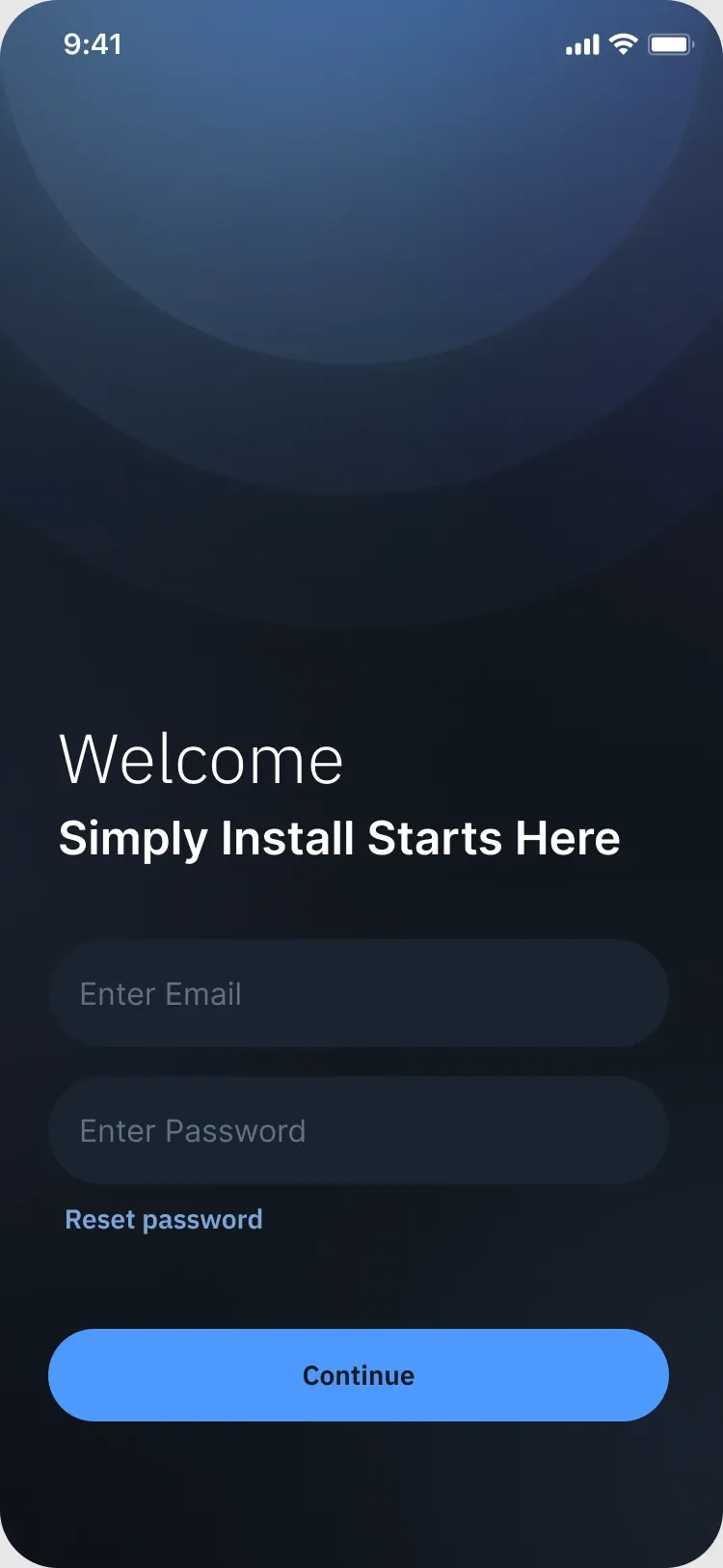
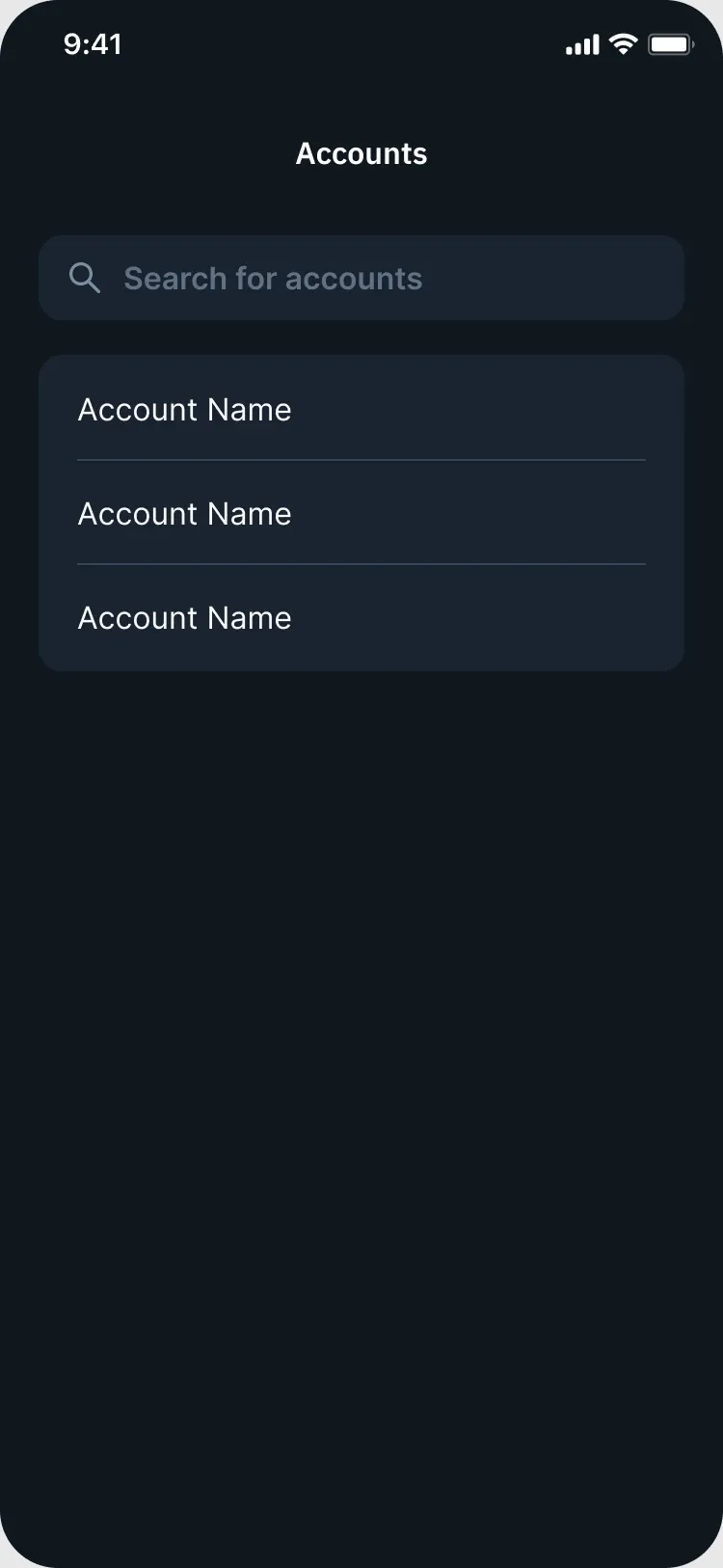
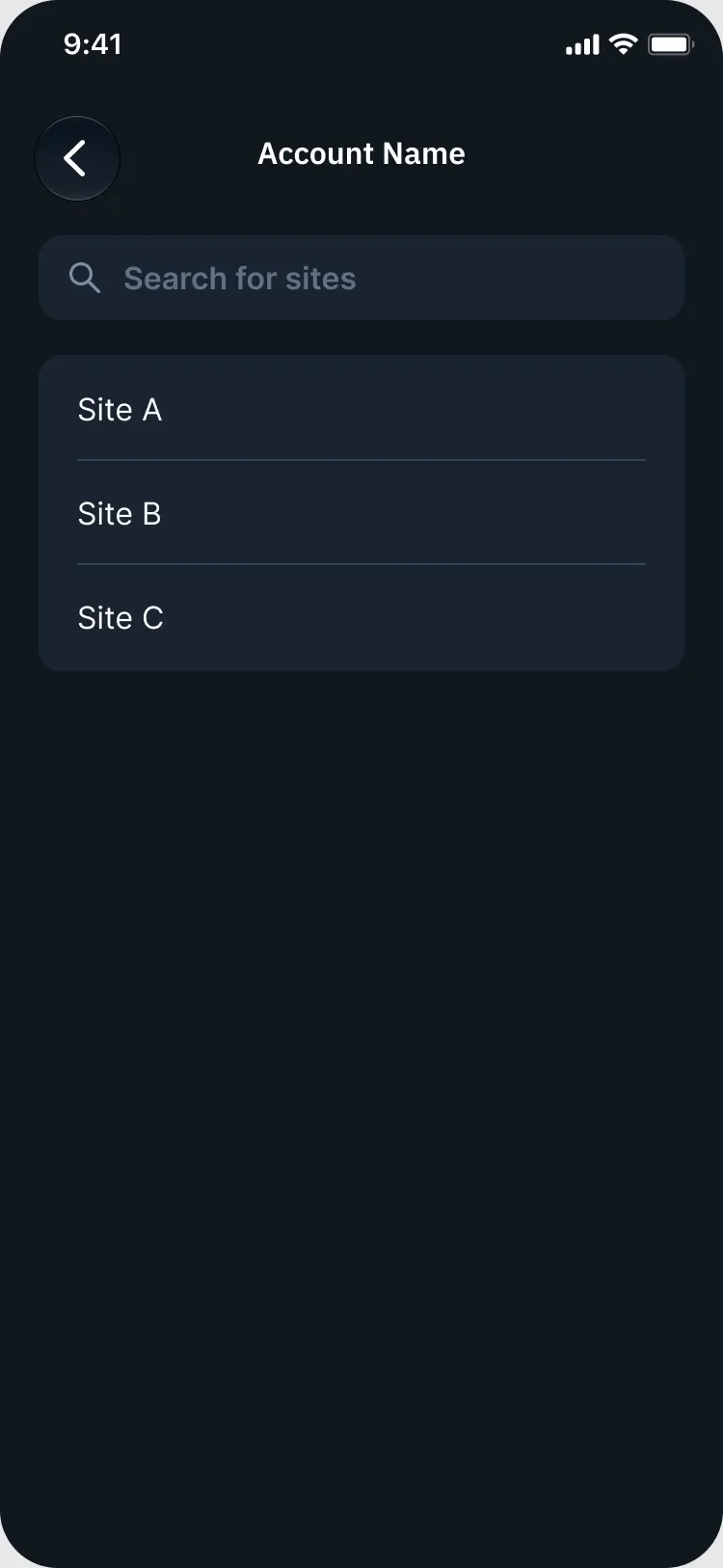
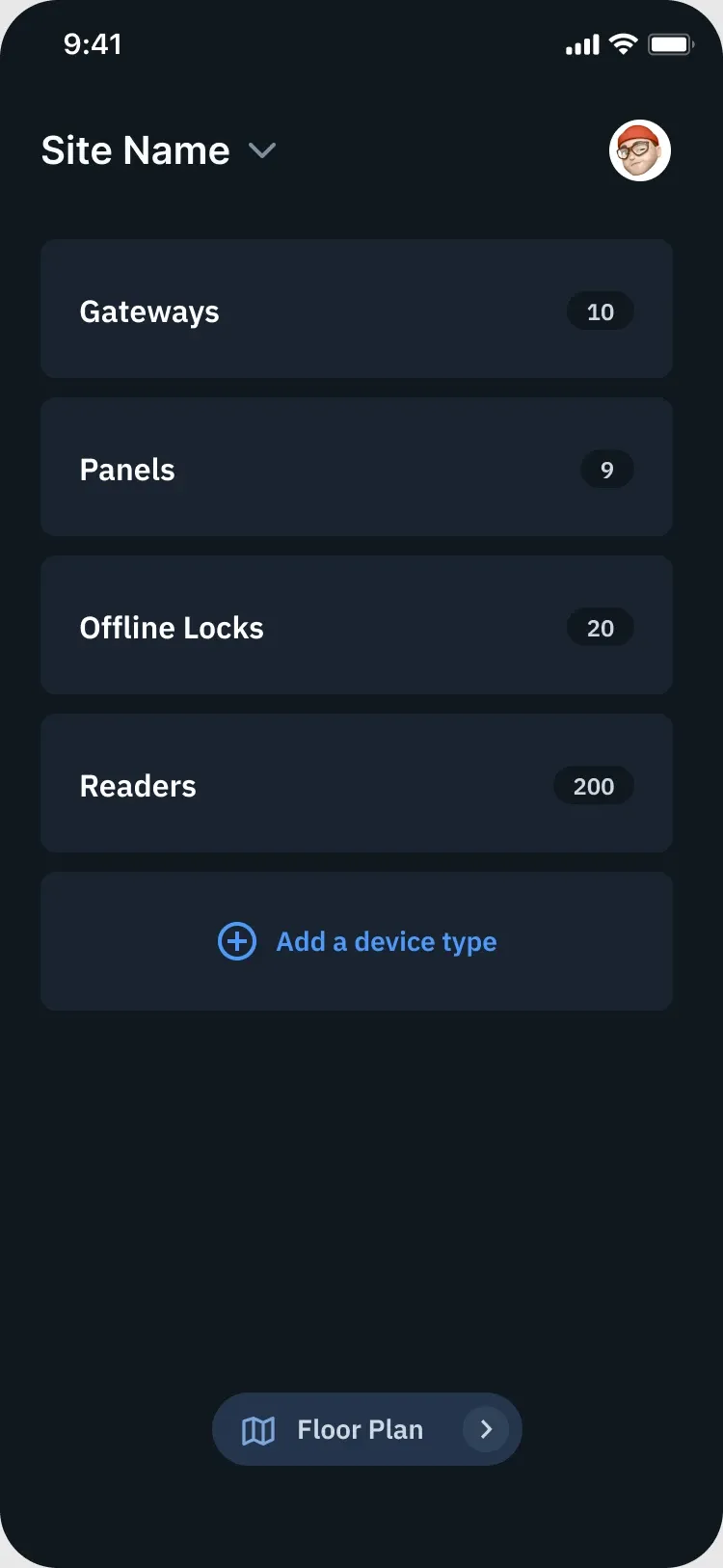
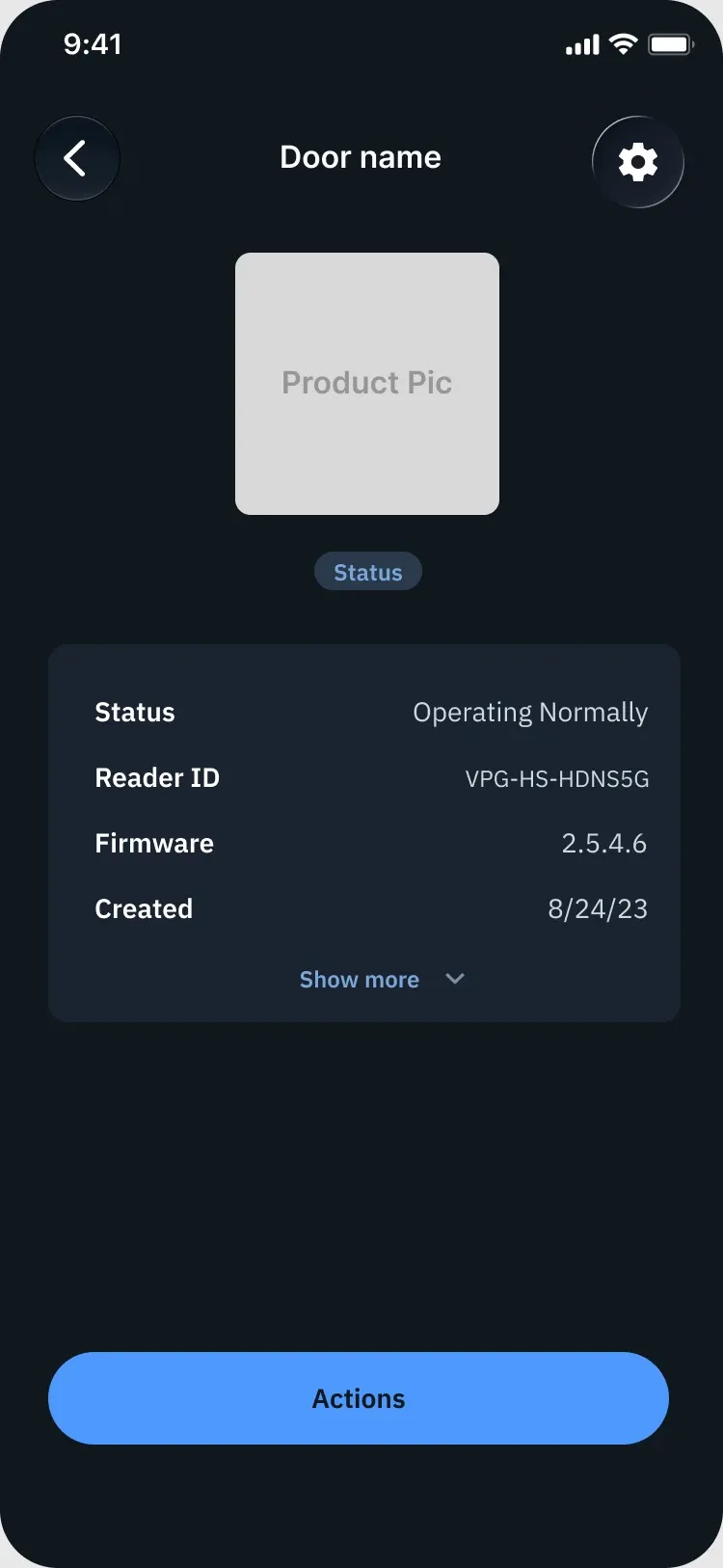
A scalable information architecture
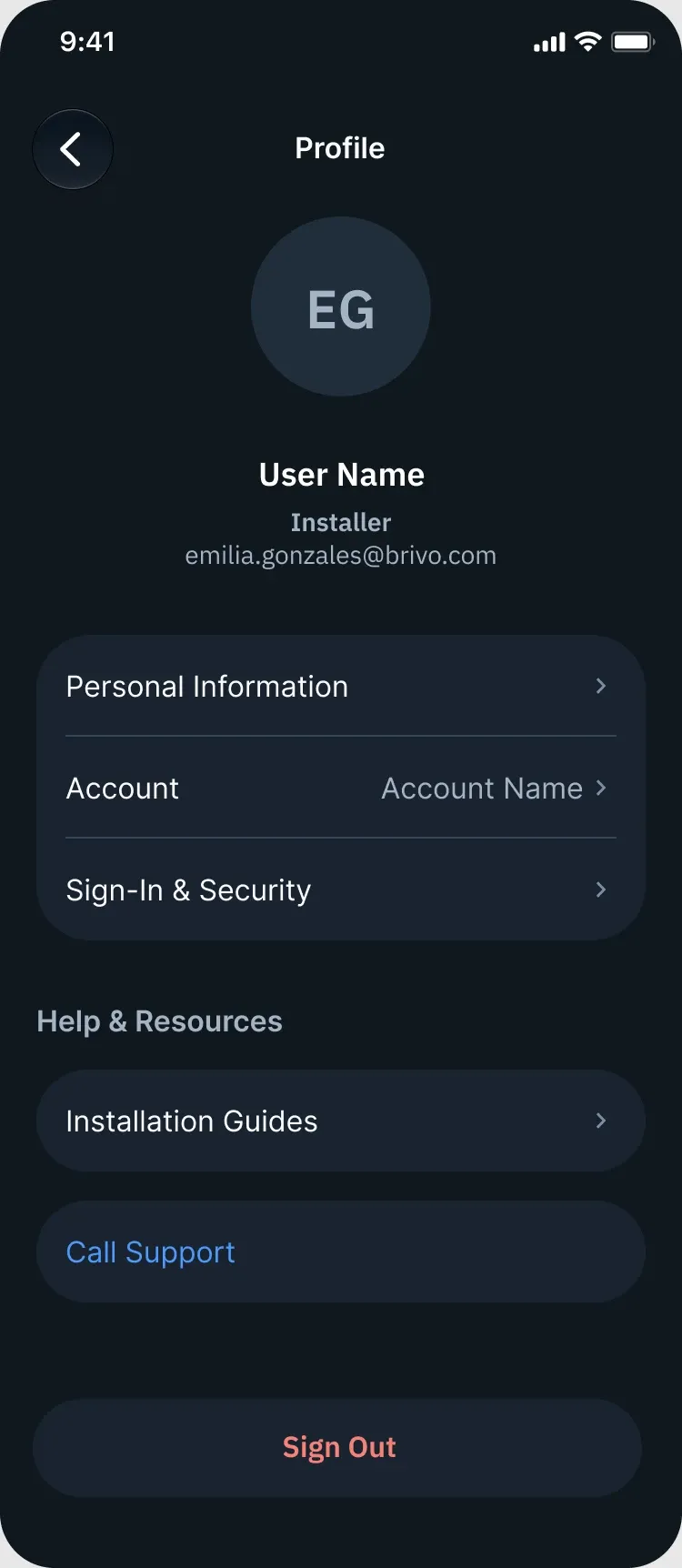
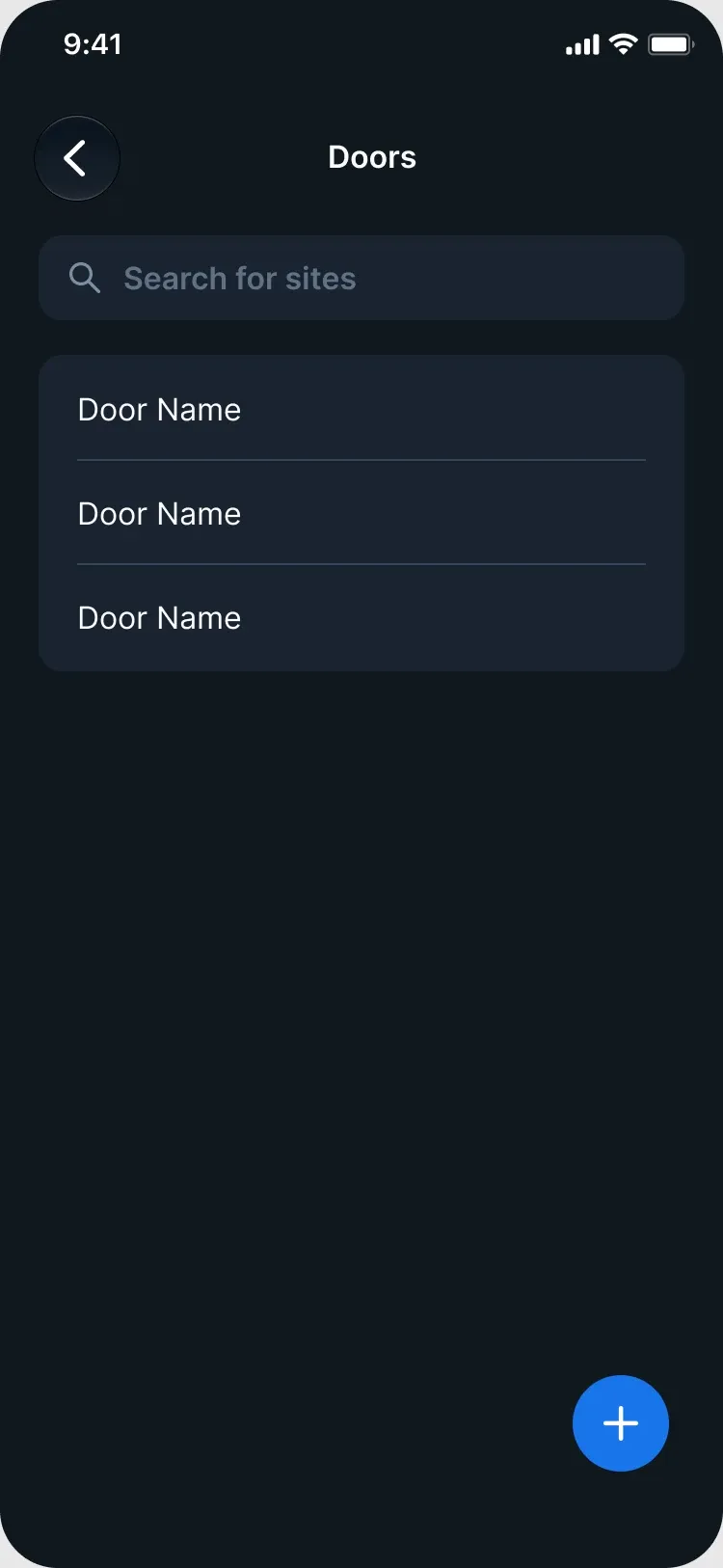
I built a consistent structure around sites, devices, status, and actions. It gave installers a clear way to navigate their work, and let the experience scale as new device types and workflows were added.
A reusable guidance paradigm
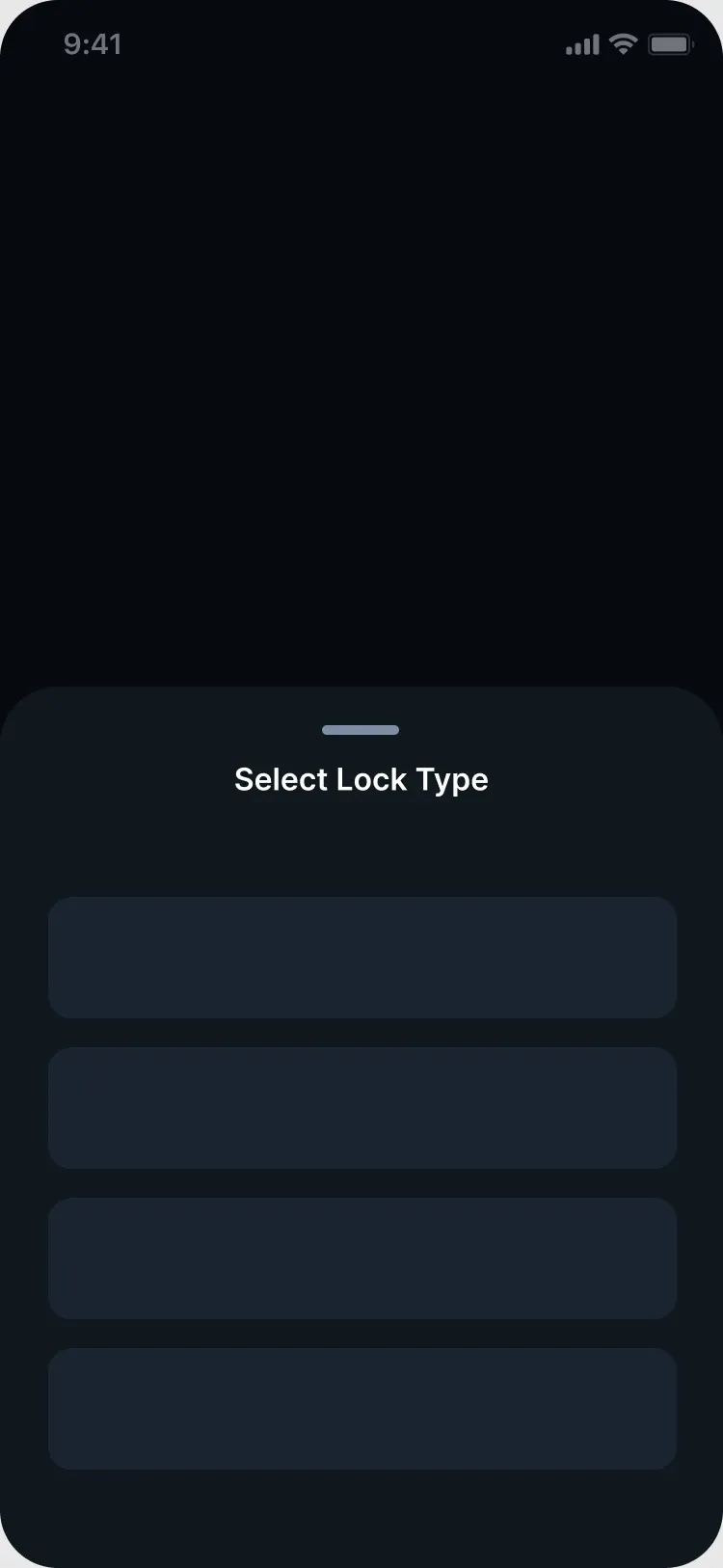
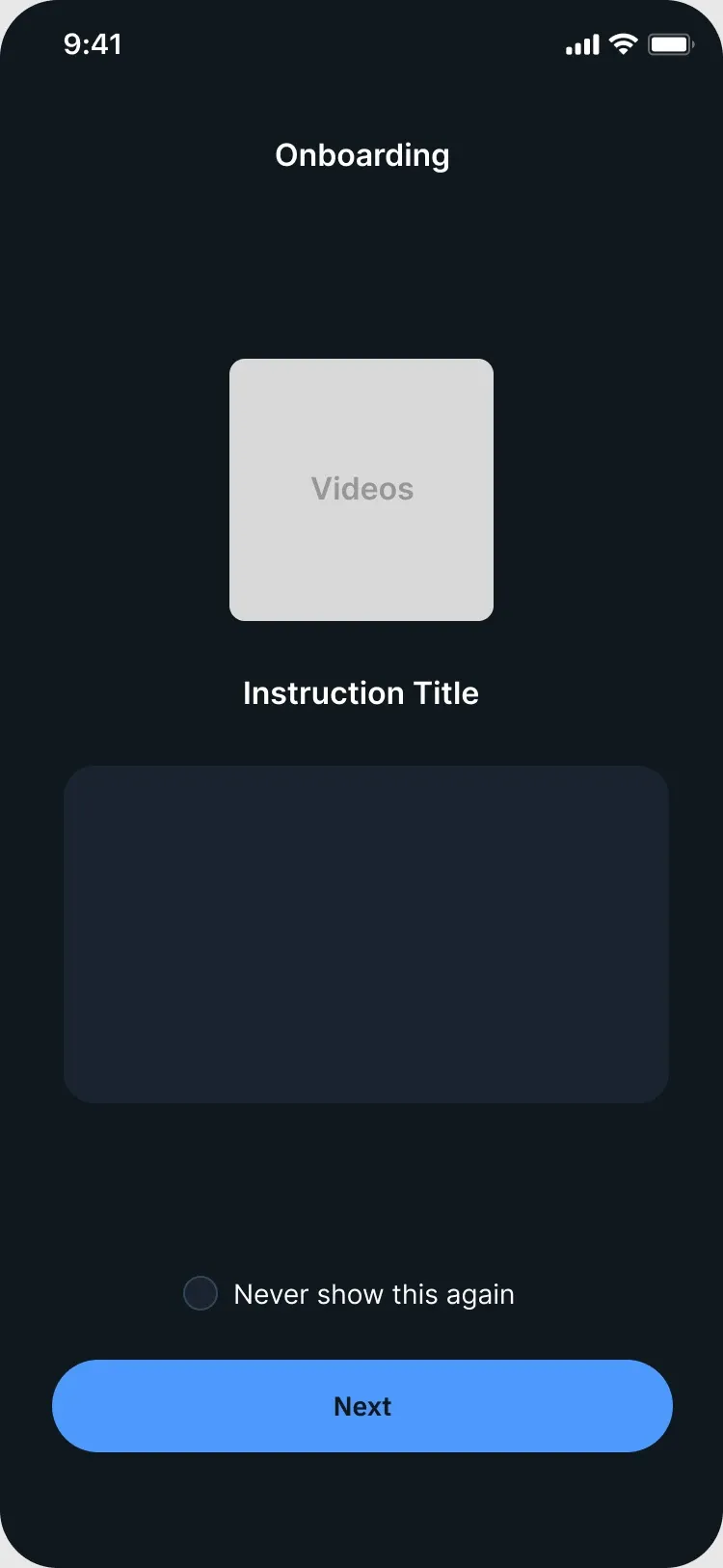
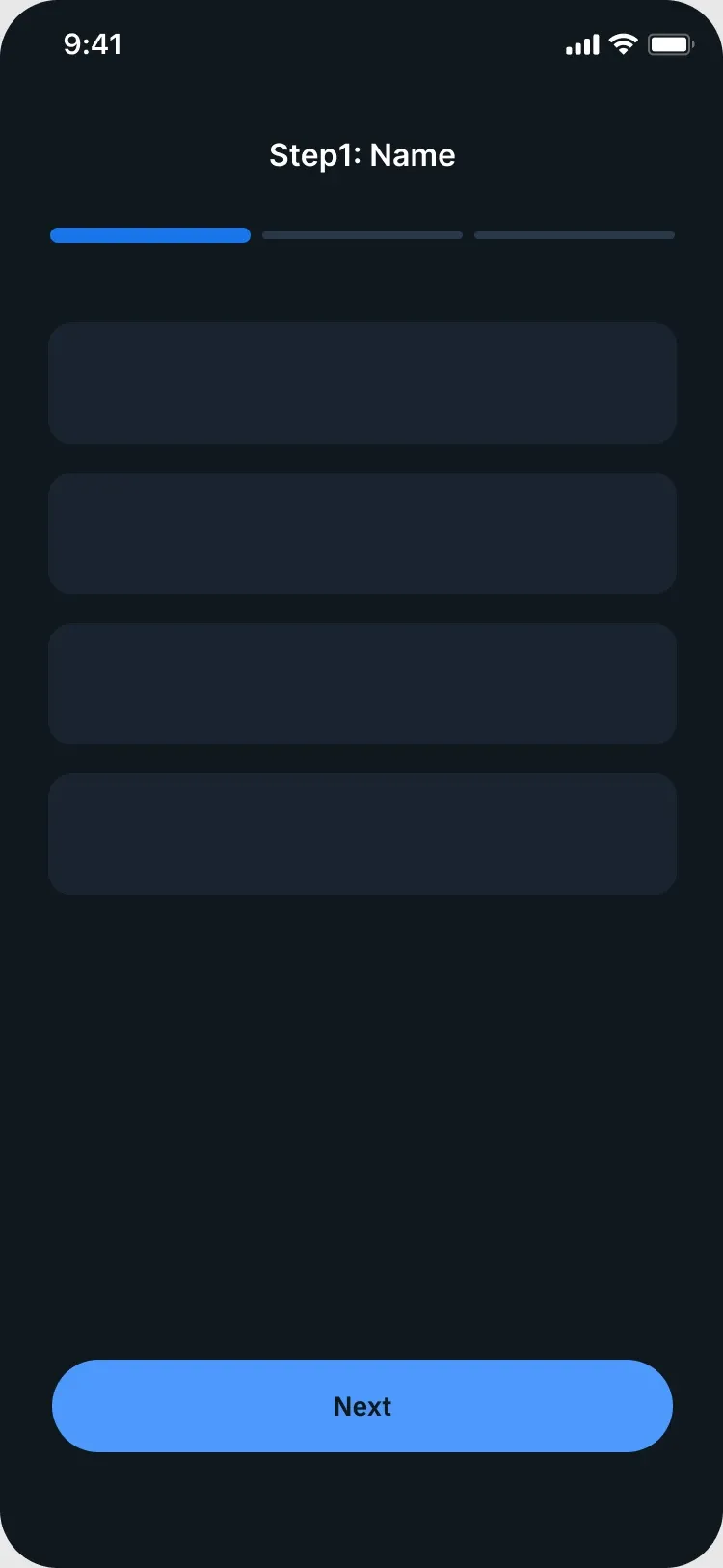
Research showed that installers needed more guidance to understand the process and feel confident they hadn’t missed a step. But more instructions risked slowing down experienced installers, who ran the same workflow again and again.
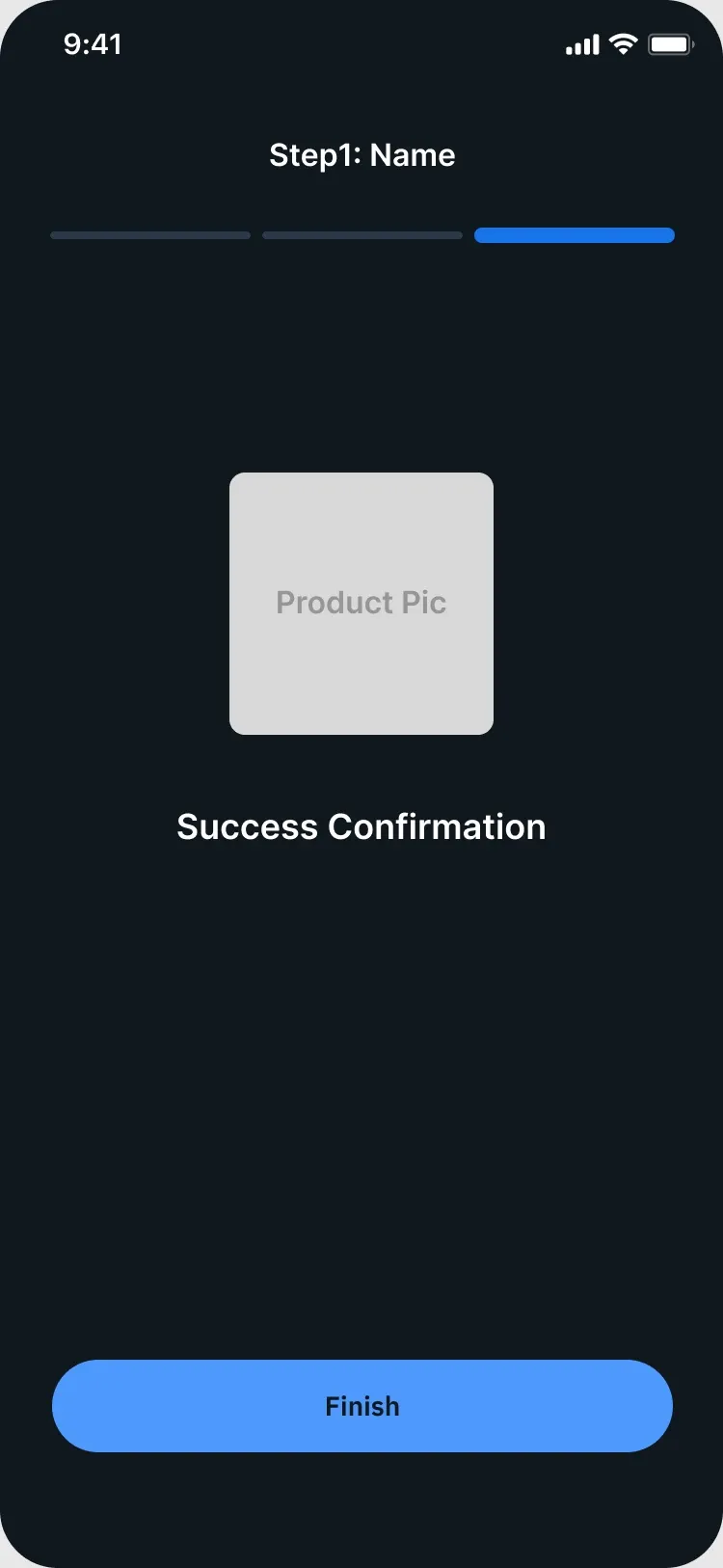
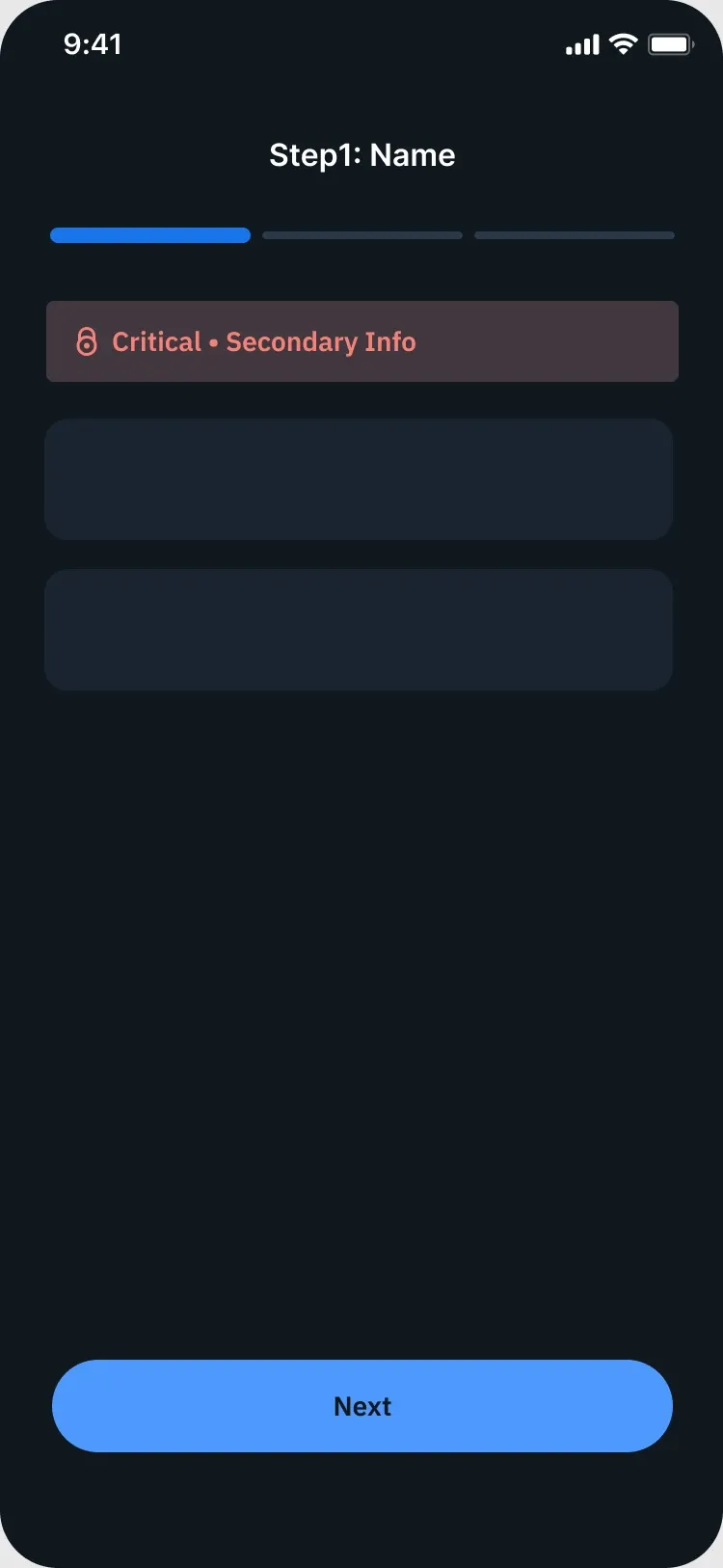
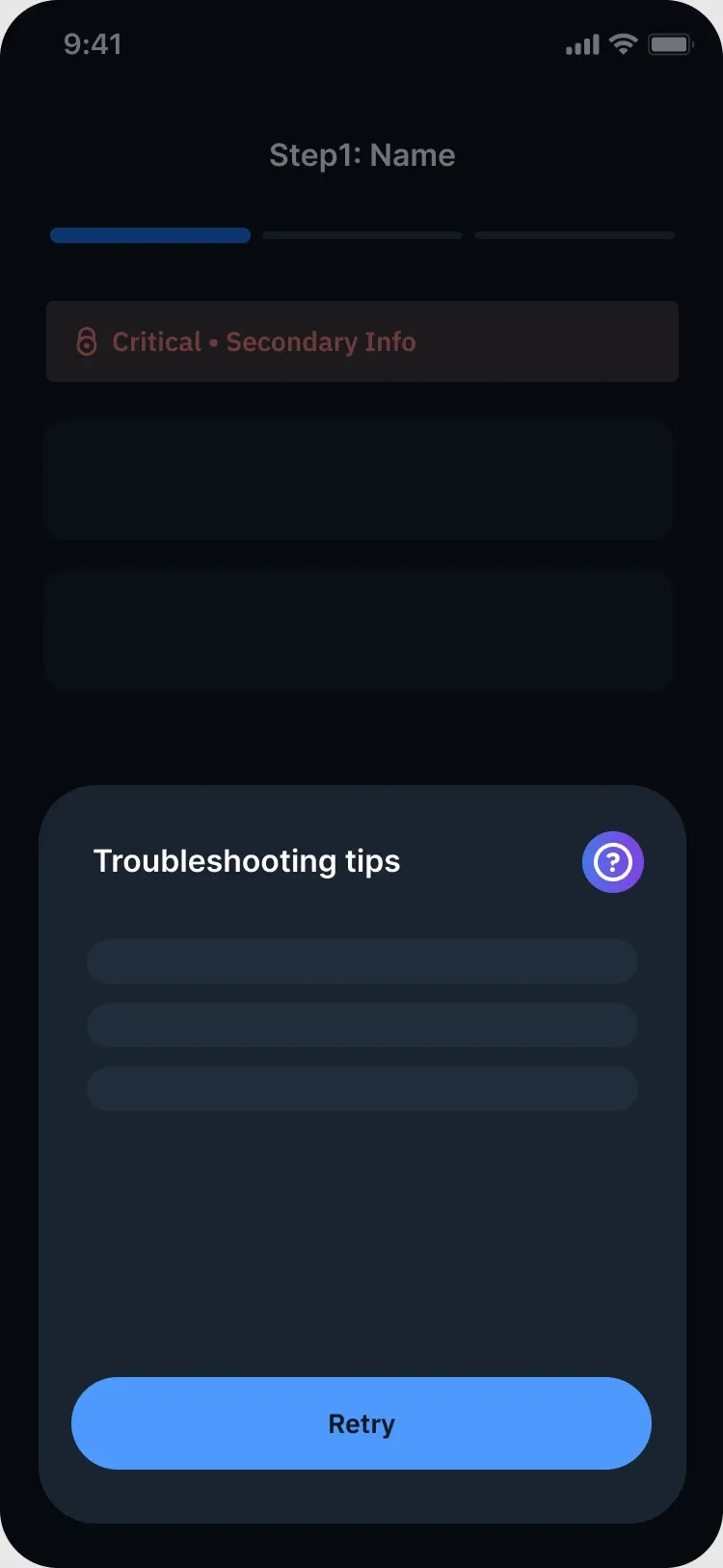
A progressive recovery paradigm
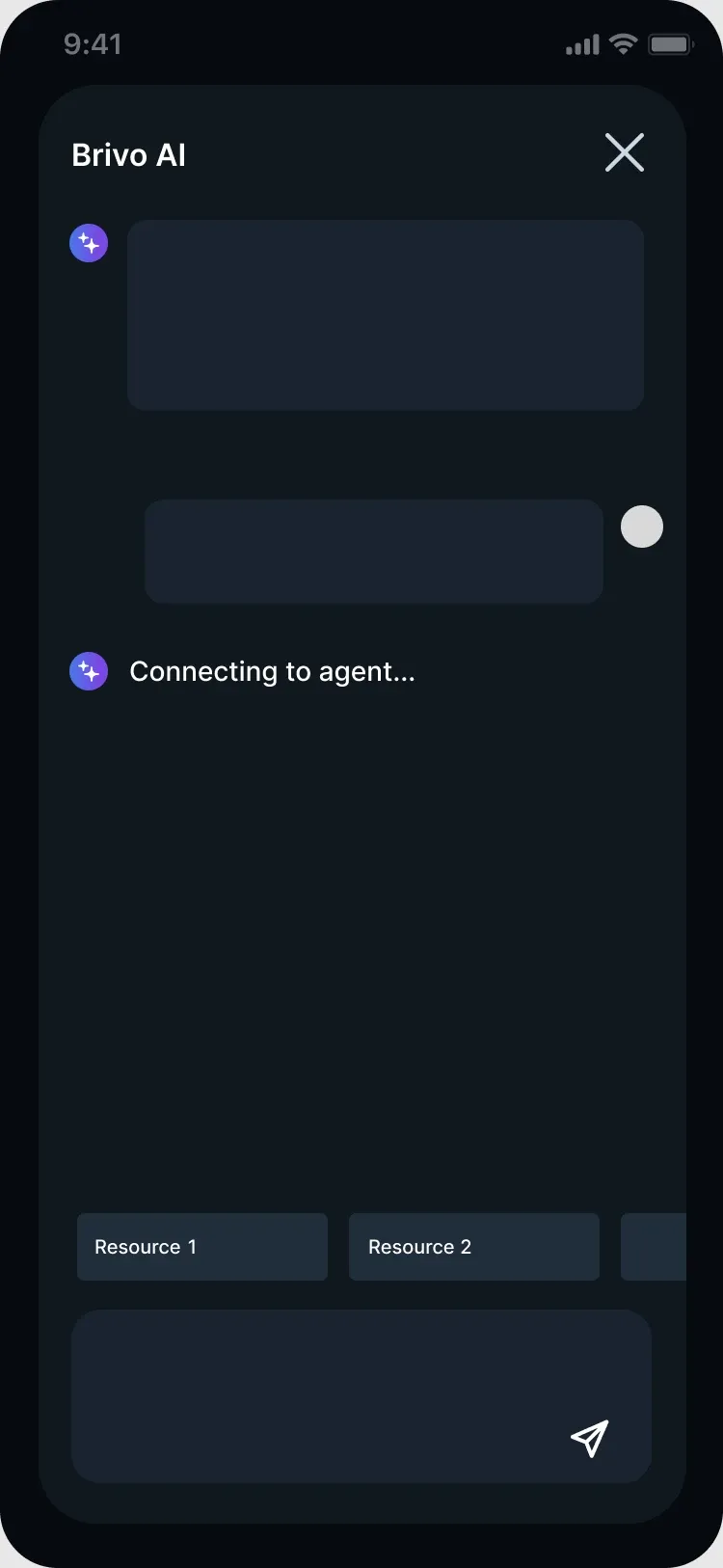
When something went wrong, installers needed help right away, but not every issue called for a Support call. The challenge was deciding how much help the product should give before escalating to an agent.
XE360 Lock: the right proving ground
With 16 device types, we couldn’t bring the new experience to every device at once. To put the foundation into practice we needed a focused starting point, so we chose the XE360 offline lock as the first device to redesign end to end.
XE360 was critical to Brivo’s growth in multifamily
As Allegion’s latest wireless lock, XE360 gave Brivo a more competitive solution for apartment units and common spaces where wired or online locks weren’t practical. The Multifamily team needed the integration quickly to compete for projects against Latch, Salto, and other established solutions.
One of the most fragmented commissioning experiences
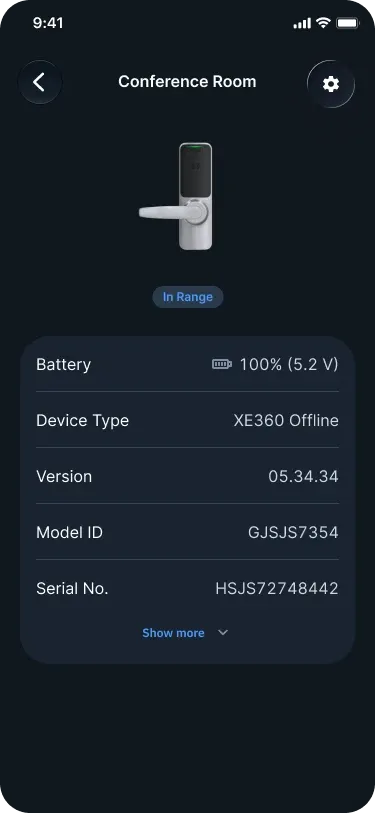
Commissioning an XE360 meant using 2 mobile apps and 1 web app, and switching between them 3–5 times to finish a single workflow.
Bringing the foundation to life with XE360
One connected workflow
For installers, the new architecture pulled every task they own, from commissioning locks to updating firmware, into the Install App. Environment setup, usually handled by resellers, moved to Partner Portal, and managing credentials stayed with customer admins in Brivo Access.
Guidance when it matters, and less reliance on Support
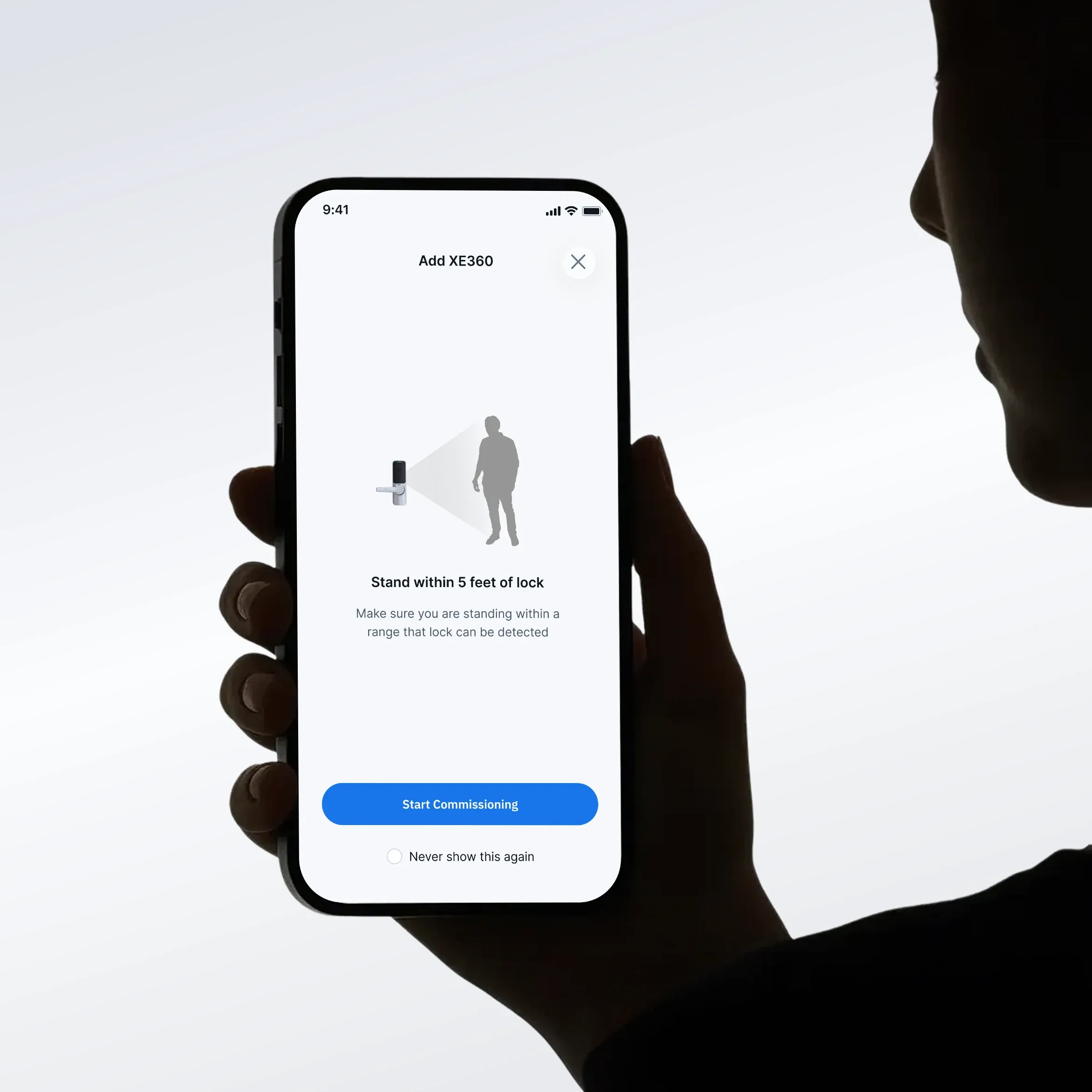
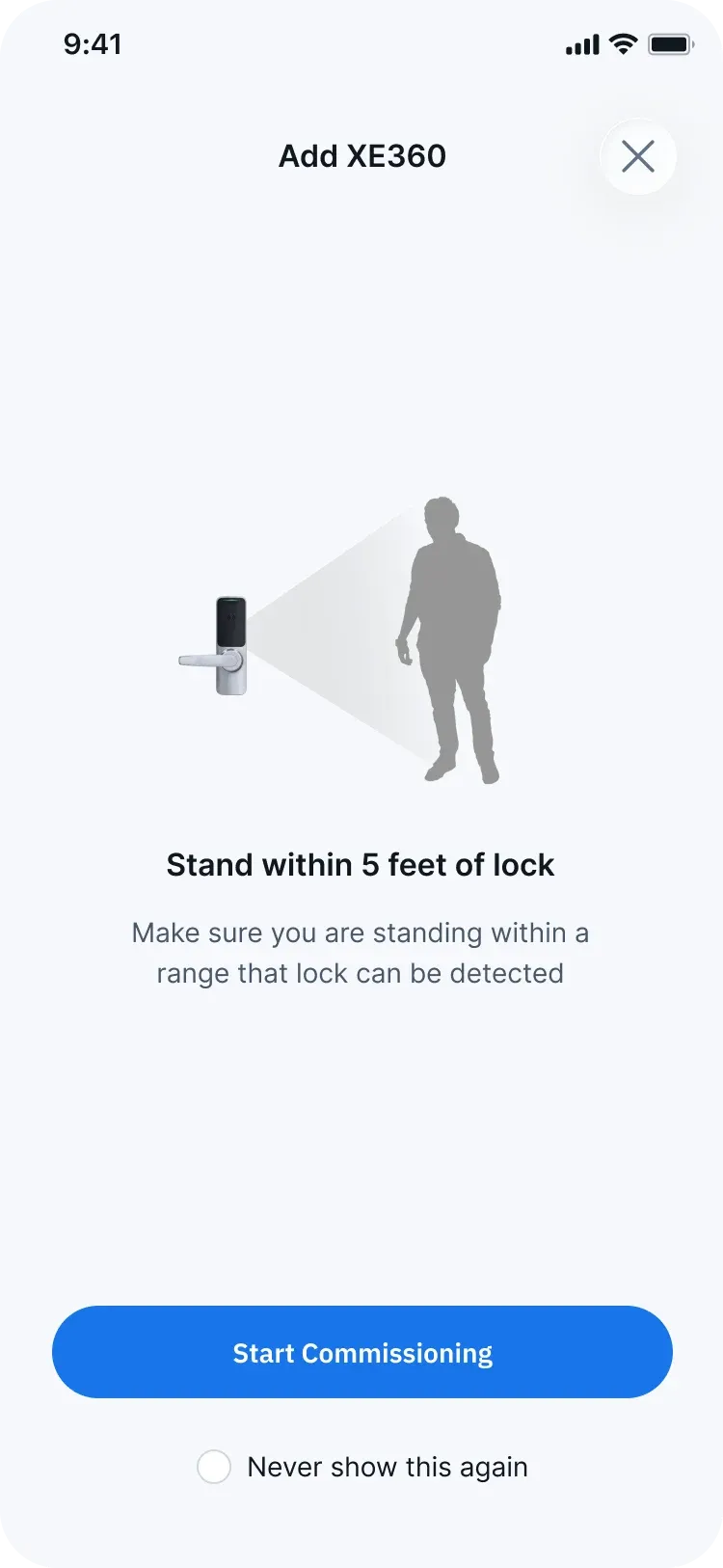
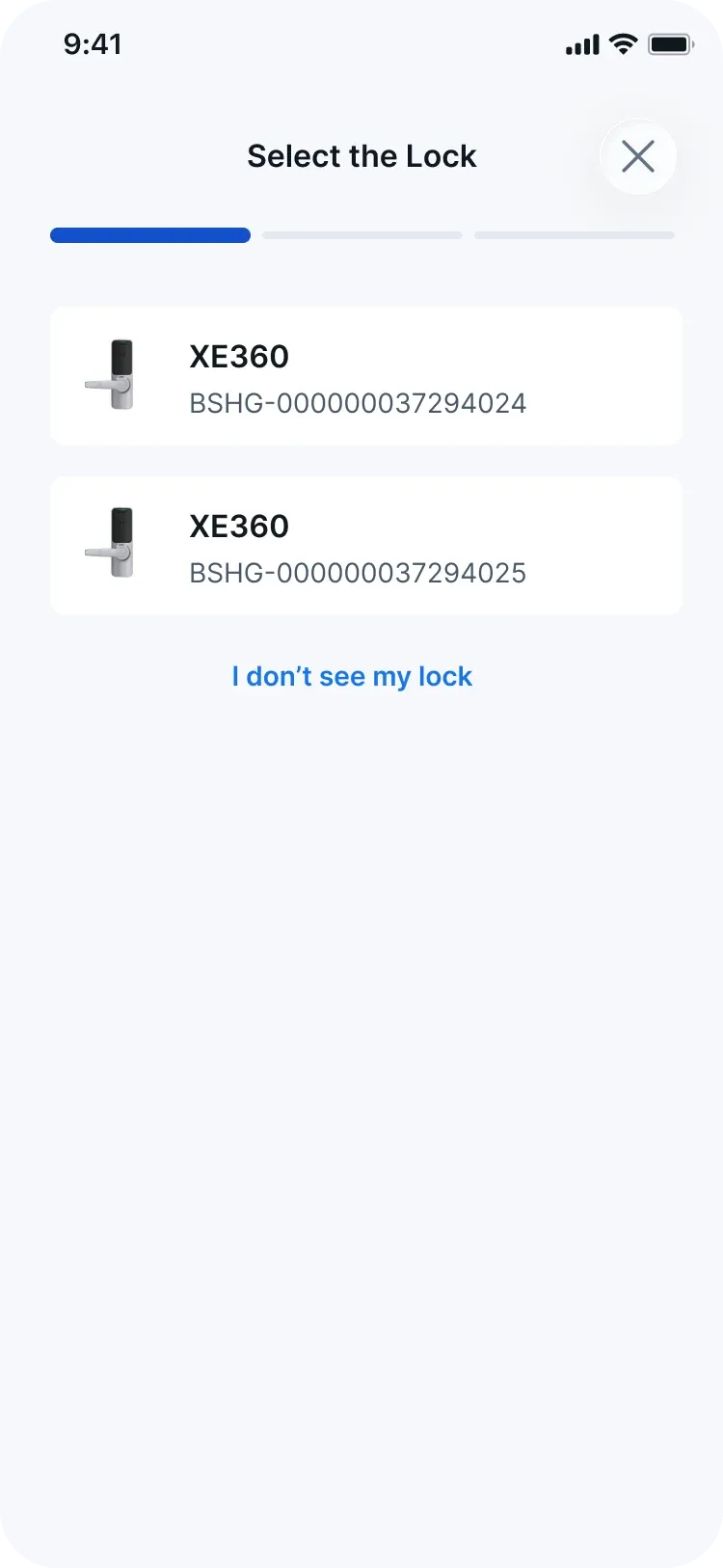
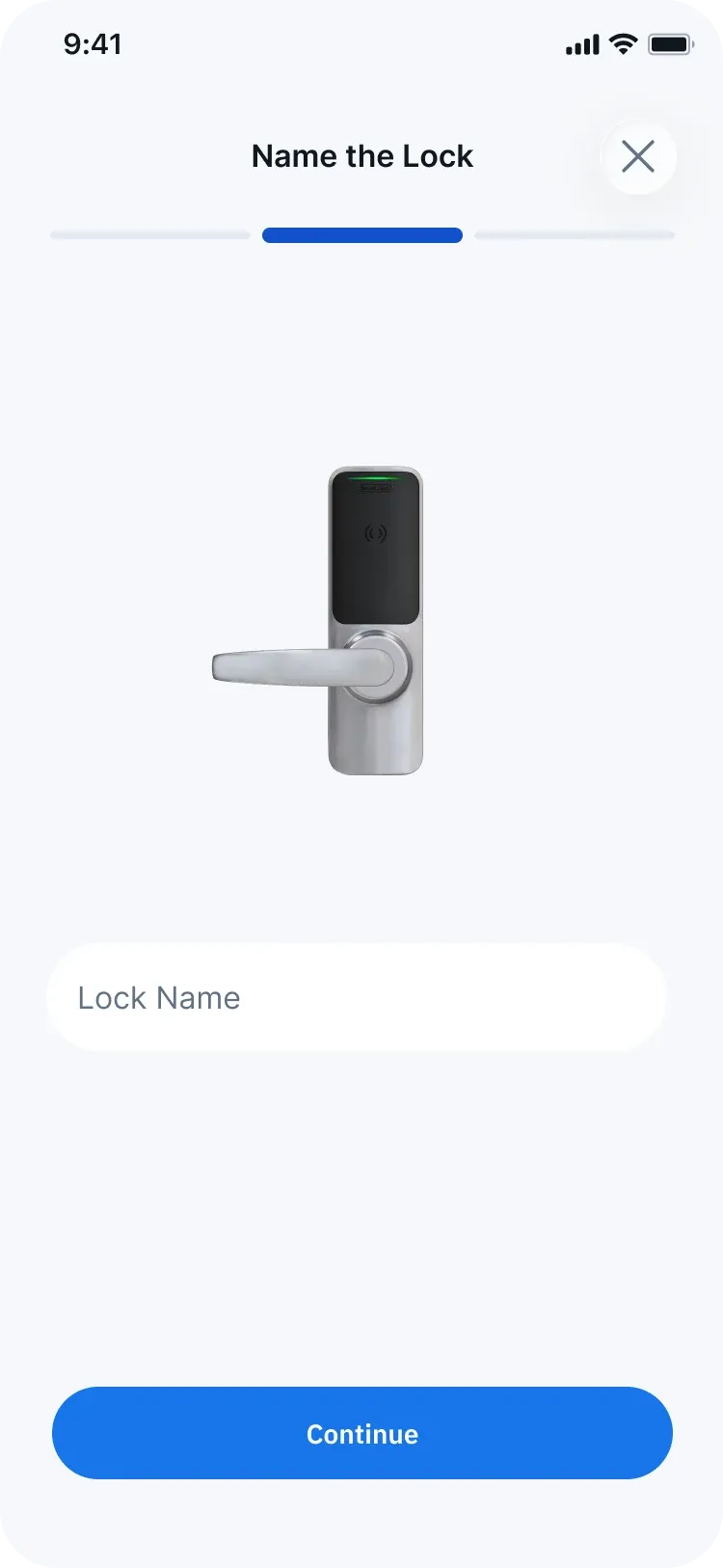
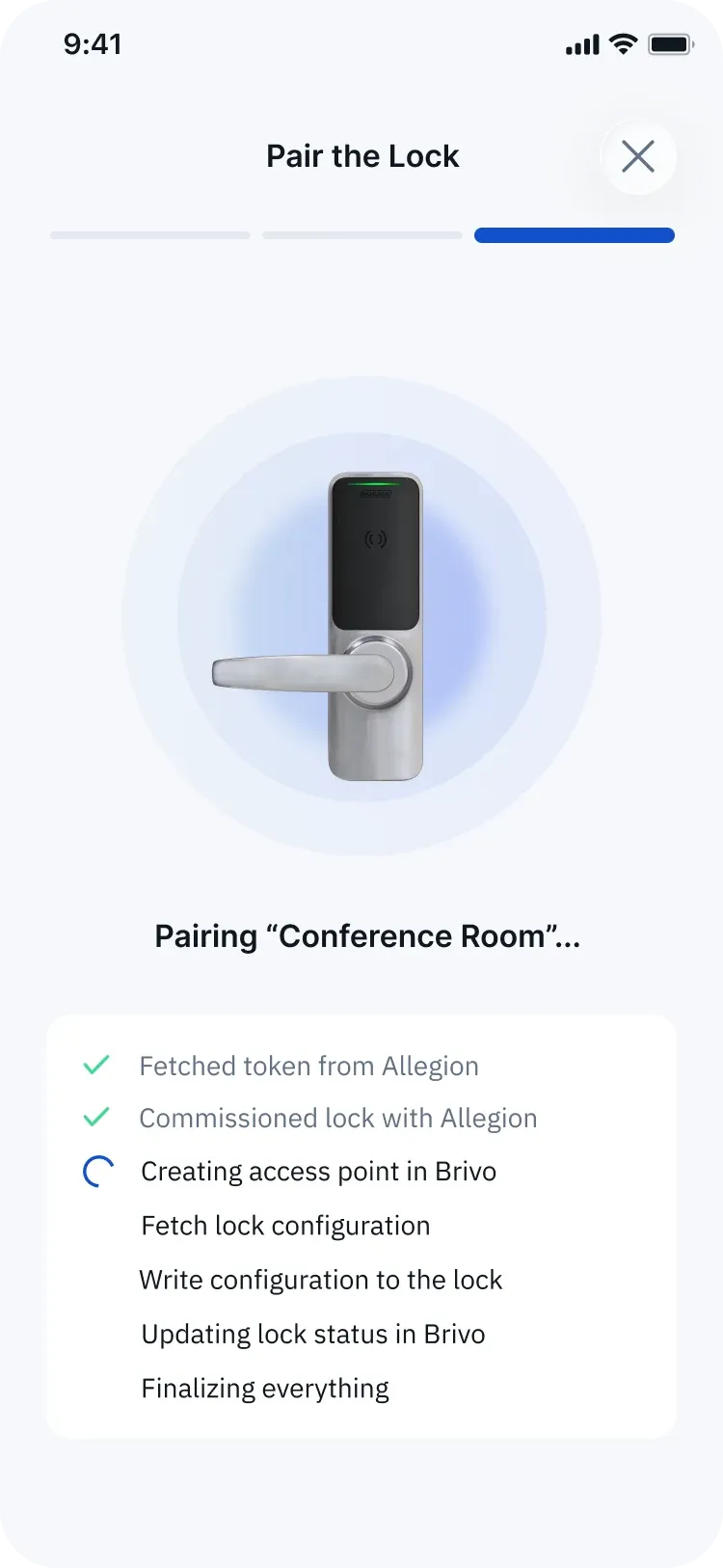
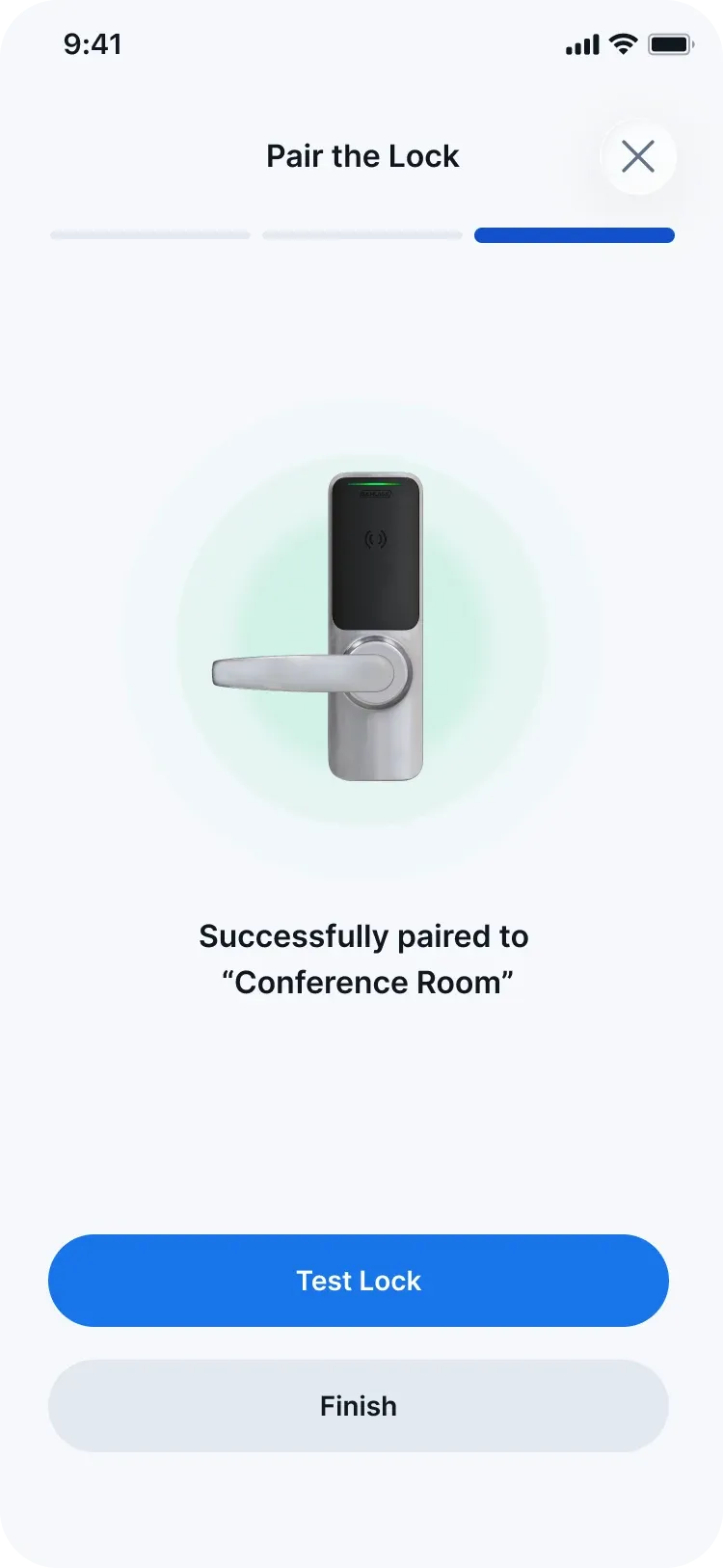
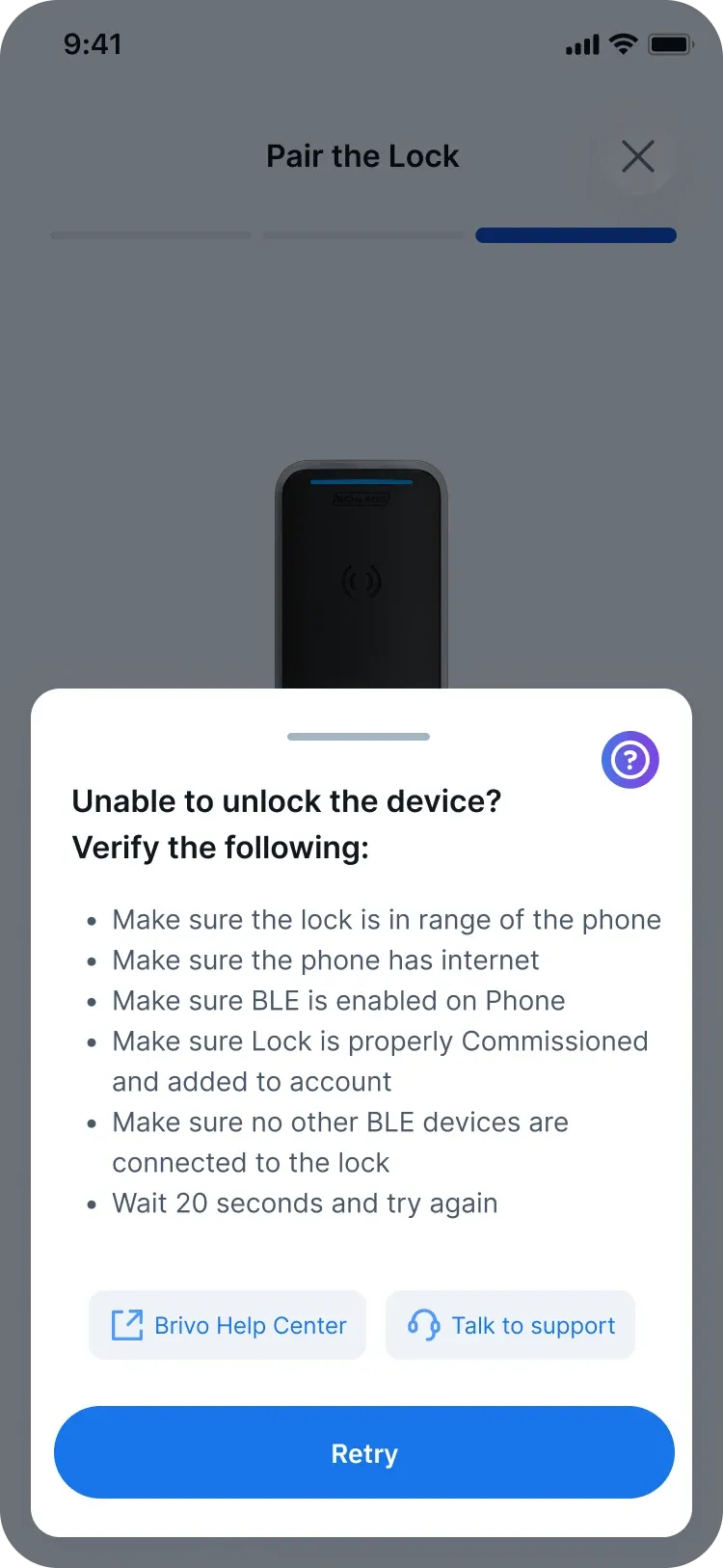
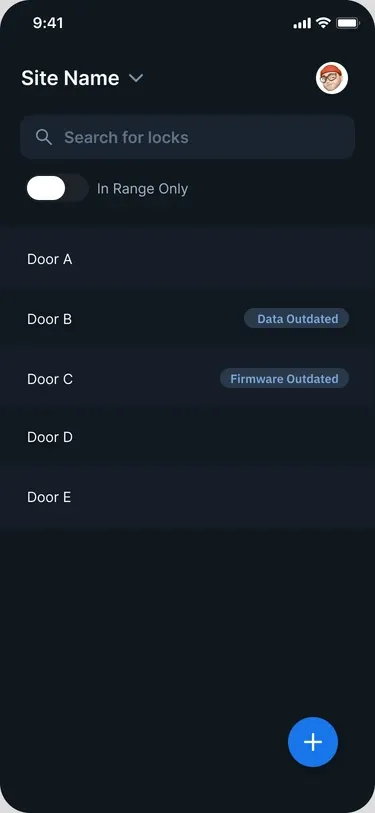
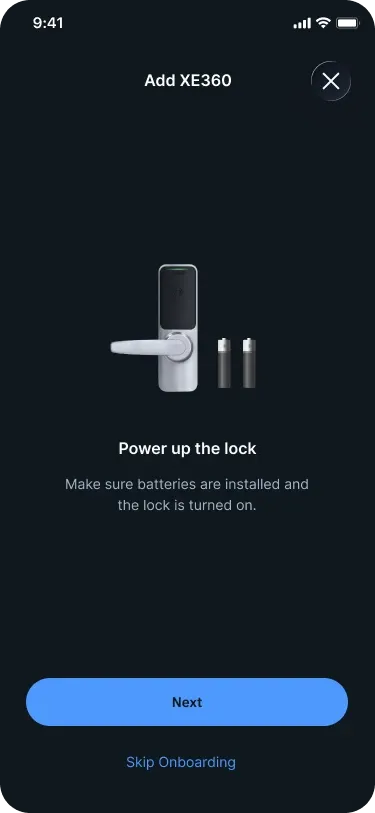
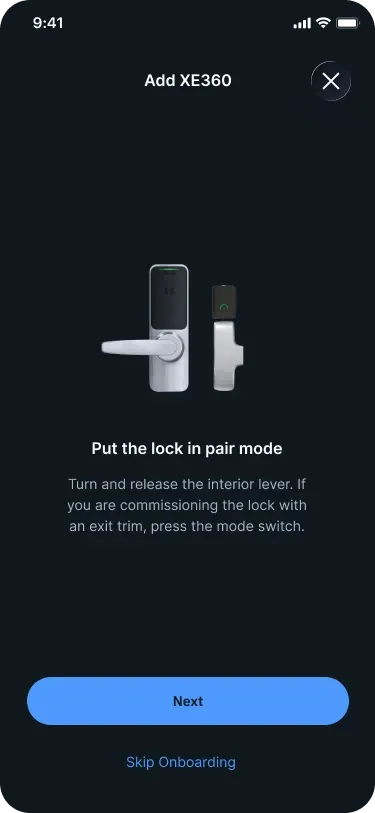
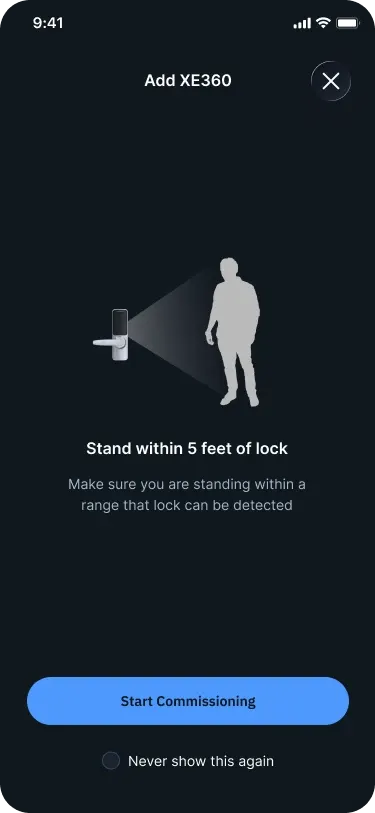
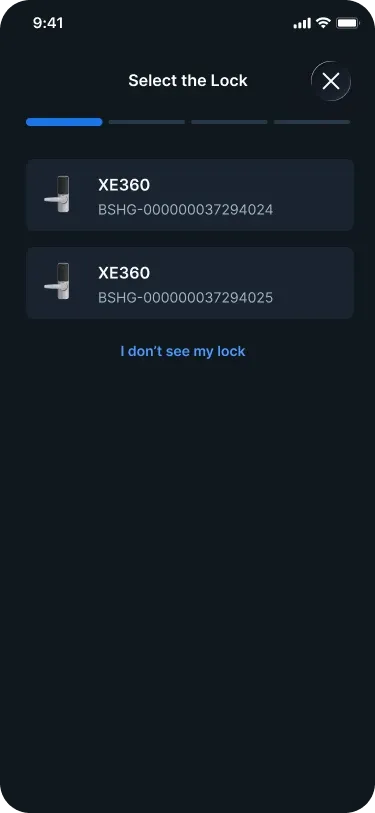
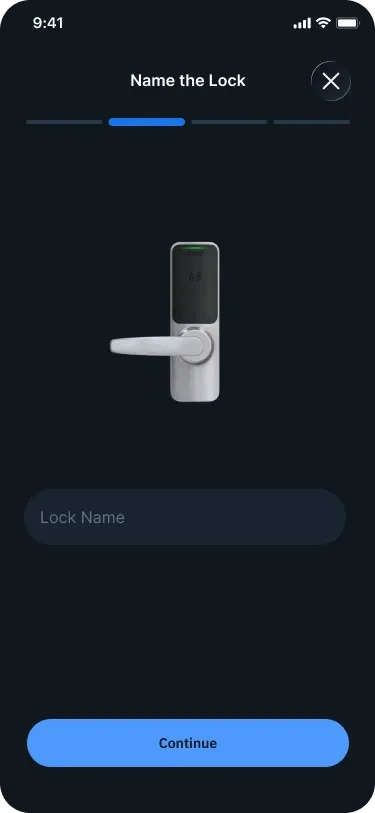
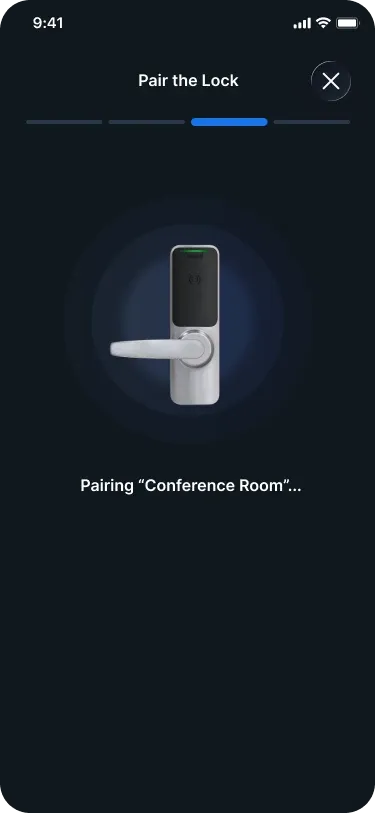
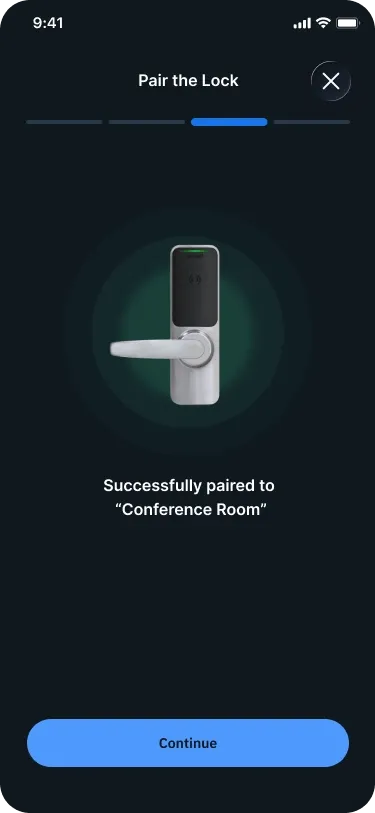
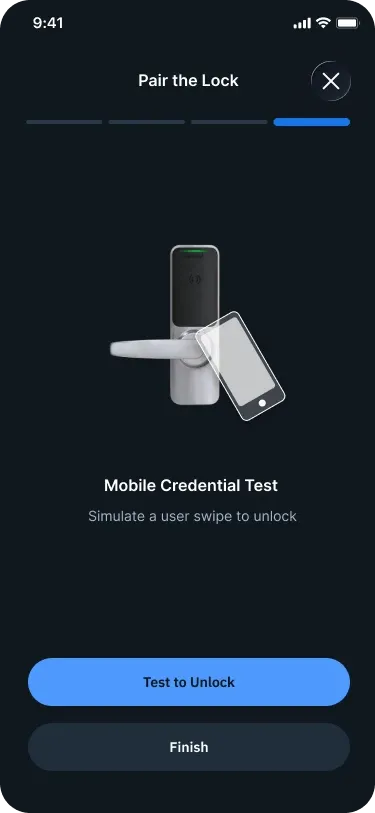
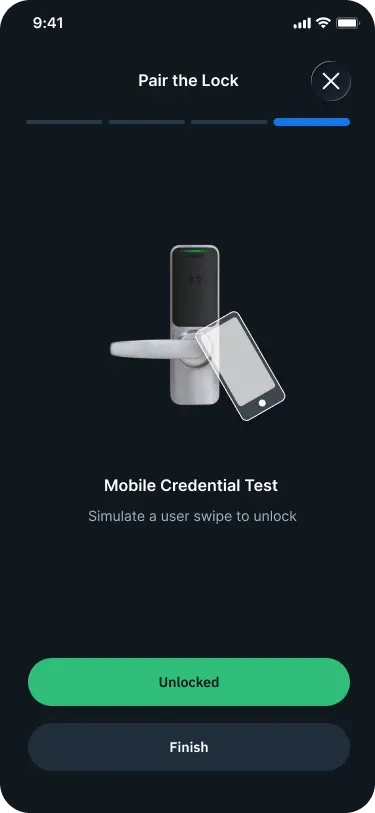
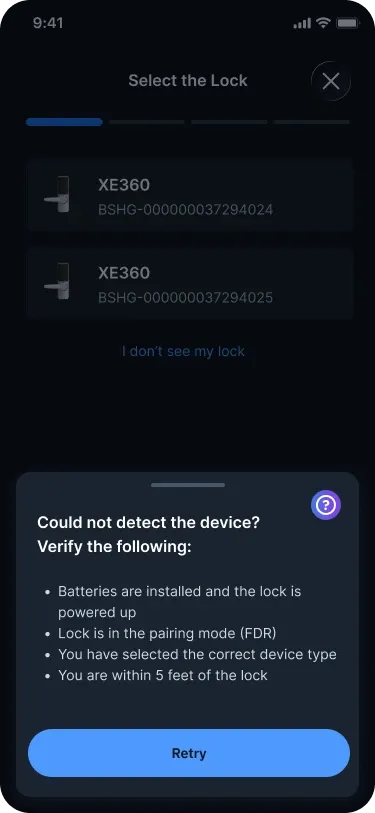
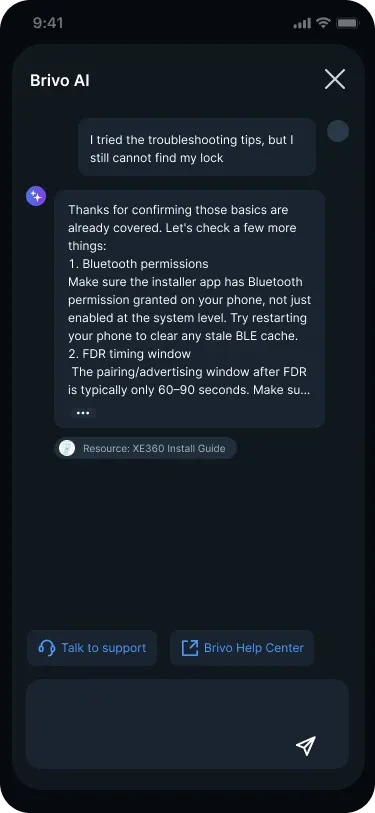
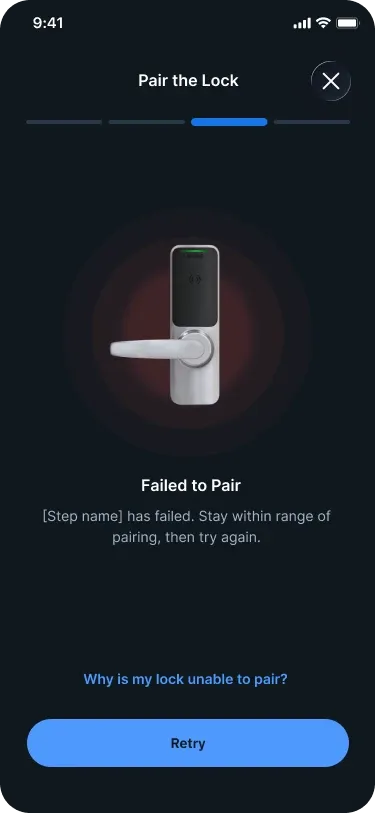
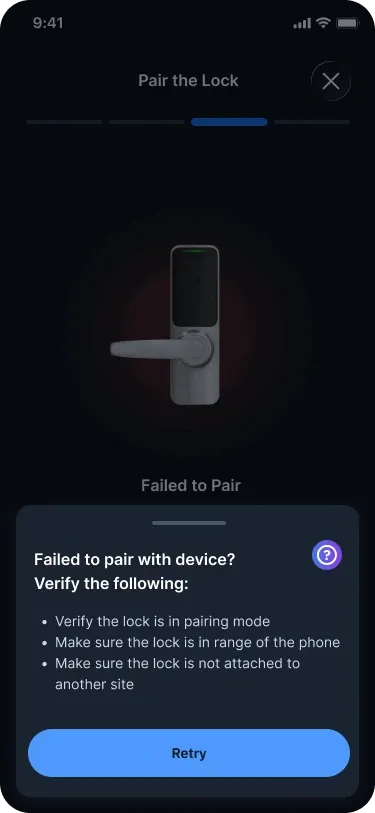
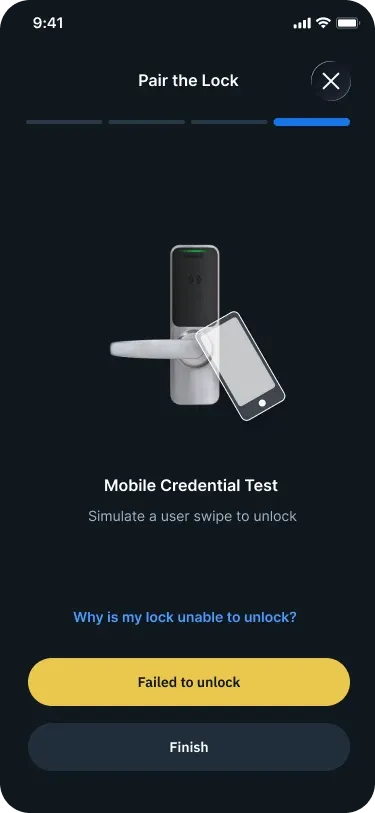
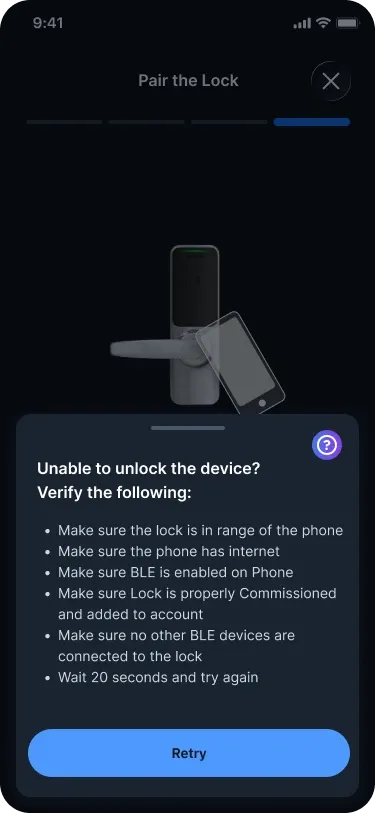
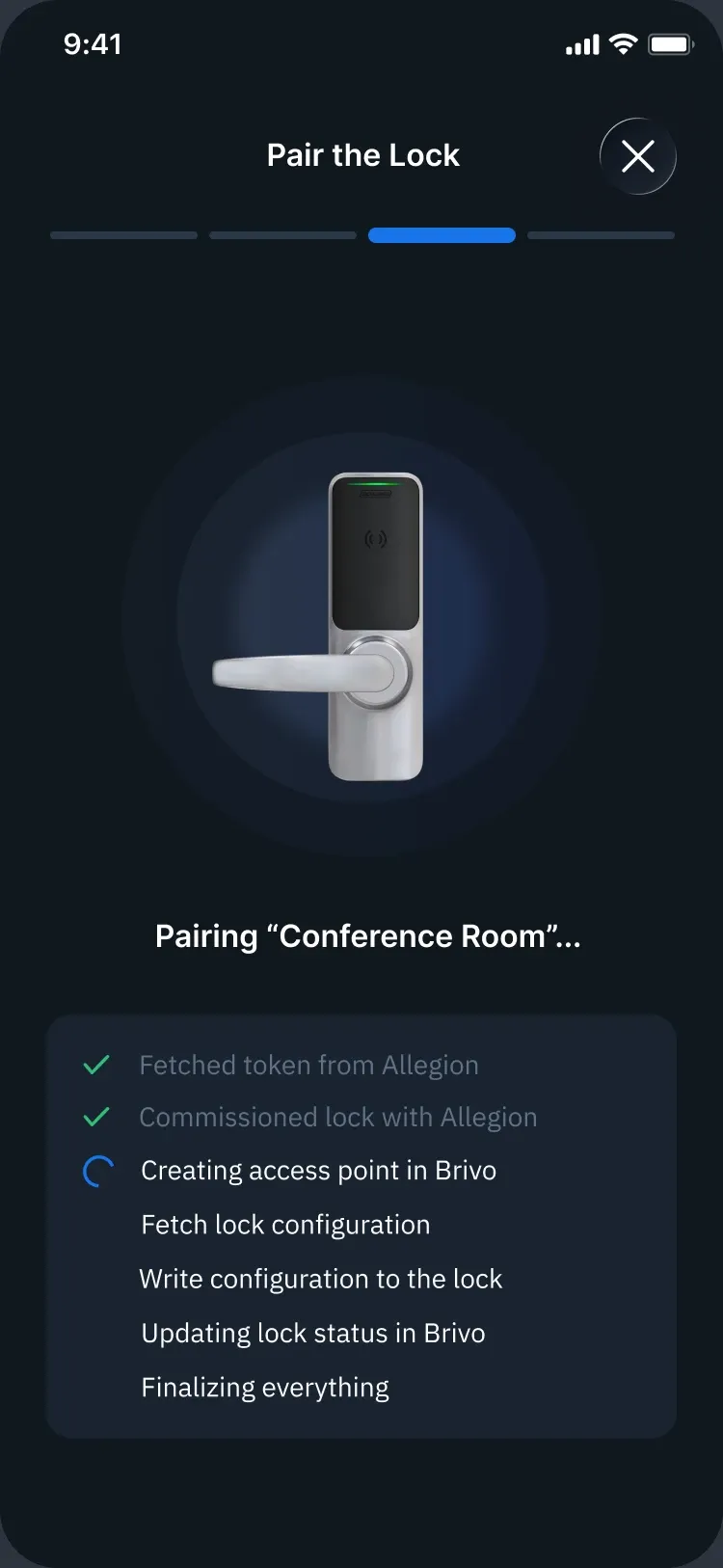
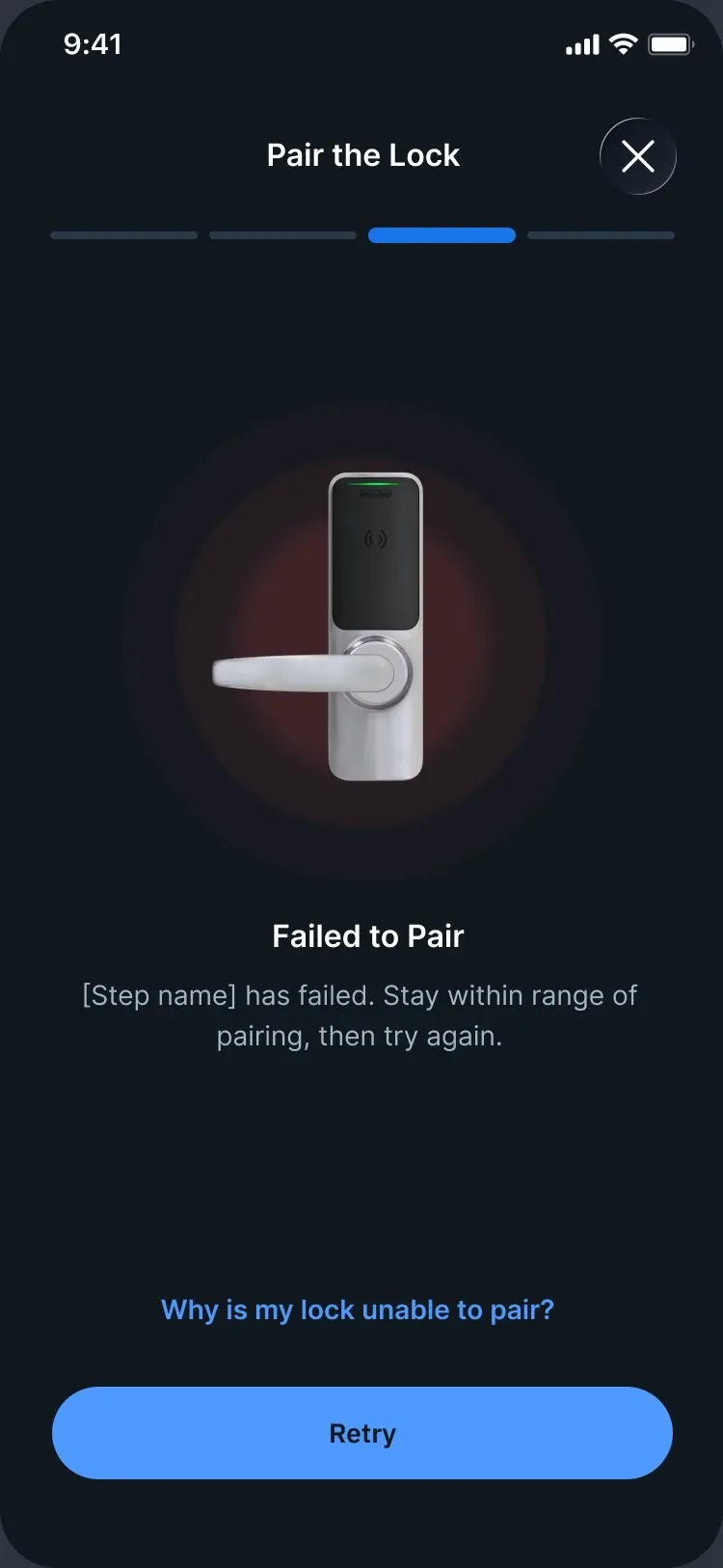
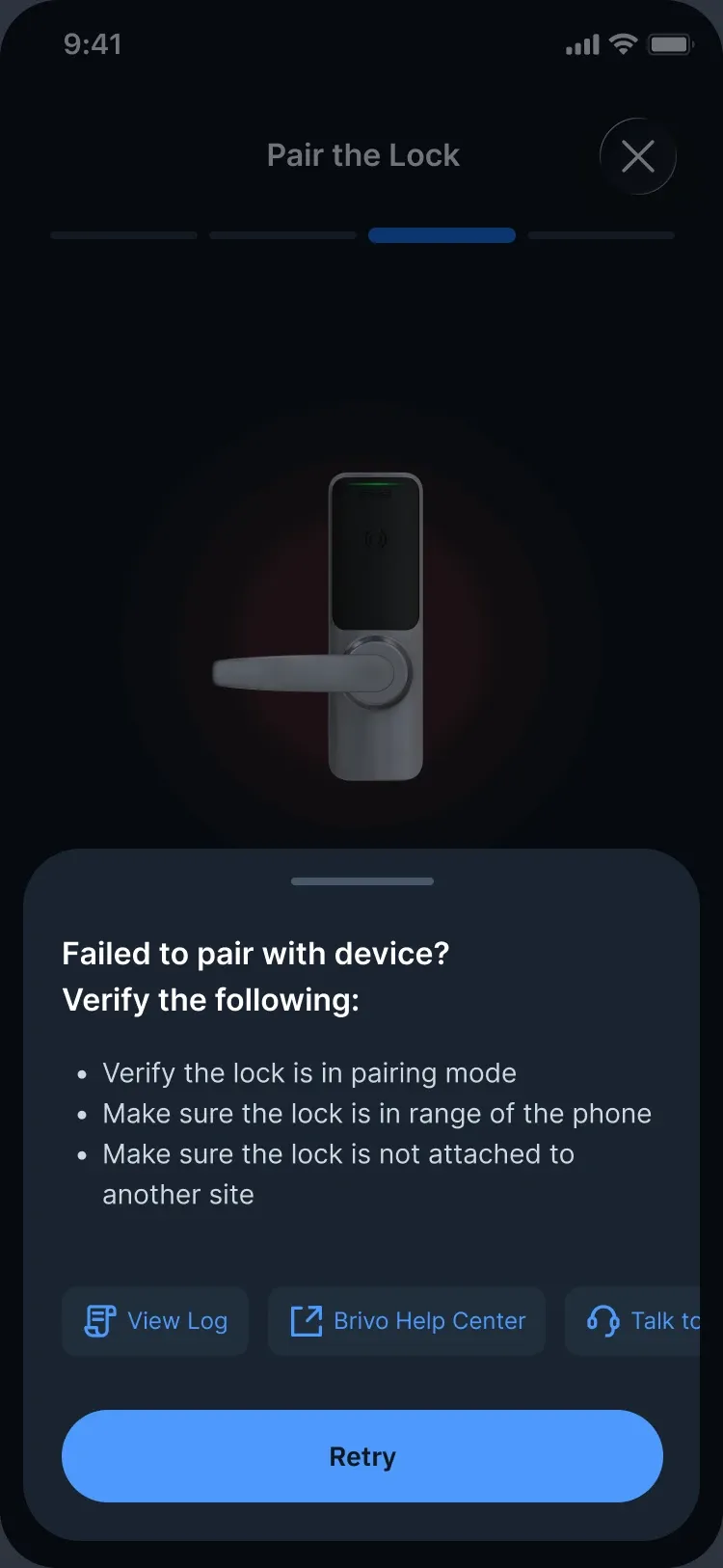
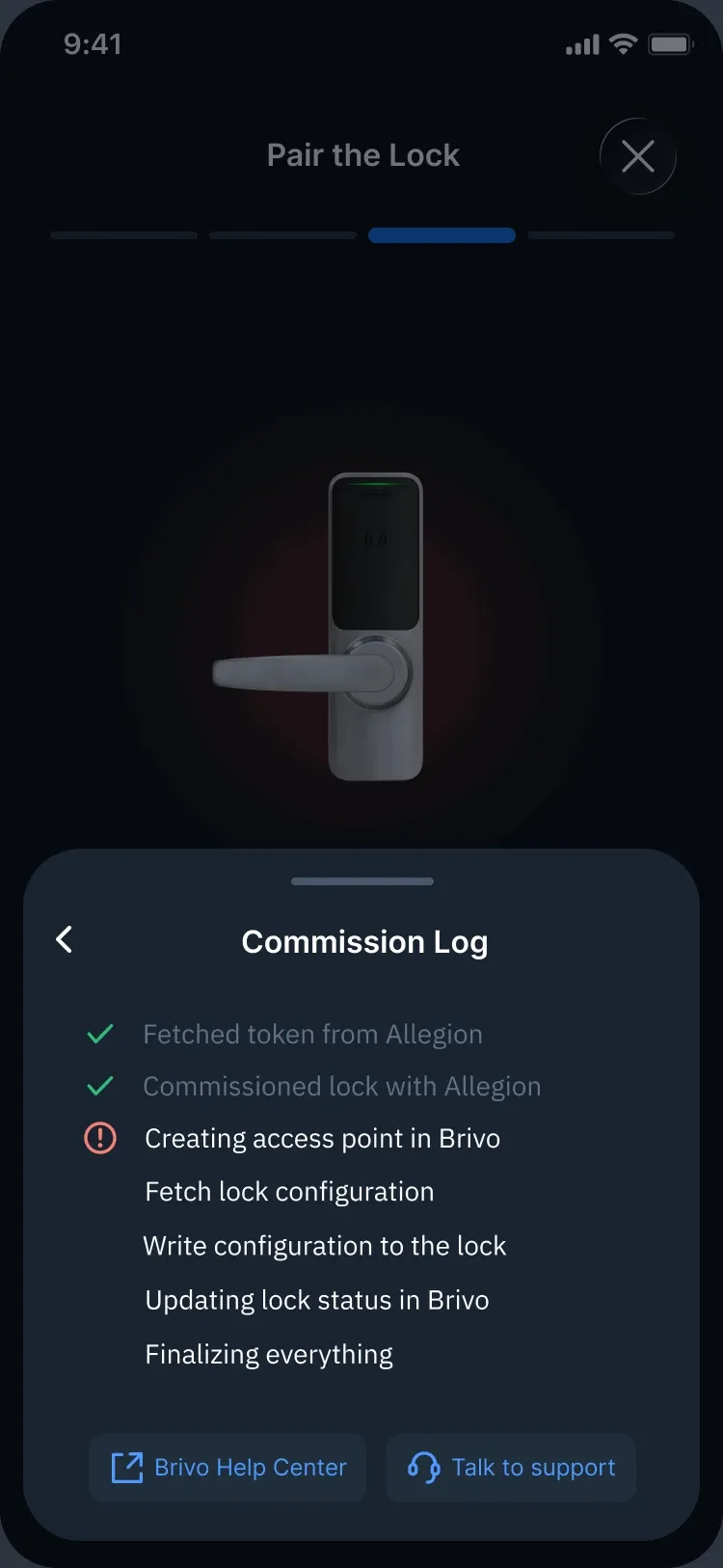
In the first iteration, I brought both paradigms to XE360. A skippable onboarding prepared installers, pairing ran step by step with help right where it failed, and after installation they could manage the lock on their own.
Designing through real-world constraints
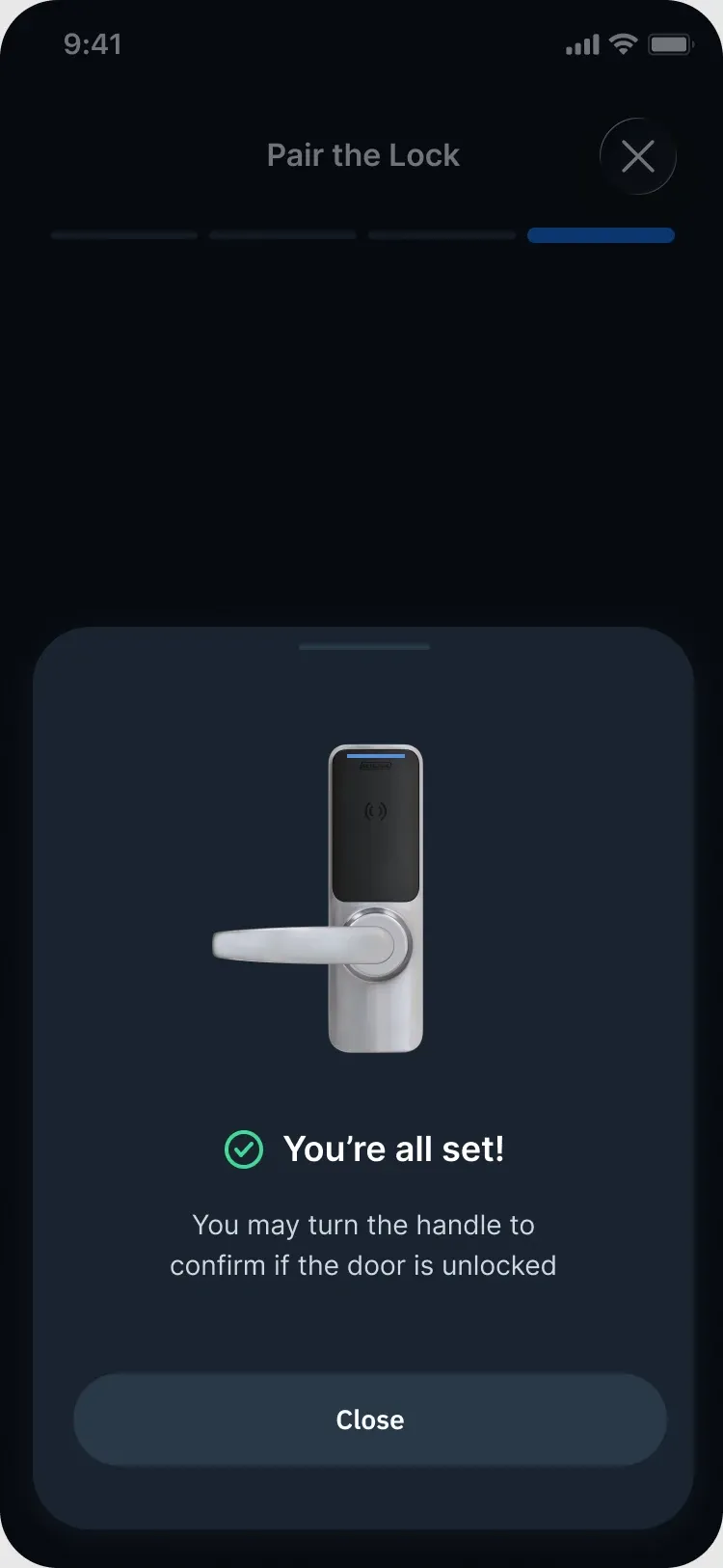
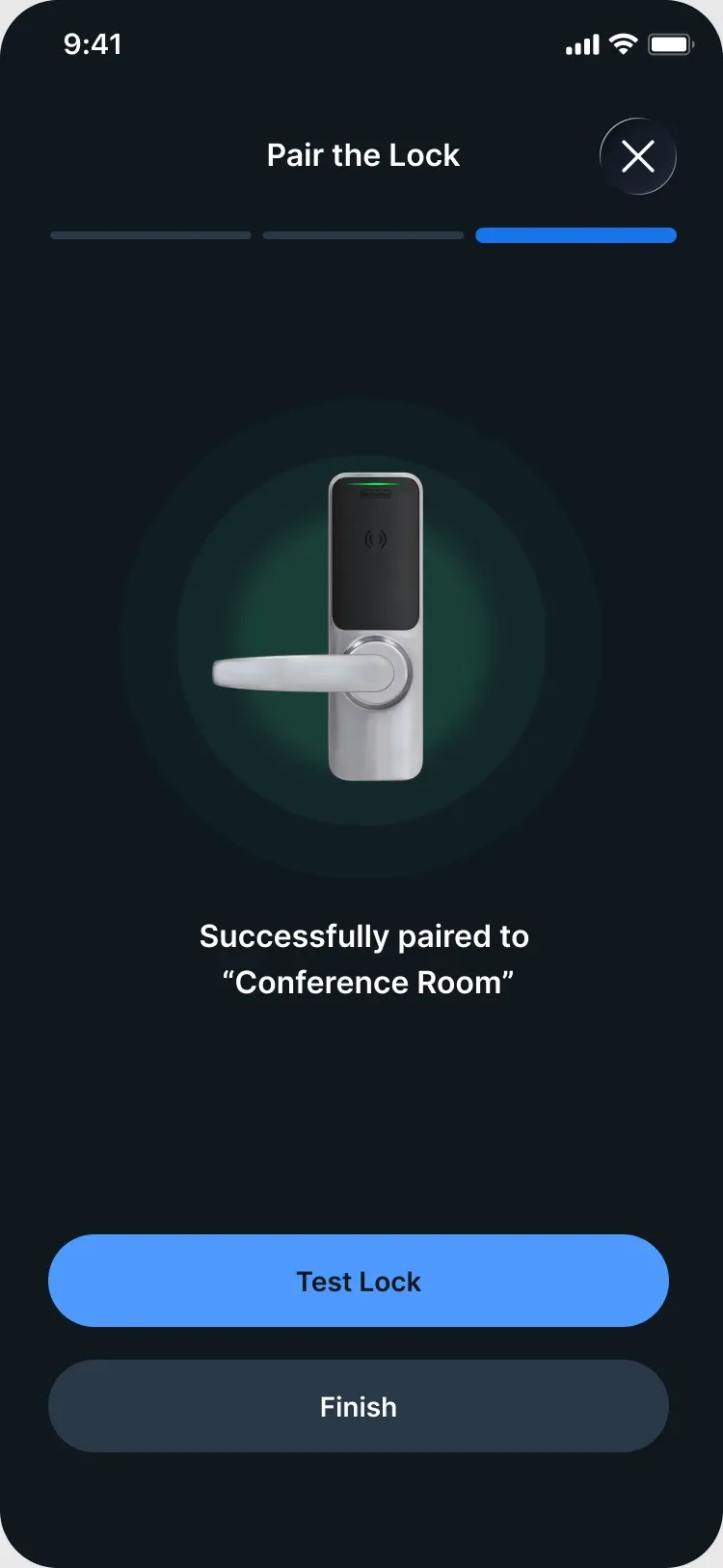
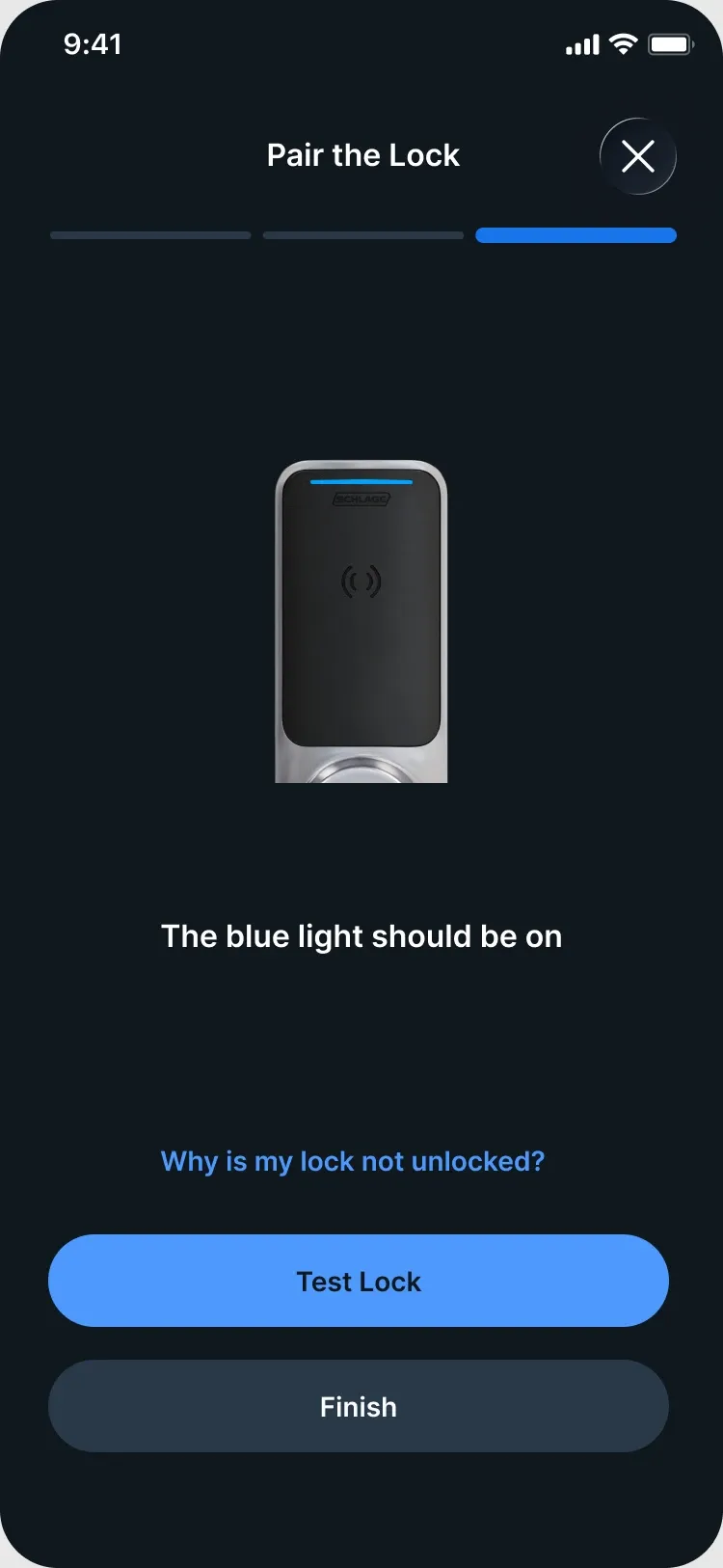
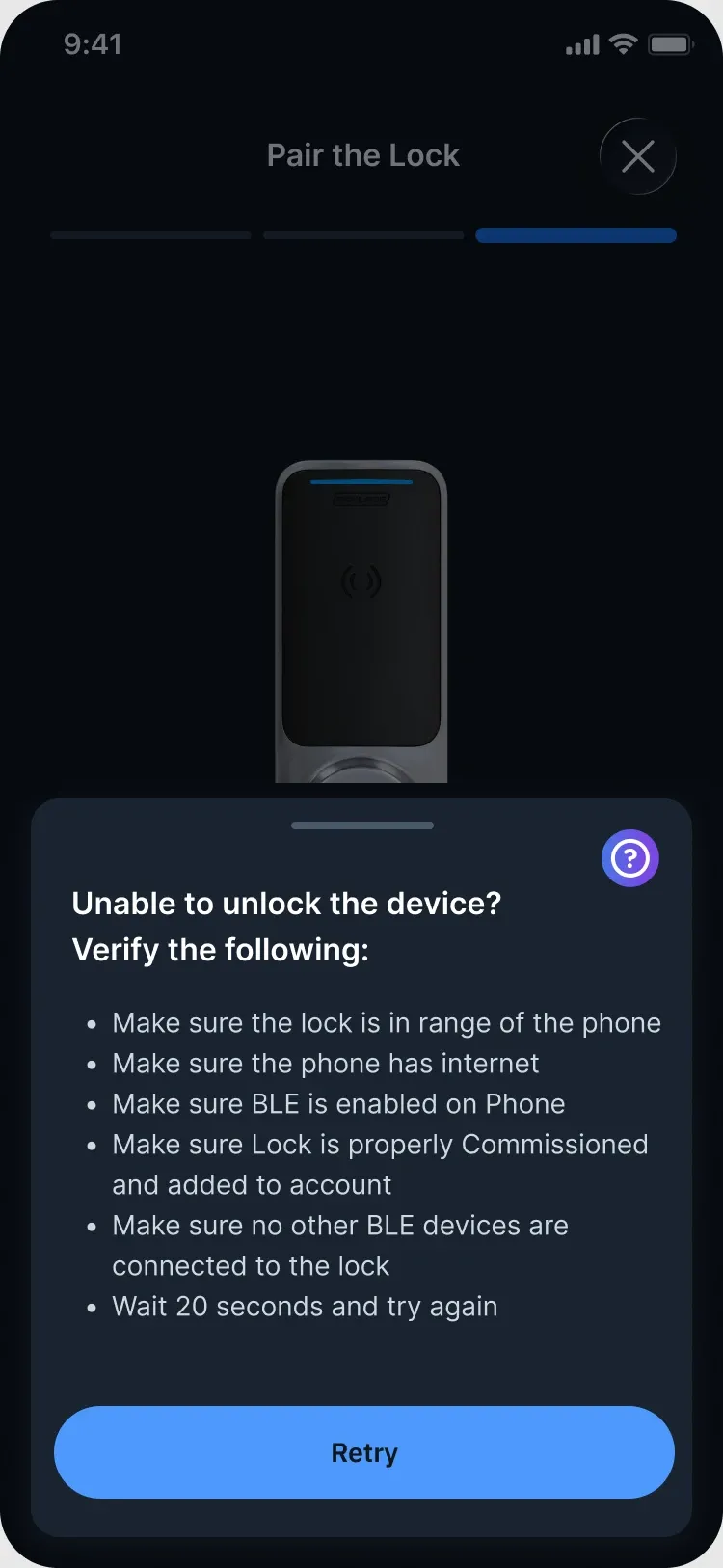
01 — When the system lacked the API
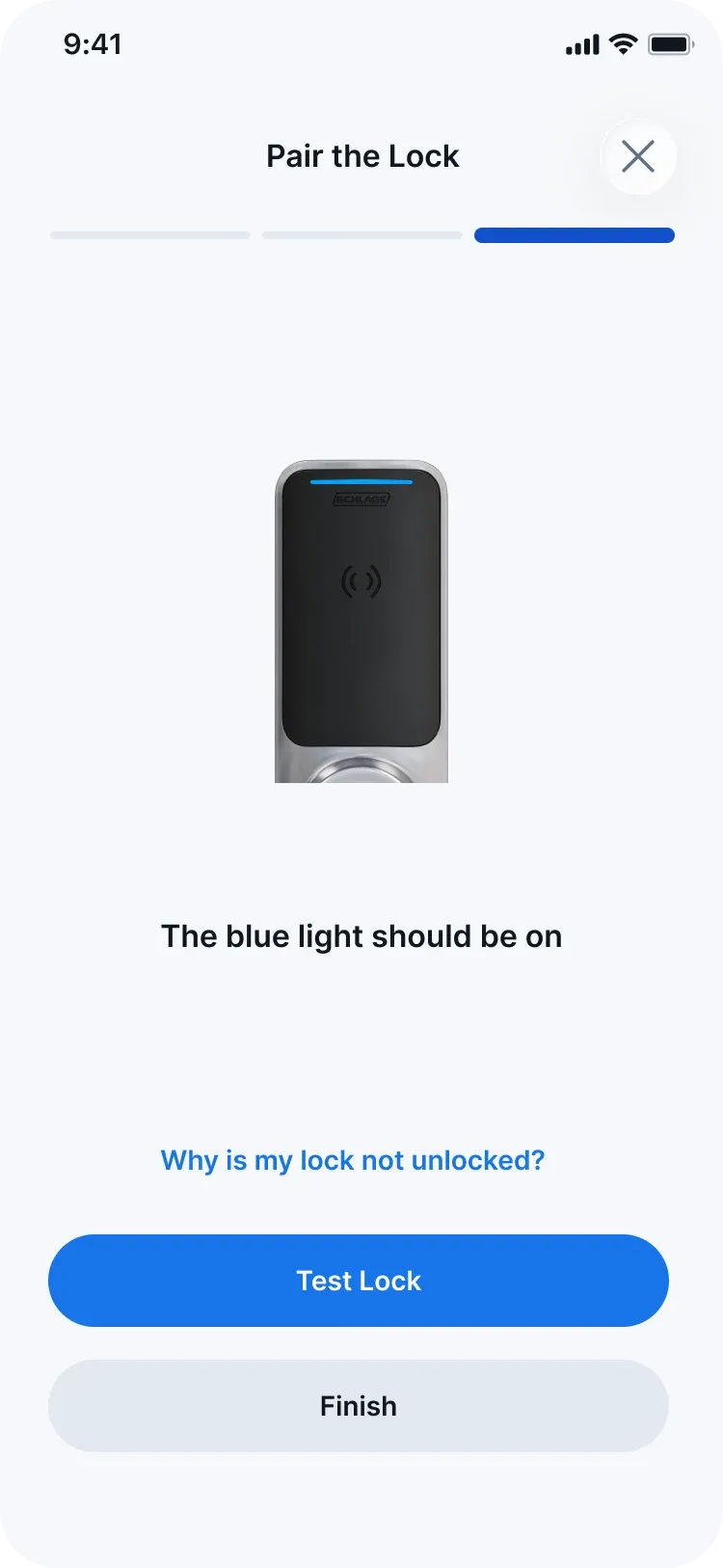
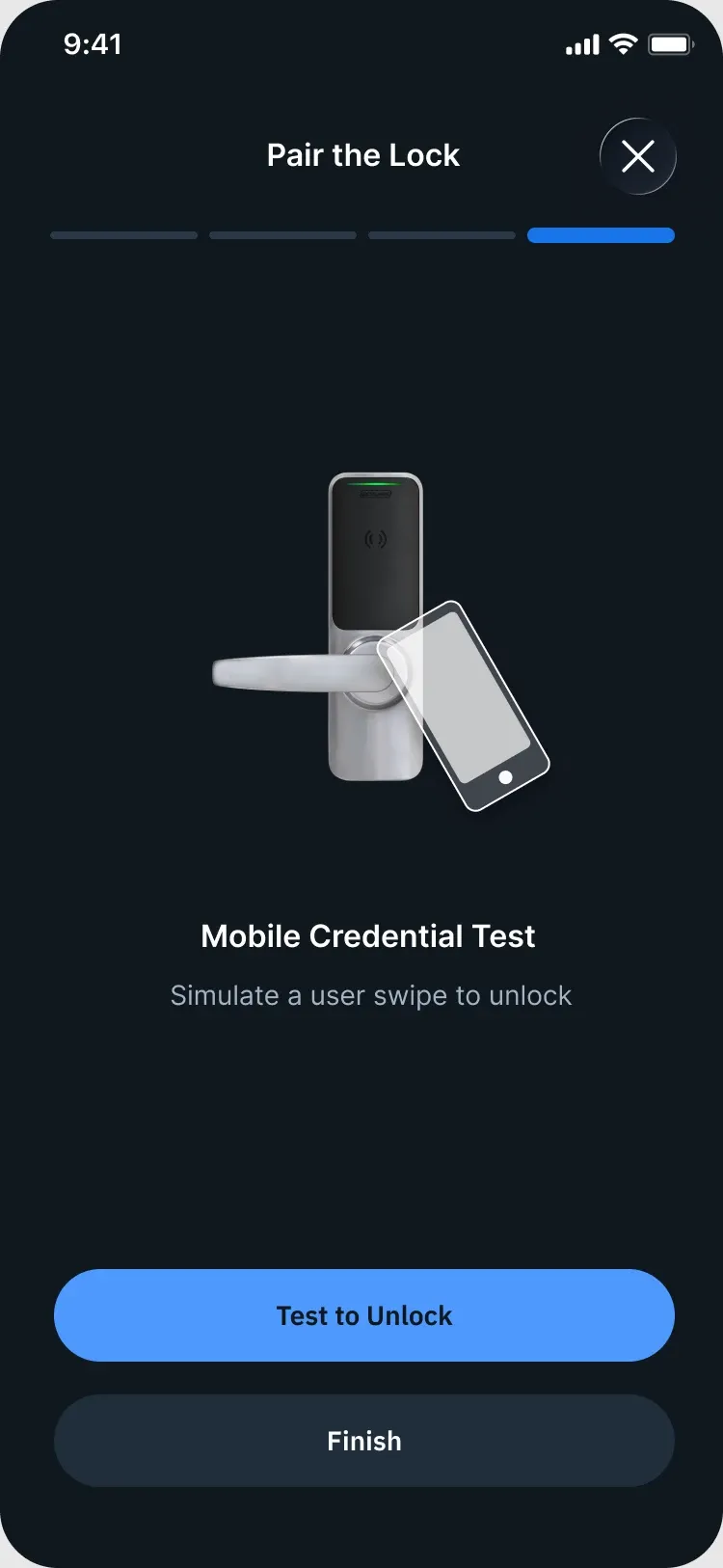
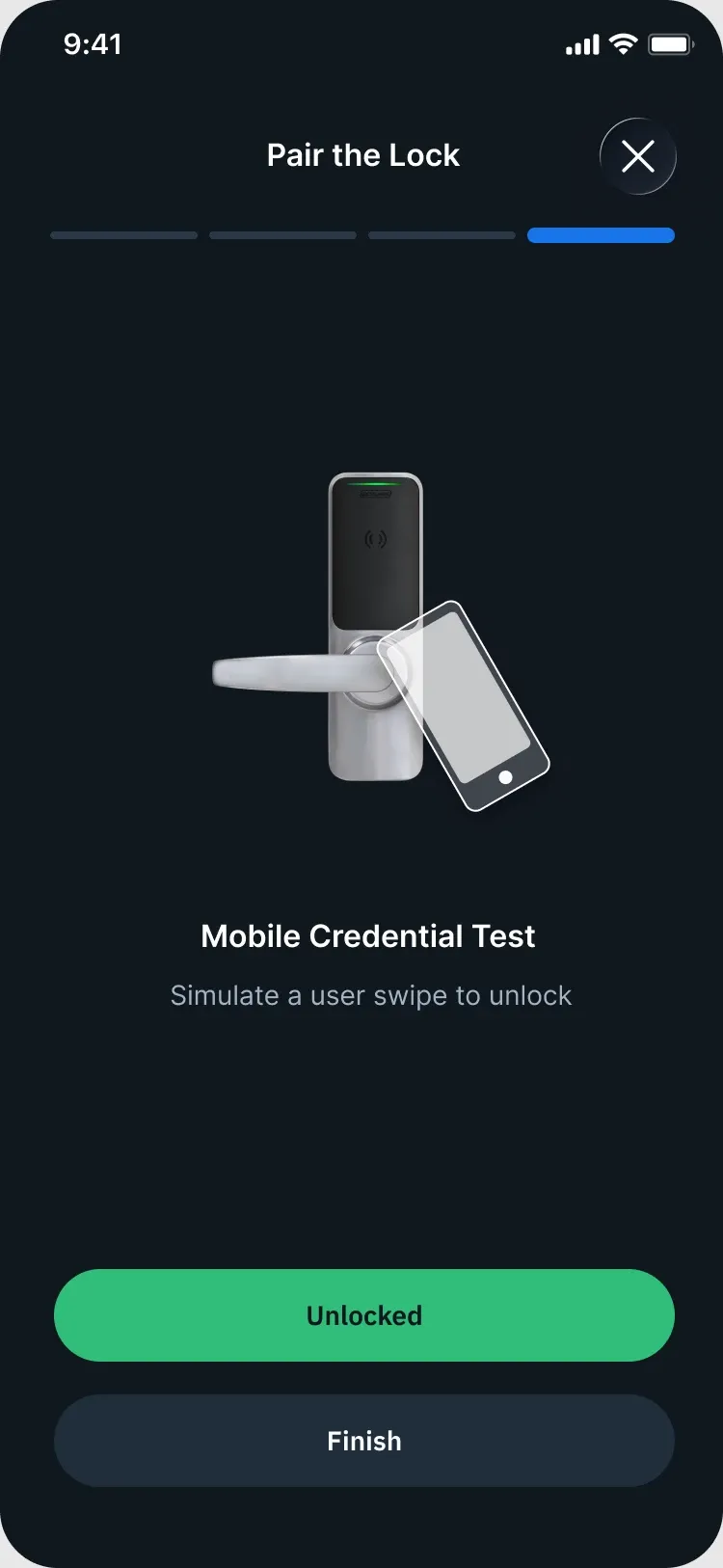
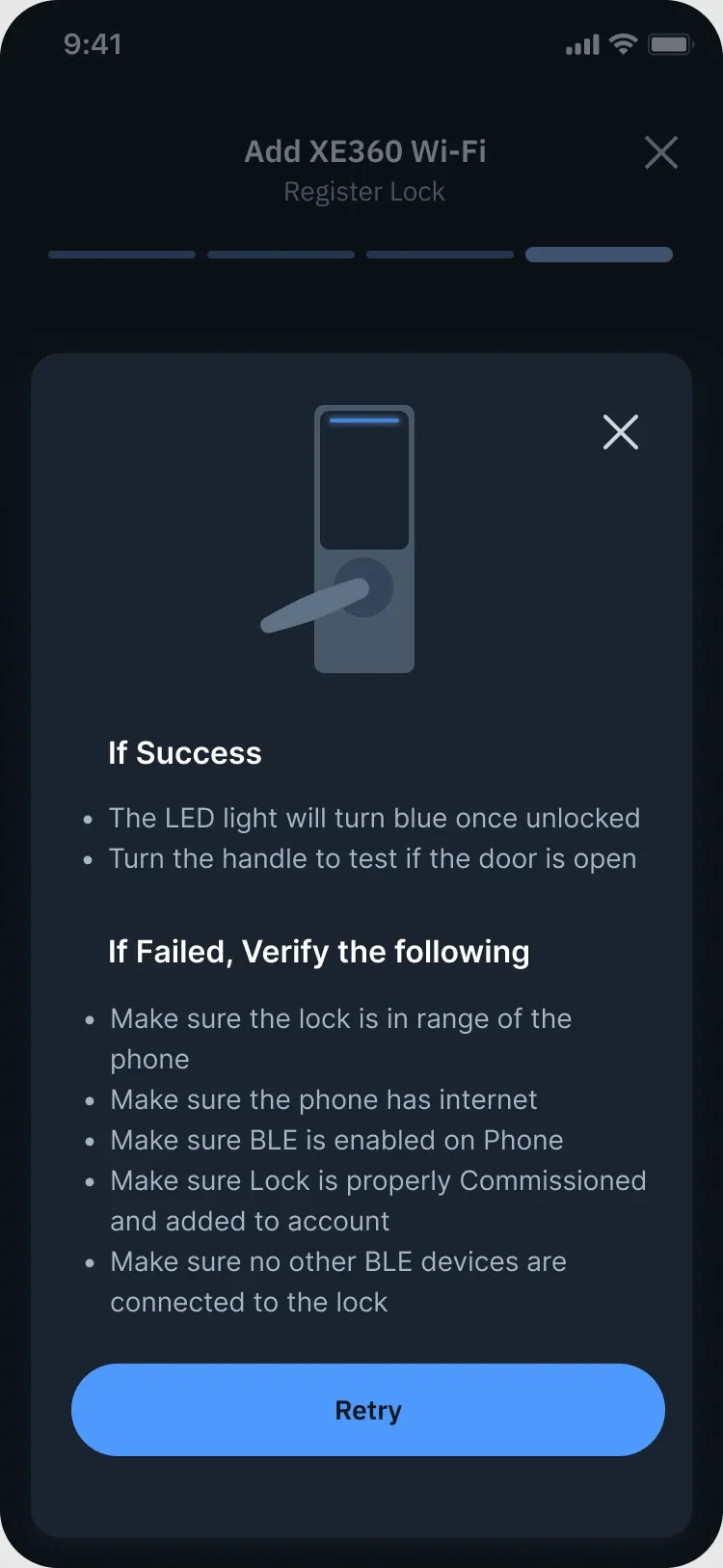
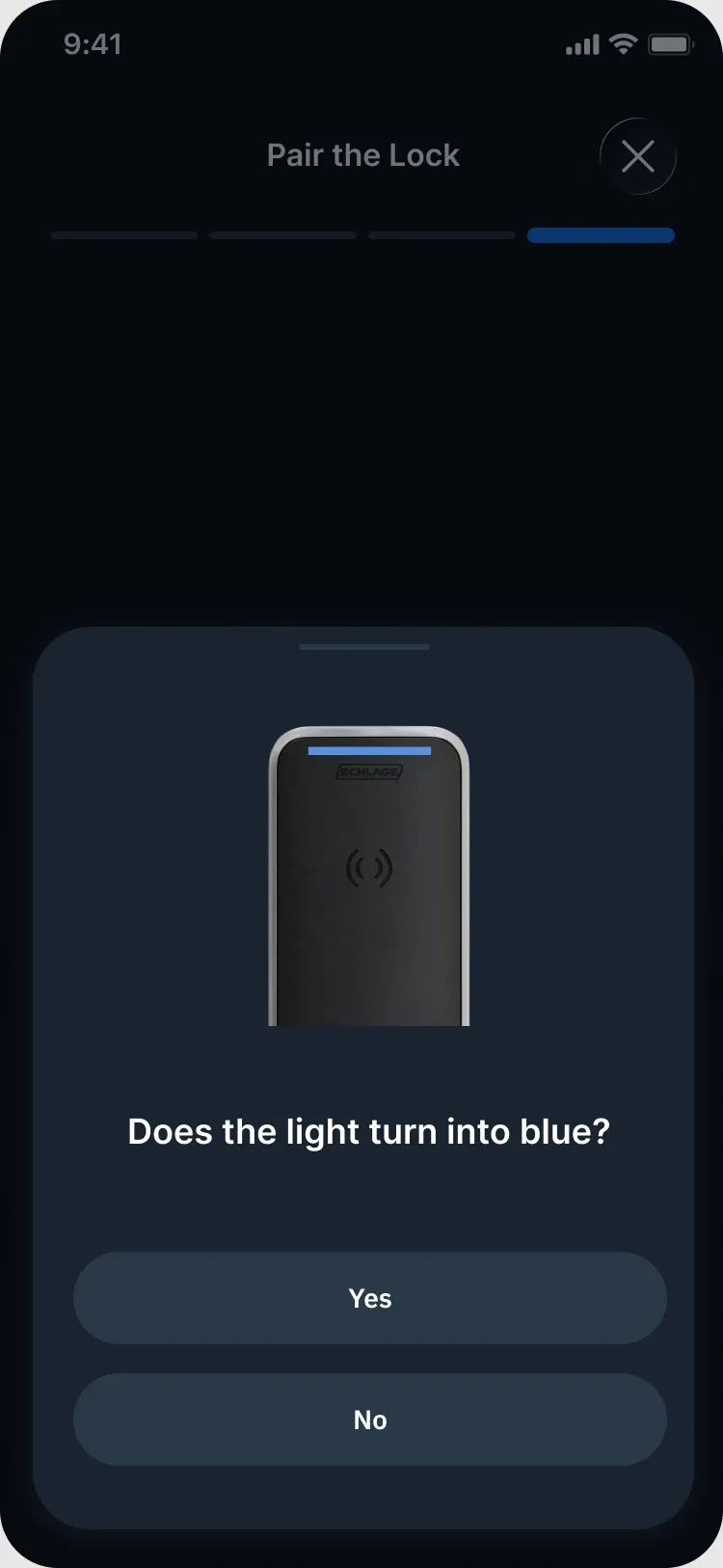
I first designed Test Lock to confirm automatically whether the lock had unlocked. But engineering raised a key limitation: the lock couldn’t report its physical door state back to the app.
02 — Adapting to a shifting scope
As the product scope evolved, several concepts, including device profiles, floor plans, and an AI support agent, were deprioritized for the initial release. I worked with PMs to map impact against effort and decide which capabilities were essential to the core installation experience.
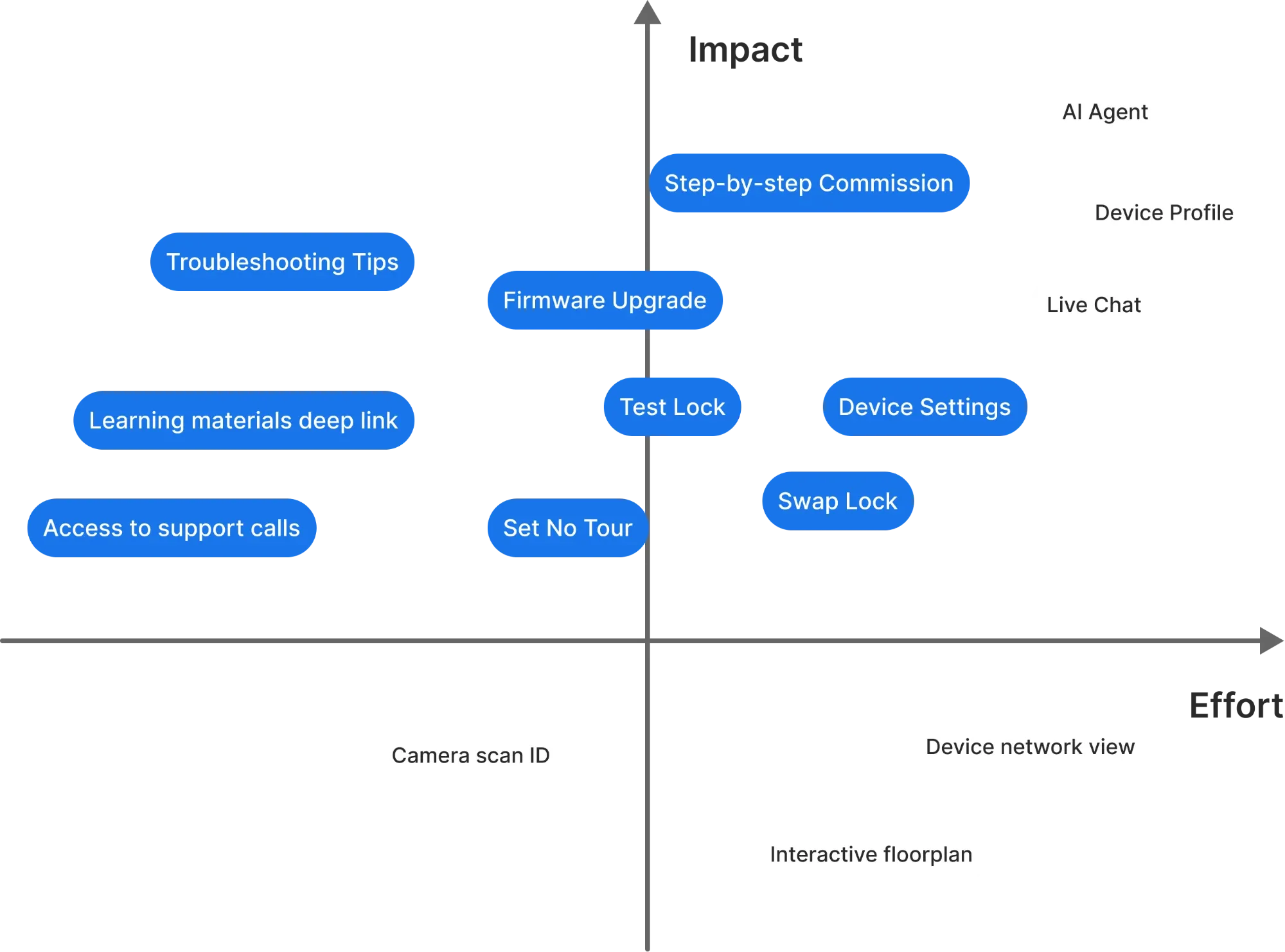
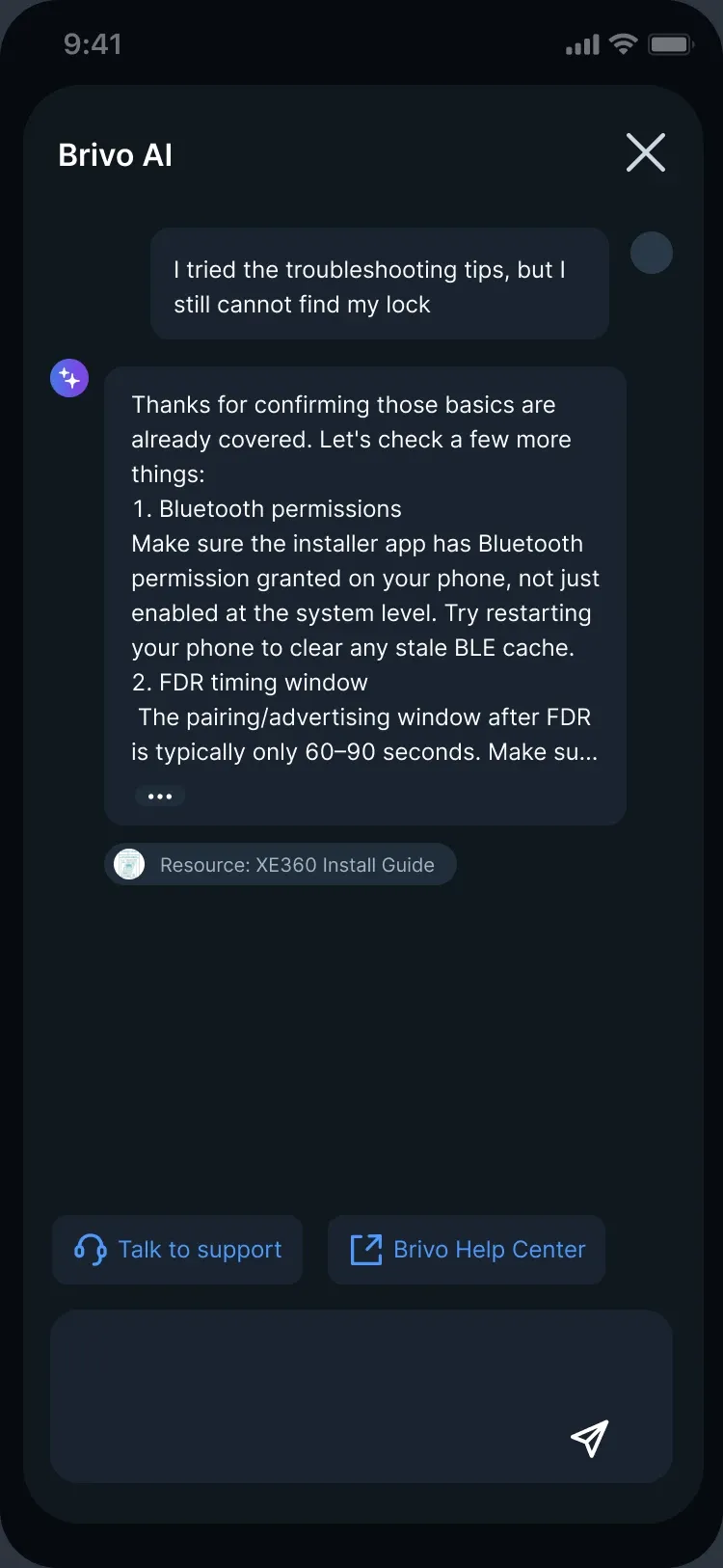
The AI concept was meant to bring installation knowledge, issue diagnosis, and recovery guidance together in one place. Rather than simply drop the feature, I spread those responsibilities across the core experience.
Validating and refining the experience
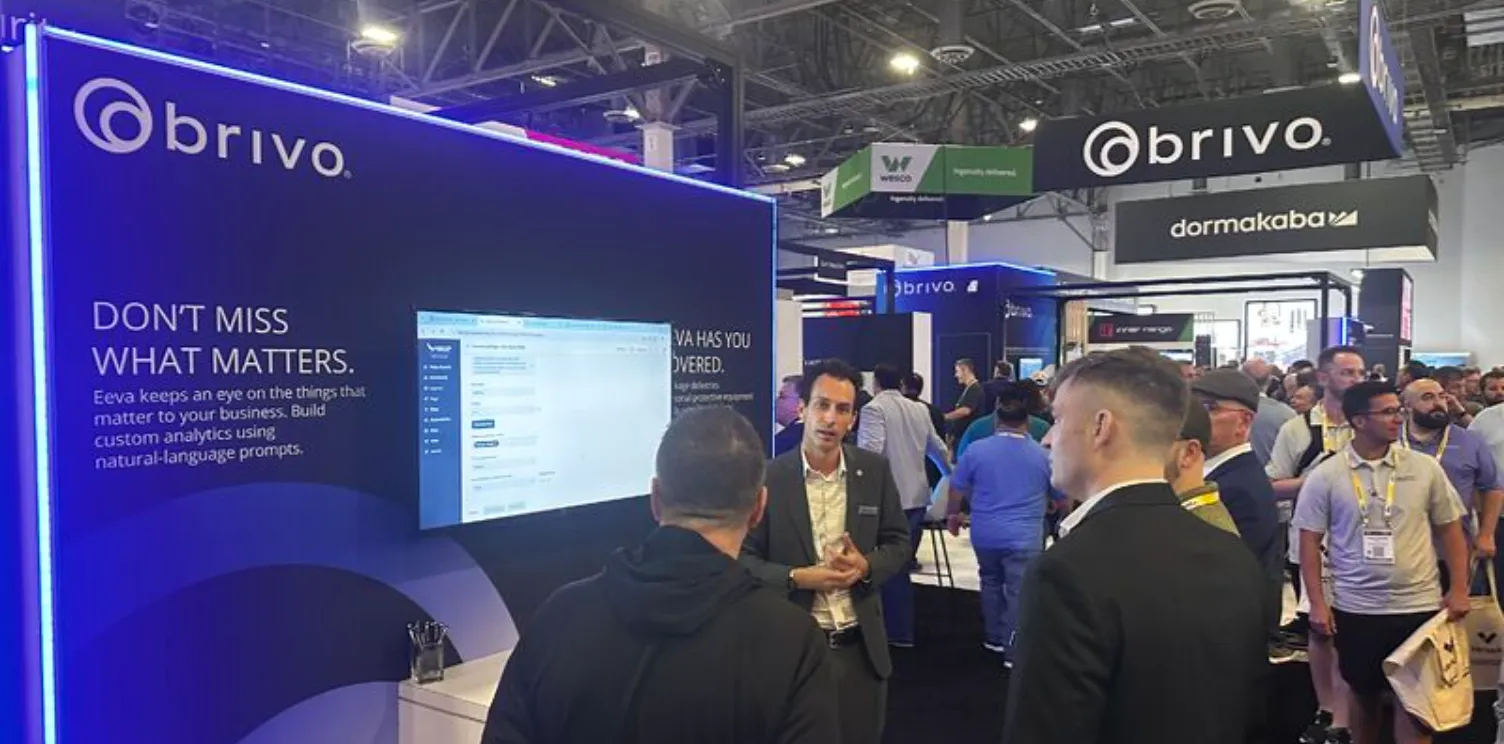
We ran moderated usability testing at ISC West to see whether the redesigned commissioning experience made installation easier, and to gauge customer interest in the unified installation concept.
The redesigned experience tested significantly better
In usability testing, the commissioning flow scored higher for satisfaction and ease of use, and most participants found it easier than similar installation experiences they had used. They appreciated the guidance, and found the step-by-step pairing process especially helpful.
participantsRated it easier than similar installation experience they had used.
But testing also revealed a gap in installers’ mental model
Bulk lock updates scored just 5.33/7 for ease of use. Many participants struggled to find the entry point and complete the task.
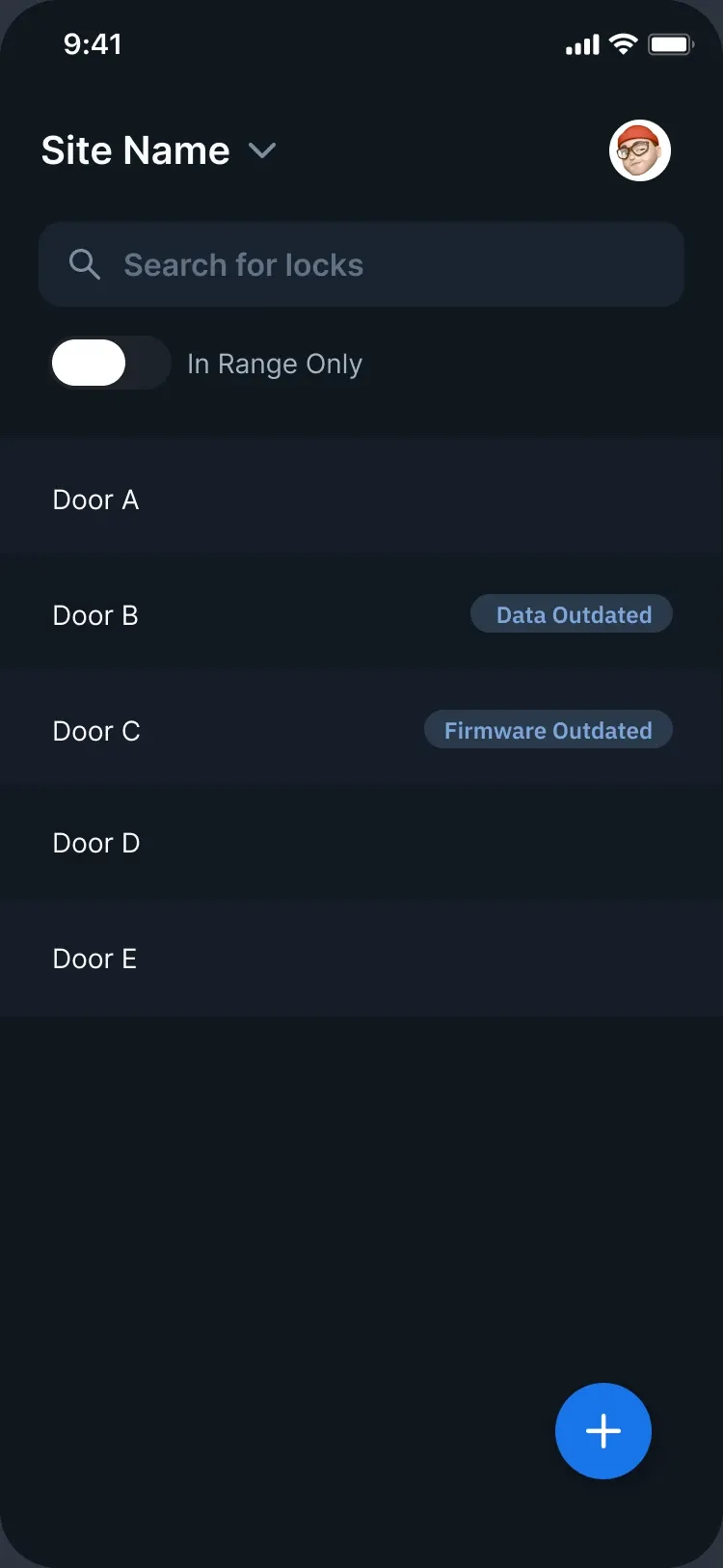
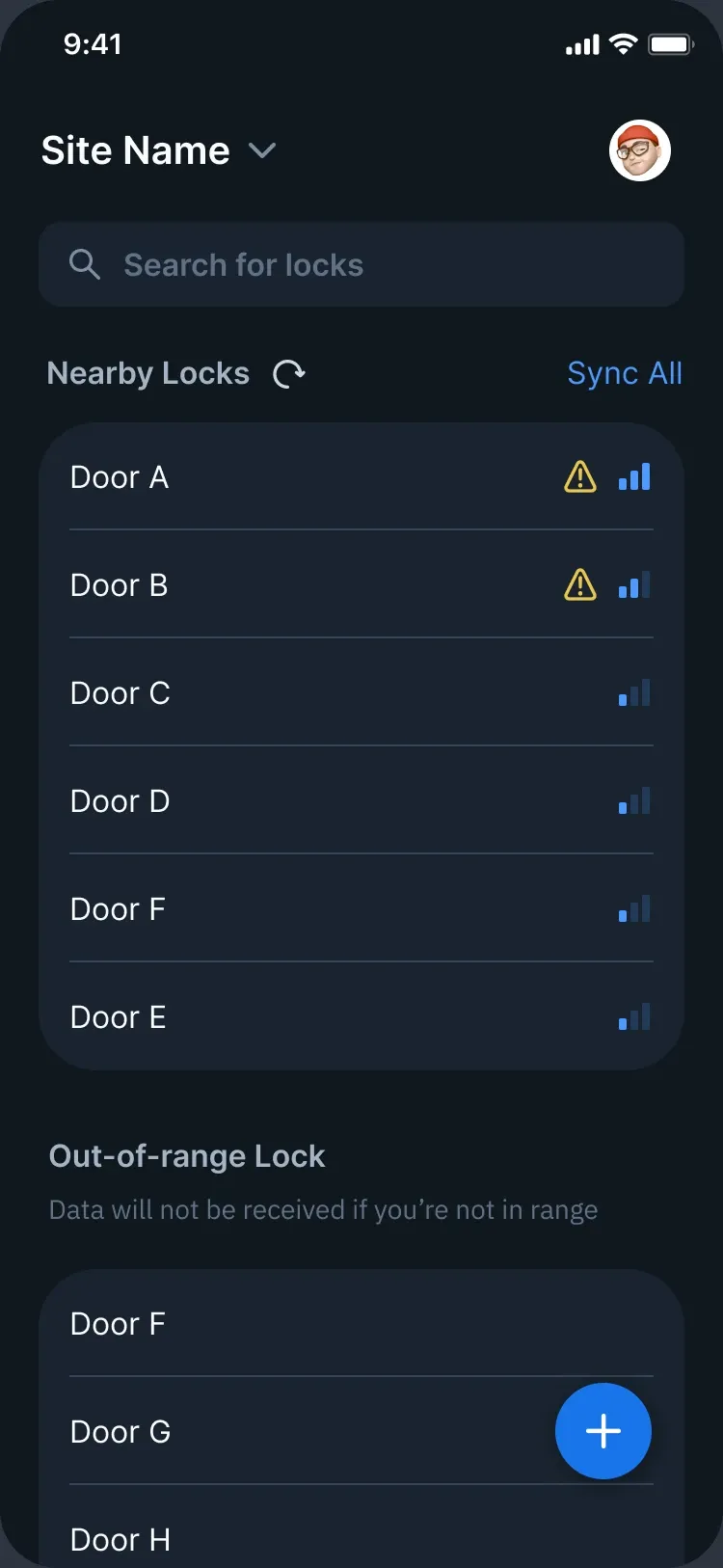
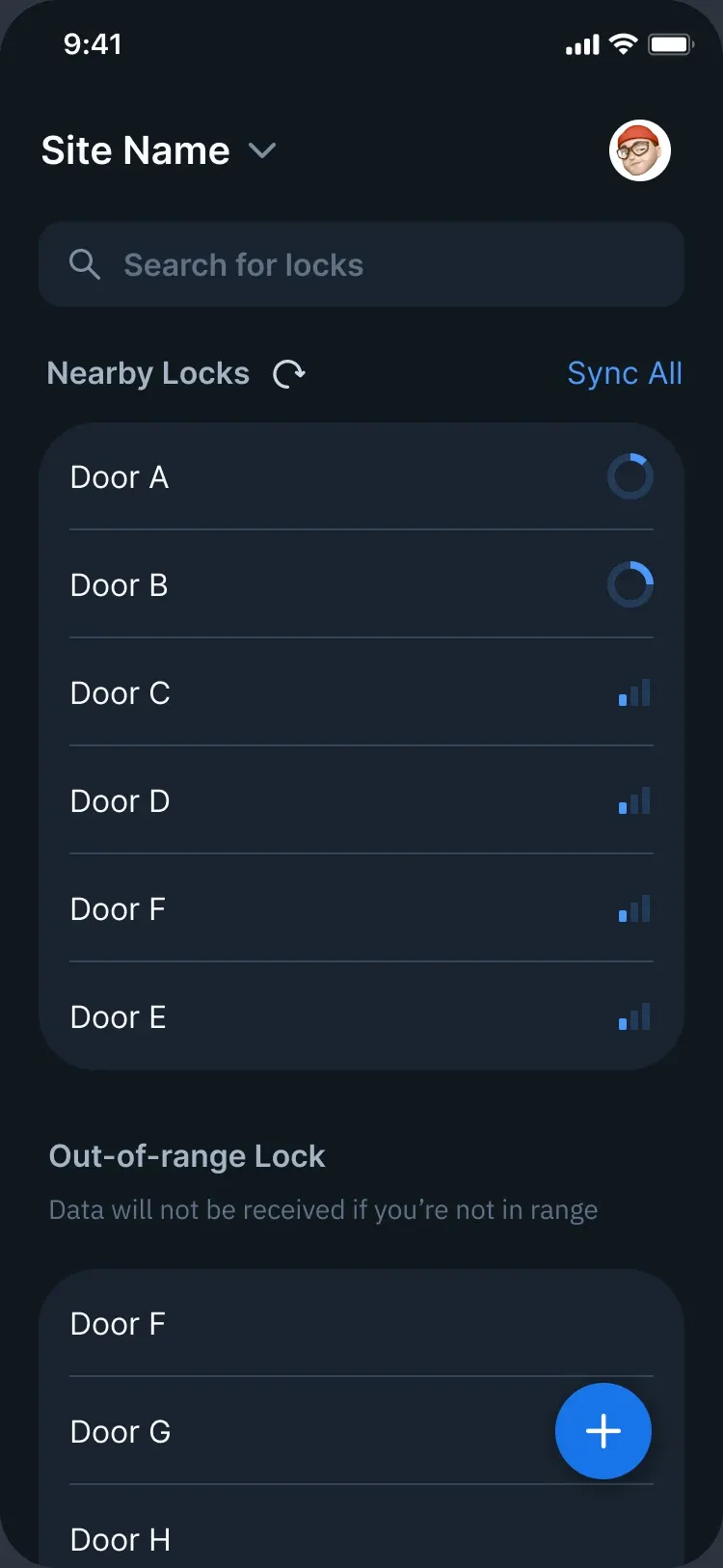
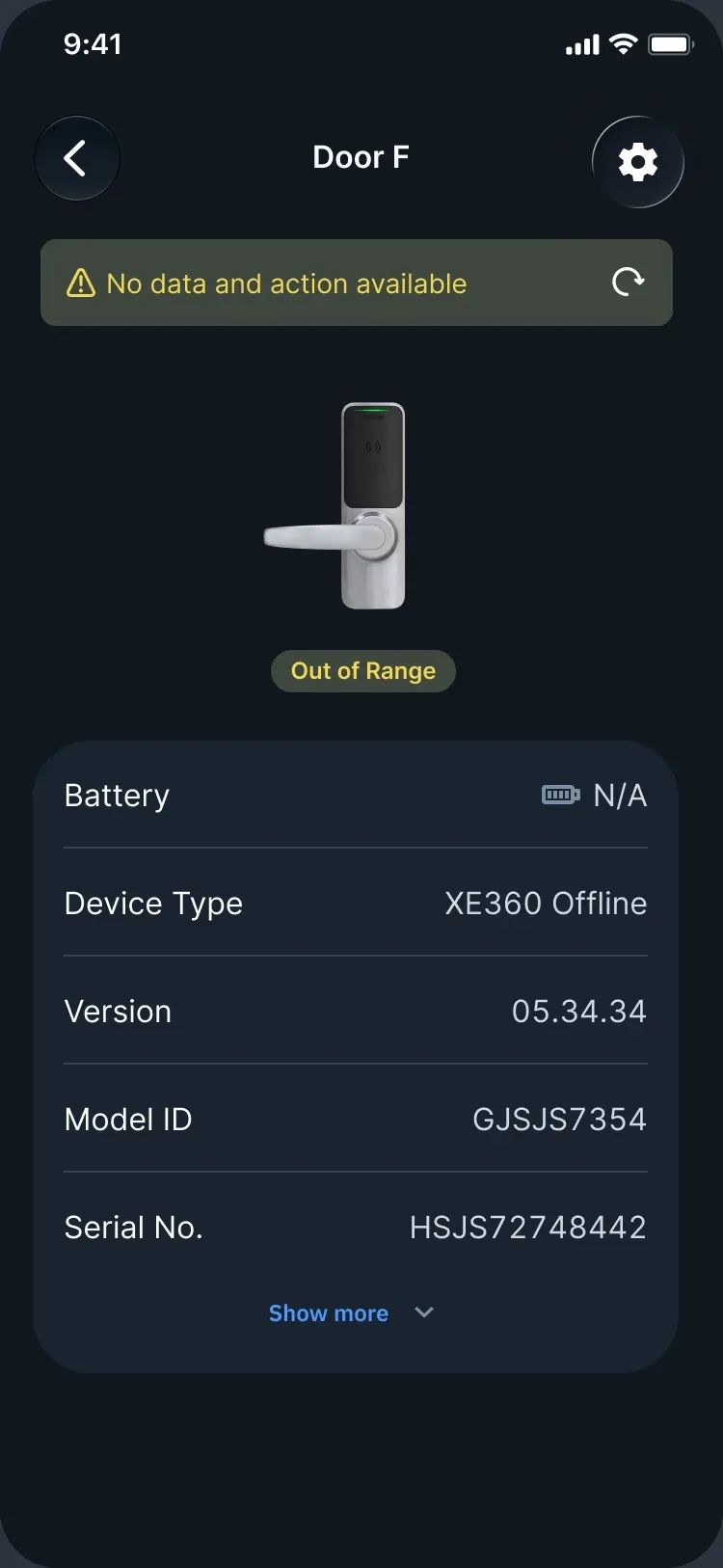
Installers looked for the locks around them, not for a toggle. So I refined the flow around that: nearby locks come first, Sync All sits right at the top of the list, and a lock that’s out of range now says why it can’t be updated.